
Objective
The "approve asset(s)" feature is a project management tool designed to enable project managers and actors to review and approve digital assets used in a project. The feature facilitates the approval process by offering a clear and easy-to-use workflow that ensures all relevant stakeholders have reviewed and approved the asset before it is used in a project. This feature not only ensures quality control but also minimizes the risk of error and miscommunication. With the "approve asset(s)" feature, project teams can be assured that only approved, high-quality digital assets are used in their projects.
There can be multiple assets presented in the same task.
An approval or a rejection in this case is for the complete set of assets, rather than for an individual asset in this group.
For individual asset approval, an approval task needs to be started for every asset to be approved.
Task
The options presented to the actor in the task modal are "Approve" or "Reject".
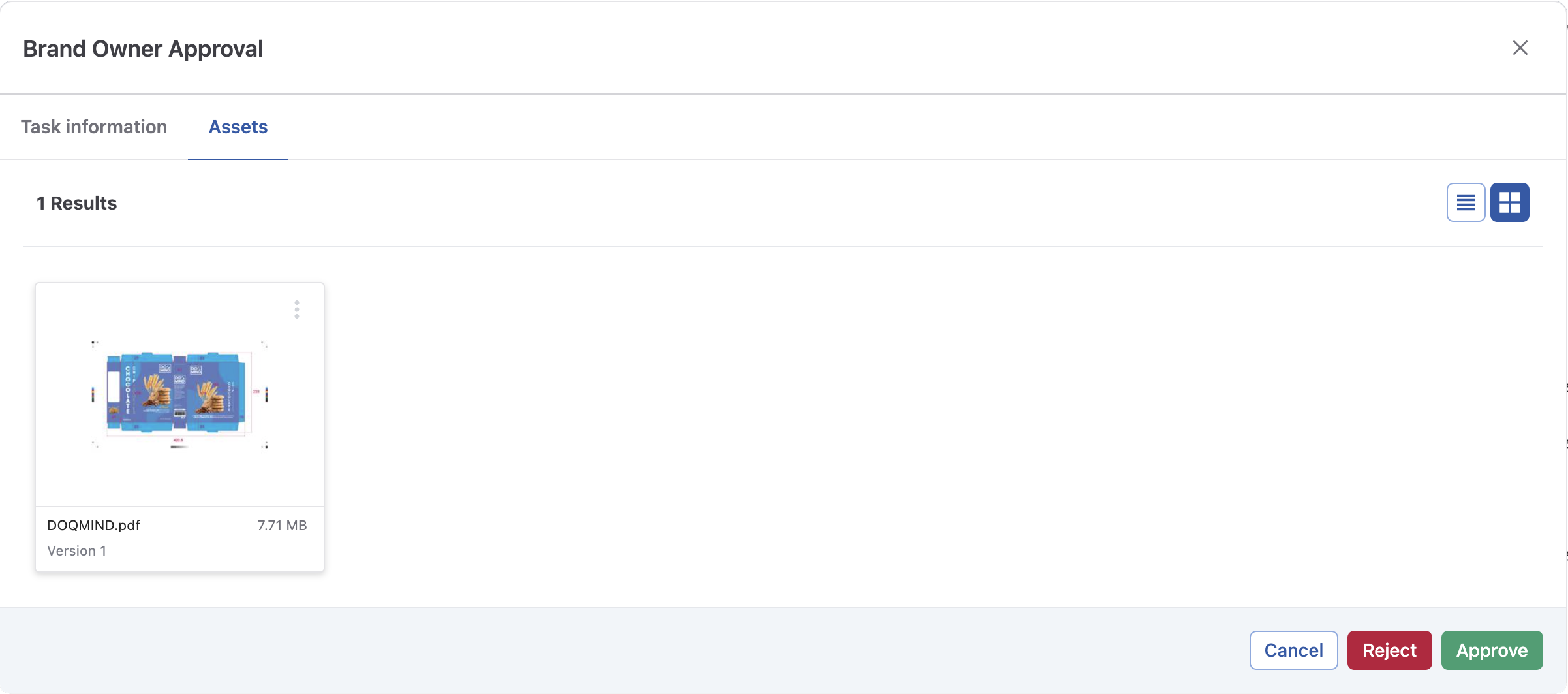
As soon as an actor approves or rejects, the task will be finished. In case the outcome of the task was "Rejection", a recycle will be generated.
Parameters
Source
Where does the file that needs to be approved come from?
Task
Every task that is connected and upstream to the current task is eligible.
If the chosen upstream task produces an assets, it will be presented to the actor.
File
Select file, single or multiple, from the assets module to be approved
Folder name
Select a folder, from the assets module. The contents of said folder will be presented to the actor to be approved
Project folder
Variable indicating the project folder with its pre-made folder structure.
Approval decision mode
If there are multiple actors assigned to an approval task, This parameter determines the continuation of the task.
Continue if everyone has approved or if the first person has rejected
This approval method strives for unanimous approval.
We wait until everyone has given approval, but the moment one person rejects, the approval cycle becomes obsolete and all outstanding approval tasks are deleted.
In this instance, the approval task finishes in 2 scenarios:
-
If all of the actors that need to give approval have approved
-
If one of the actors rejects.
Continue if everyone approves or continue if everyone is ready approving and at least one person had rejected
This approval method is looking for approval from all of the actors, no matter their answer.
Whether an individual approves or rejects, the task remains active until all of the actors have given an approval.
This method still strives for unanimous approval: as soon as there is one rejection, a re-cycle will be created.
Continue as soon as the first person approves or rejects
Approval from only one actor is needed.
Whether or not the answer is approve or reject, is irrelevant for the continuation of this task.
The following parameters are in context to a potential re-cycle in case of a rejection. If the approval task you're configuring is the first task in the stream, i.e. there are no tasks upstream, then these parameters are not available in the task configuration wizard.
The task below will be restarted on rejection
This option is only available if you have upstream tasks connected to this task.
It allows for an approval to automatically be restarted when there is a rejection. The question asked here is how far this re-cycle has to go upstream.
The options listed are all of the upstream tasks.
Which tasks need to be restarted?
Out of the selected upstream tasks from the previous parameter, which ones do you want to start?
-
Rerun only the original task
Only the first task in the list generated will be reran. -
Rerun all tasks
The entire chain of selected upstream tasks will be reran. -
Rerun all tasks except approval tasks
The entire chain of selected upstream tasks will be reran, except for the approval tasks in this list.
The following parameter is in context to a potential re-cycle generated by another task down-stream. It does not apply to the re-cycle being generated by the current task.
Should this tasks get added to a rerun if it was previously approved?
If this task ever becomes a part of a re-cycle triggered by another task downstream, choose if this task can be included or not.
This parameter does not have priority over other conflicting parameters.
Checklists and Reference Files
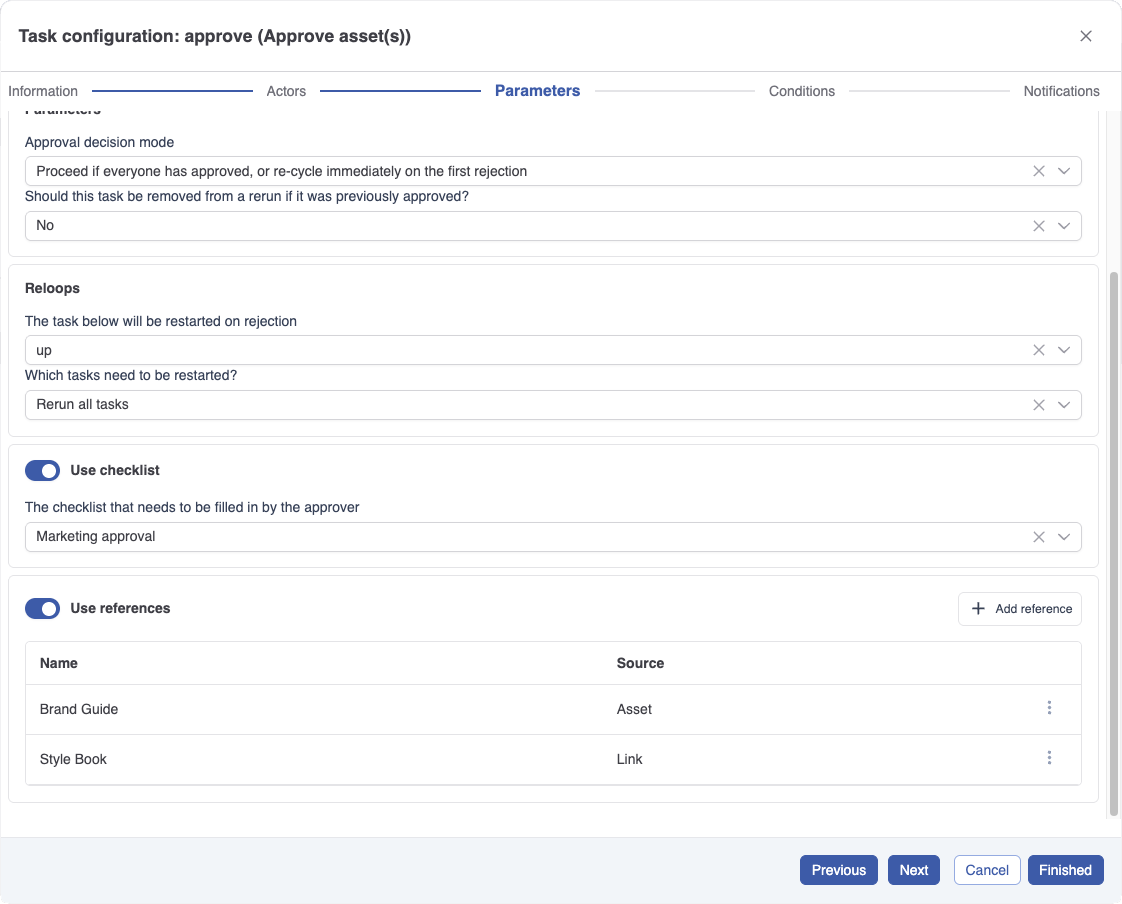
Use checklist
This section assumes you have built a checklist template and activated a version. If not, please read Checklists and Create a checklist template first.
Open the approval task where you want to add the checklist and go to the parameters tab. Activate the 'use checklist' section and select the checklist template. Complete the task configuration, and the checklist will be active.
You cannot select a specific version; the system always uses the active version when creating the task.
Use references
This section assumes you understand how reference files behave on an approval task. If not, please read Reference files first.
Open the approval task where you want to add references and go to the parameters tab. Activate the 'use references' section and click Add reference to add references one at a time. There is no upper limit. Each reference is either a link or an asset.
For a link, provide a name (required), an optional description, and a URL. The URL can be typed directly, or pulled from a project form field via a smartname, in that case the source form field must be configured as a URL field. See Create a new form for details on the URL field toggle. Make sure to begin any link with “https://” to enter a valid link.
For an asset, choose where the asset comes from. The four sources match the source options on the approval task itself: Task, File, Folder, or Project folder.
When the source is a Task that is an upload task, you can pick a specific placeholder, the optional files, or all assets. Picking a specific placeholder takes the placeholder's name and description for the reference, which you can override. For other task types, the only choice is all assets.
When the source is a Folder or Project folder, all assets in the folder are added as references and share the same name and description.
Reference files are behind a feature flag. If the Use references toggle does not appear on your approval tasks, contact DOQMIND to enable the feature for your environment.