
When opening the viewer from a task that has a checklist, as a reviewer you will be able to fill in a checklist.
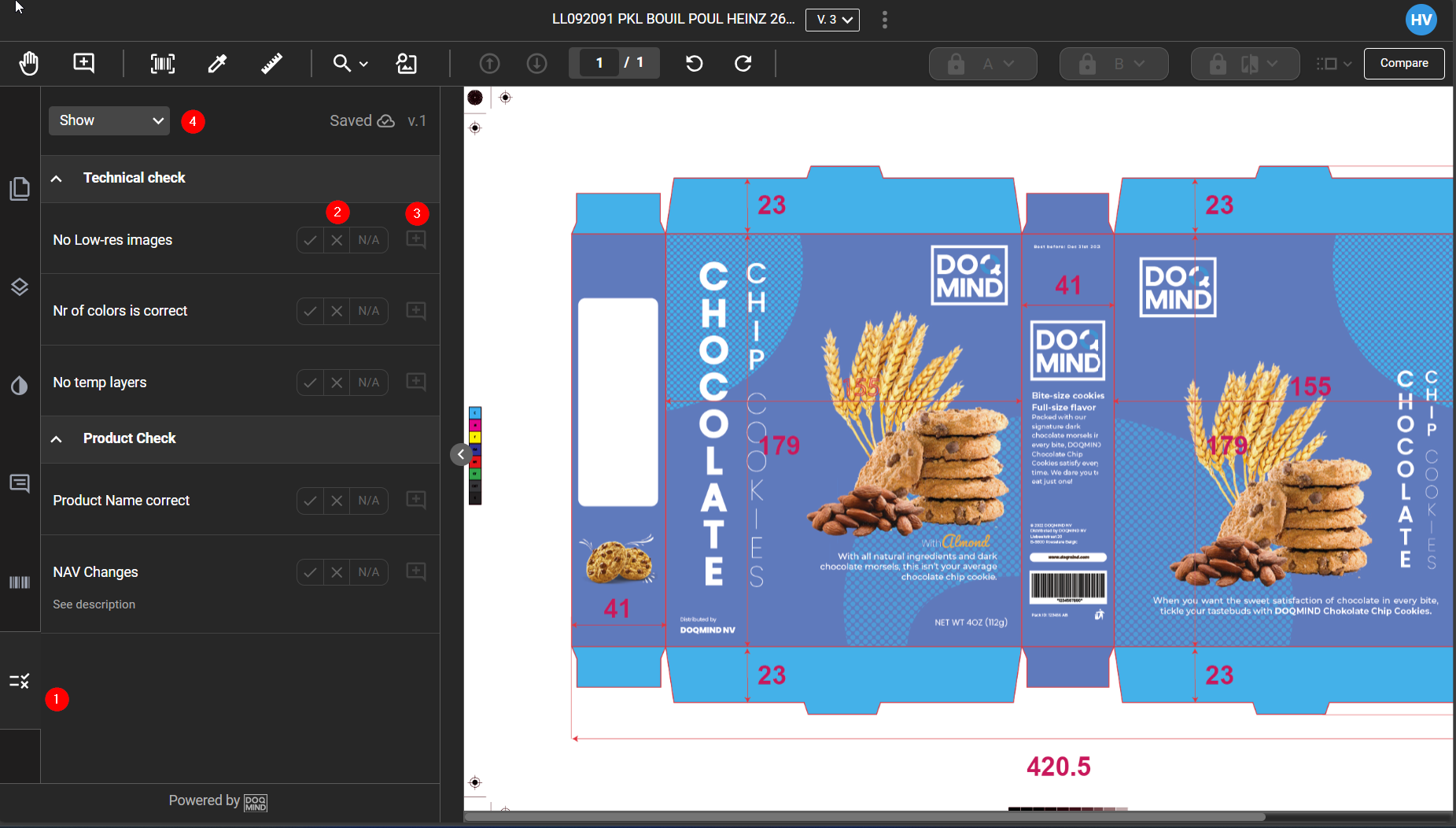
Open checklists from the side panel's checklist section (1)
For each checklist item, mark whether the check is OK, NOK, or not applicable (2)
Create an annotation on the asset linked to a check by clicking (3)
Filter checks to view all unanswered or rejected checklist items.
Changes save immediately. You can return to the checklist to complete or modify it until the approval task finishes. Afterward, the checklist is read-only.