
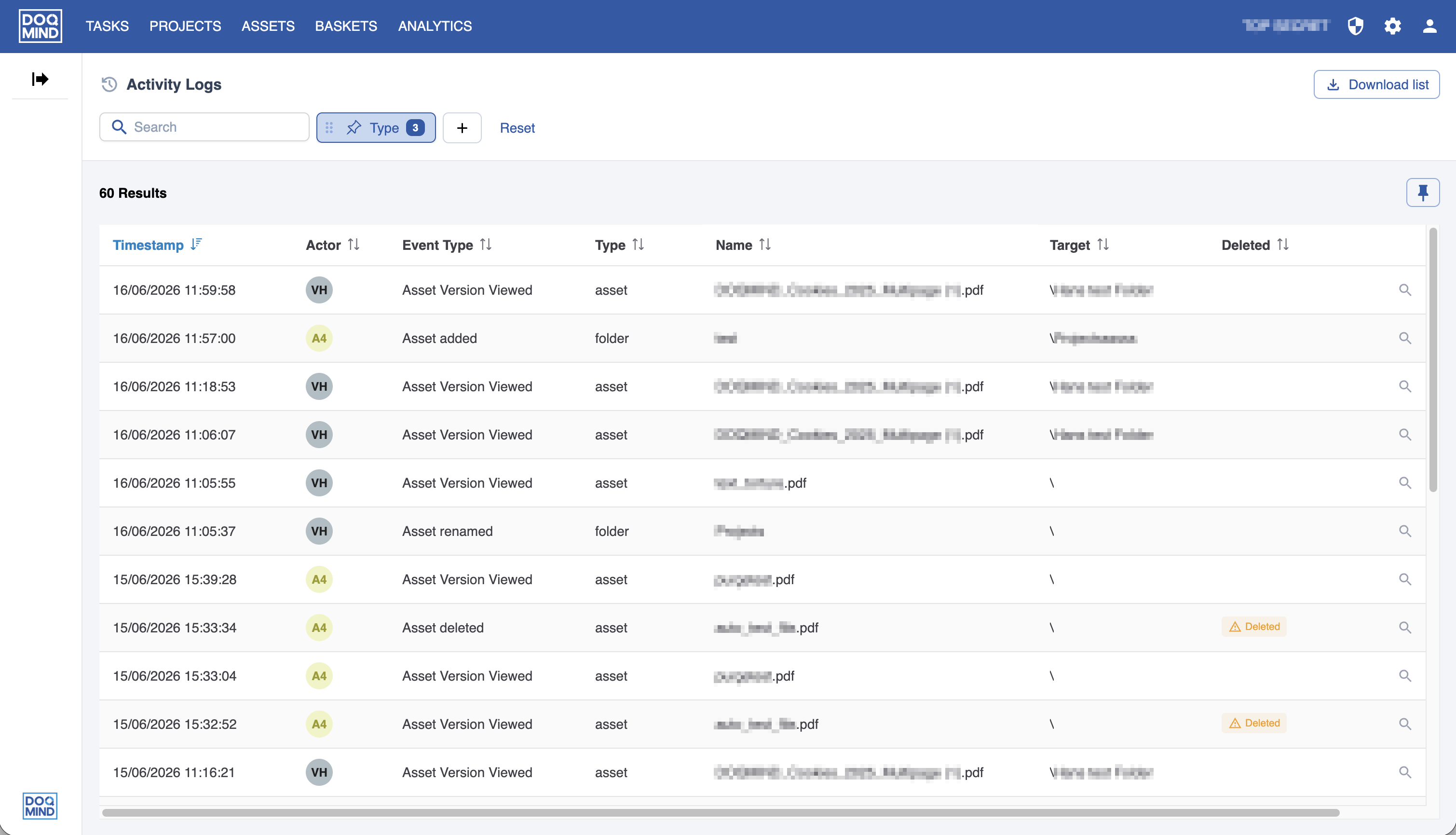
The Activity Logs page records the actions users take on assets, folders and baskets, giving you a searchable history of who did what and when. It is useful for auditing changes, investigating unexpected edits, and reporting on activity over a period.
Access is controlled by the Activity Log general right. Only users who have it can open the page. See General Rights for more information.
Note: Access to the logs is not scoped to a user's folder rights. A user who can open the Activity Logs sees every entry, including activity on assets and folders they cannot otherwise access. Grant the right accordingly.
Opening the Activity Logs
Open the settings menu (the cog-wheel icon, top right) and select Activity Logs.
What is logged
Each user action is captured as its own entry. The log covers three target types, shown in the Type column:
|
Type |
Actions such as |
|---|---|
|
Asset |
Added, version created, version viewed, renamed, metadata edited, moved, downloaded, deleted |
|
Folder |
Created, renamed, moved, deleted |
|
Basket |
Created, sent, order created, link requested |
Approval activity from Assets is captured as two entries: when an approval starts, and when it finishes (approved, rejected or cancelled).
Bulk actions are not grouped. Each affected item produces its own entry, so a bulk action of fifty files appears as fifty entries with near-identical timestamps.
The log table
Entries are sorted by Timestamp, most recent first, and load progressively as you scroll. Every column can be sorted using the arrows in its header, and the result count is shown above the table.
|
Column |
Description |
|---|---|
|
Timestamp |
The date and time of the action. |
|
Actor |
The user who performed the action, shown as their avatar. |
|
Event Type |
The action performed, for example Asset added or Asset Version Viewed. |
|
Type |
Whether the target is an asset, folder or basket. |
|
Name |
The name of the target at the time of the action. |
|
Target |
The path where the action took place. |
|
Object ID |
A stable identifier for the target, letting you follow a single item across all of its entries. |
|
Deleted |
Shows an amber Deleted badge when the target has since been removed. |
You can show or hide columns the same way as in any other list view in DOQMIND. See Working with list view.
The name and path are stored on each entry as they were at the moment of the action, so entries remain complete and readable even after the asset, folder or basket they refer to is deleted.
Select the details icon at the end of a row to open the full record for that entry.
Searching and filtering
Use the Search field to find entries by text. To narrow further, select + to add a filter; each one appears as a chip you can adjust, reorder or remove individually, and Reset clears them all at once.
Available filters: actor, type (asset, folder, basket), event type, a specific asset or folder, time range, object ID, and deleted. Filters combine, so you can, for example, show only deletions by one user within a date range.
[Screenshot: the filter bar with a filter active]
Saved searches
Once you have a set of filters you want to reuse, select Save current search in the left panel. Saved searches are listed there for quick reuse, and the pencil icon lets you manage them.
Exporting the logs
Select Download list to export the current view to CSV. The export respects your active filters and columns, so set them first.
Because exports can be large, they are processed in the background. When the file is ready you receive a download link by email. The file is named with the export date, for example activity-log-2026-06-17.csv.
Note: Exports are limited to 100,000 records. If your filters return more than that, narrow the time range or add filters before exporting.
Retention
Activity log entries are kept for up to five years, after which they are removed automatically. Retention runs as a scheduled background process and cannot be changed from within the application.