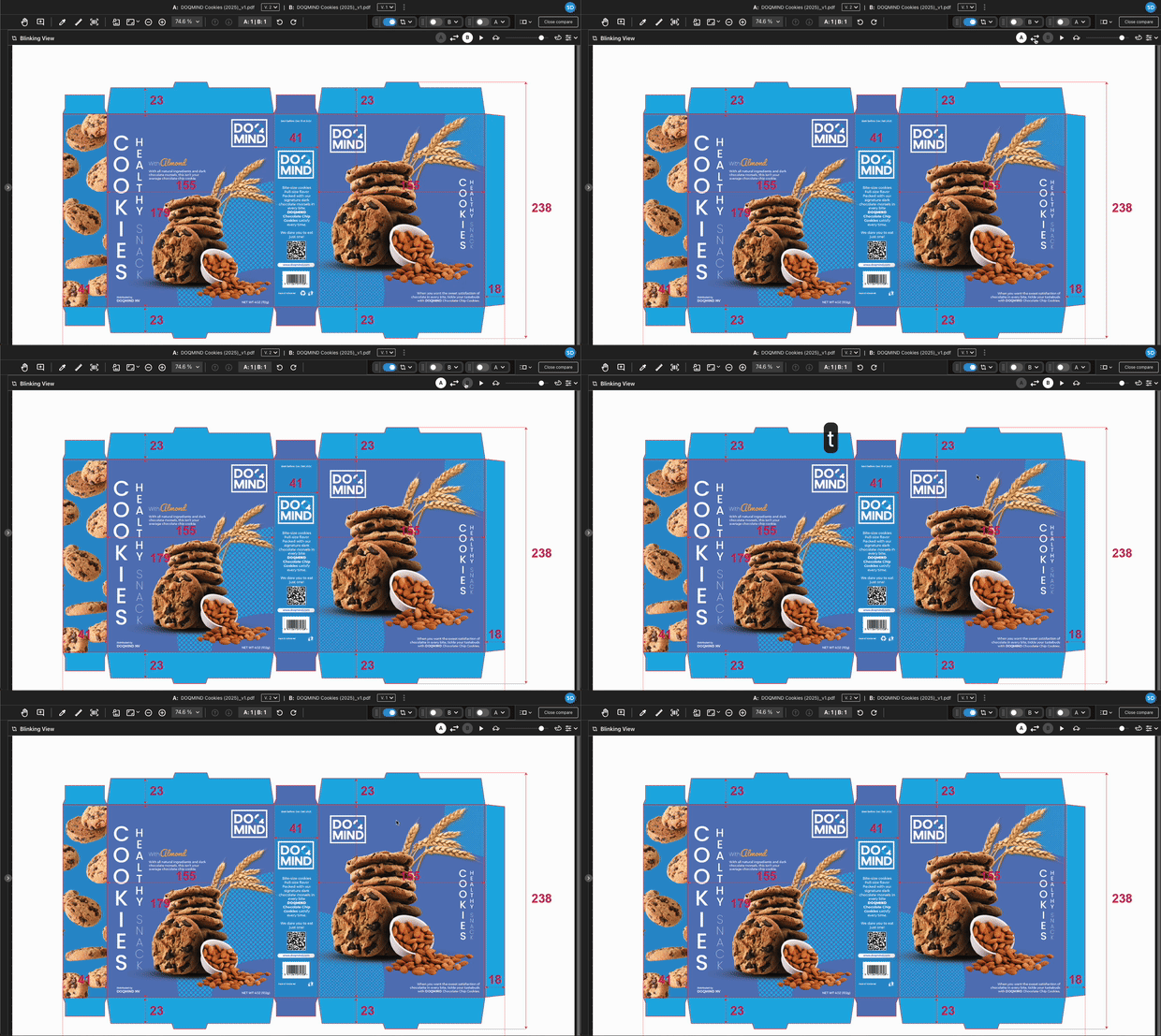
The viewer offers modes to compare assets, enabling you to identify differences in versions and assets based on your needs and preferences. The available modes are:
A/B
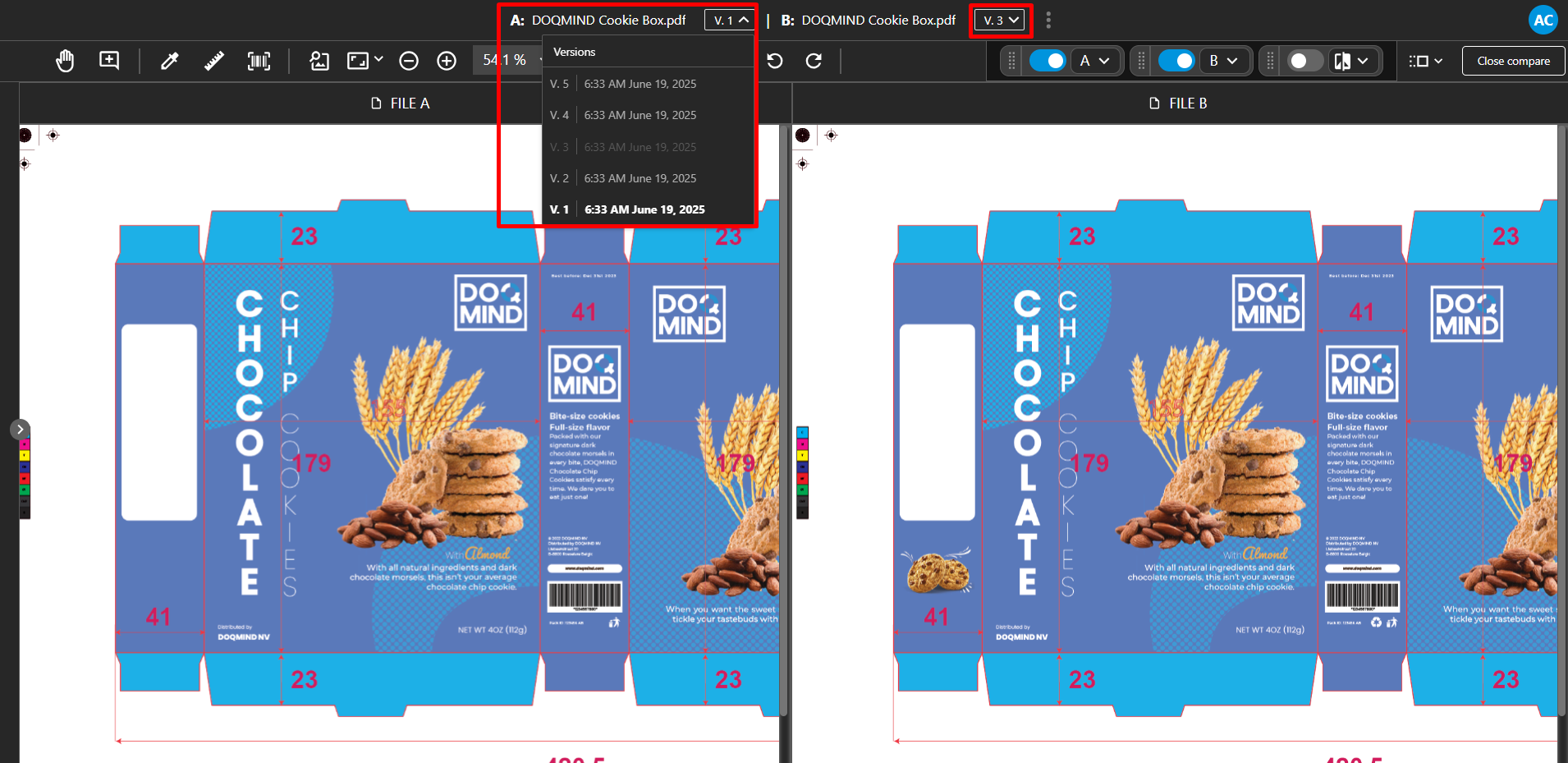
The A and B canvases represent two assets or versions we compare. The topbar above the toolbar shows which version or asset is assigned to canvases A and B. You can change the version here. The dropdown displays the version number and its creation date.
Delta
Delta visually identifies differences between A and B based on pixels. It displays common parts in grey and differences in red, facilitating easy visual comparison.
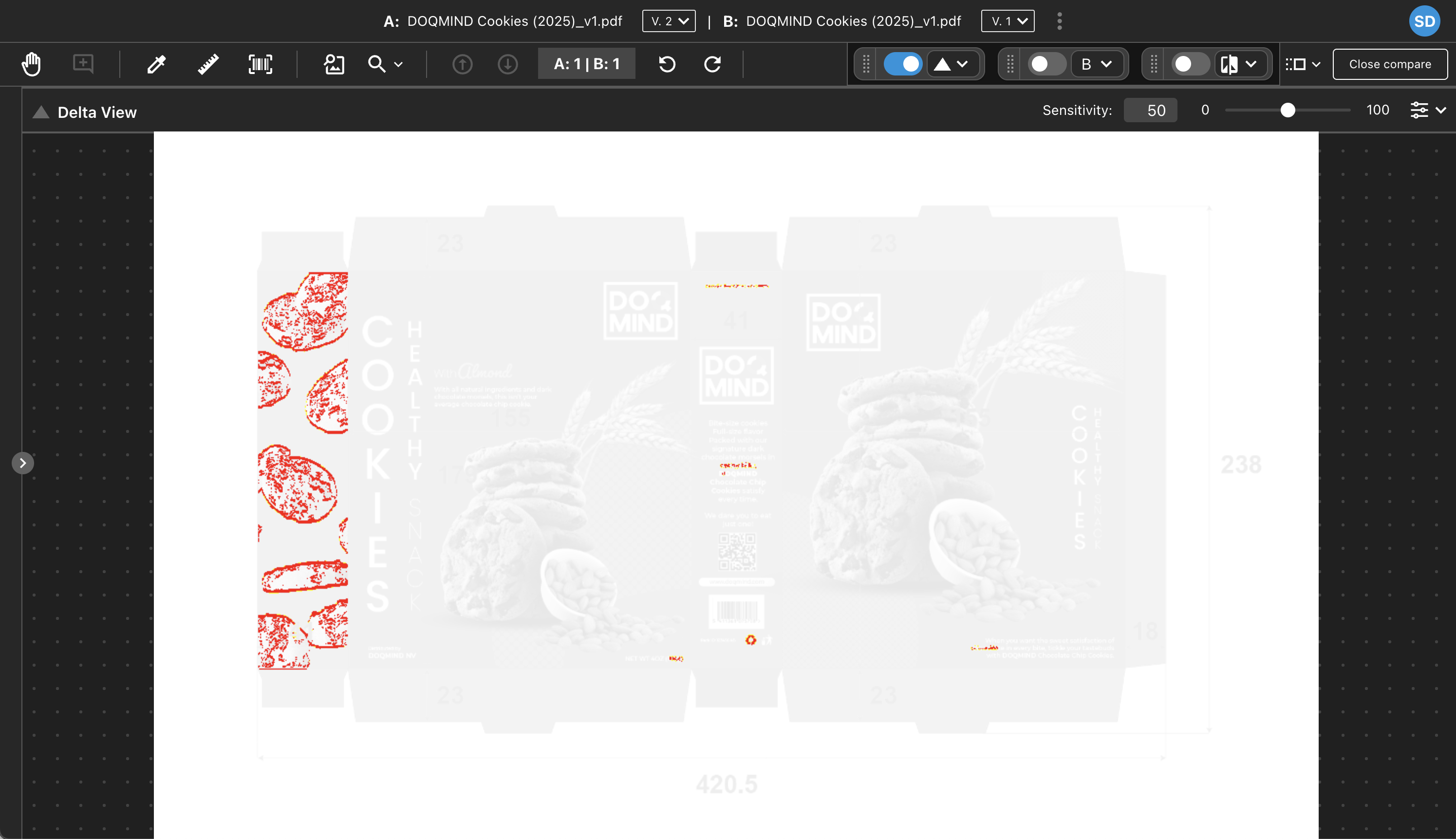
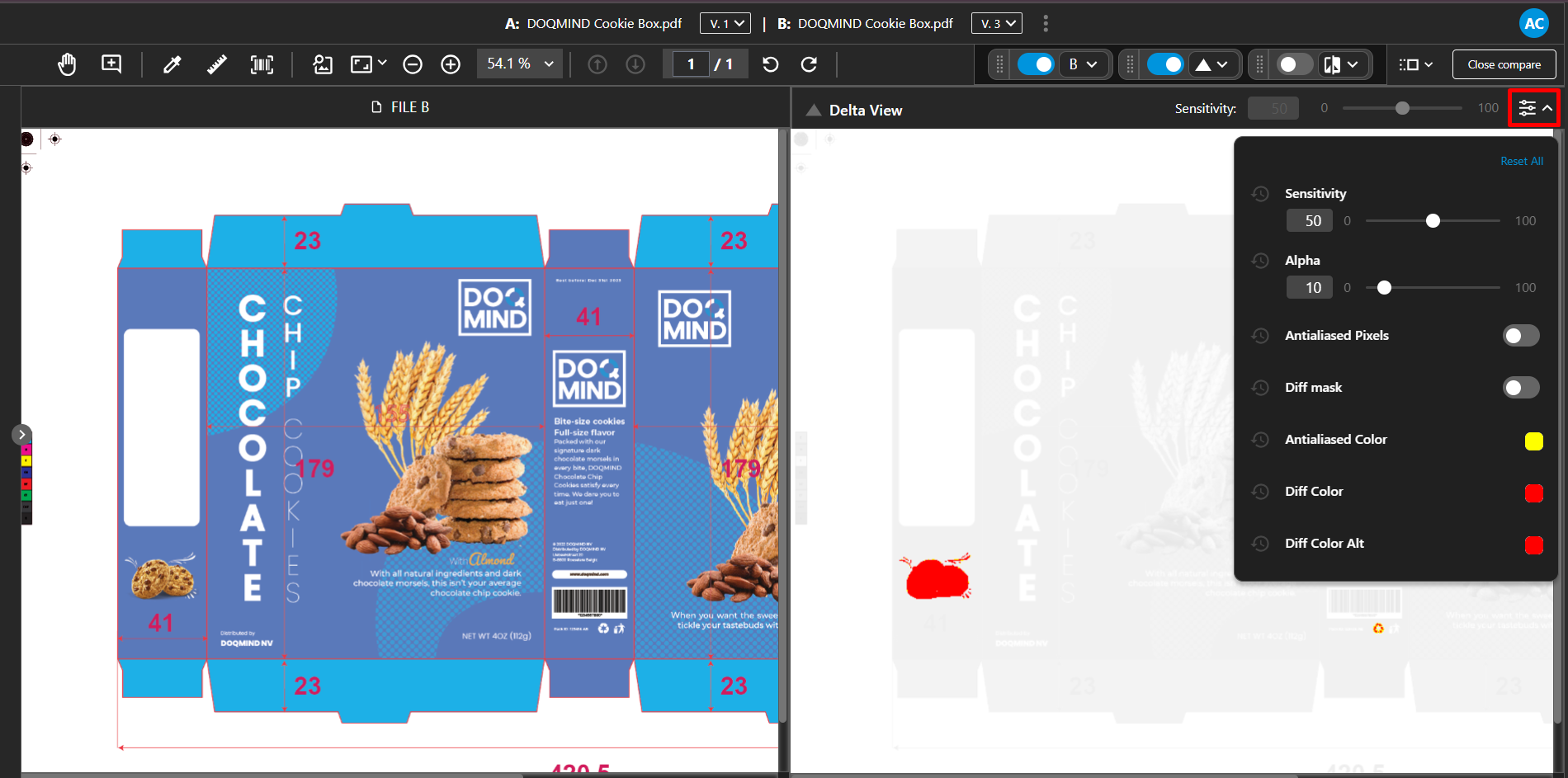
Delta view includes settings to tailor the display to your preferences. The primary setting adjusts the sensitivity for detecting differences. Additional options are available in the delta settings menu.
-
Sensitivity: What difference threshold triggers red? Zero allows the highest tolerance; 100 the smallest difference. This allows ignoring compression artifacts in images, for example.
-
Alpha: sets the opacity of common objects rendered in greyscale. 0 is fully transparent; 100 is fully opaque.
-
Antialiased Pixels: Toggle off displays pixels belonging to anti-aliasing artefacts in a separate color. Toggle on displays them in the same color as difference pixels.
-
Diff mask: Toggle on to hide the mask of the common pixels.
-
Antialiased Color: Sets the color for the antialiasing pixels.
-
Diff Color: Sets the color for the difference pixels belonging to canvas A
-
Diff Color Alt: Sets the color for the difference pixels belonging to canvas B
Slider
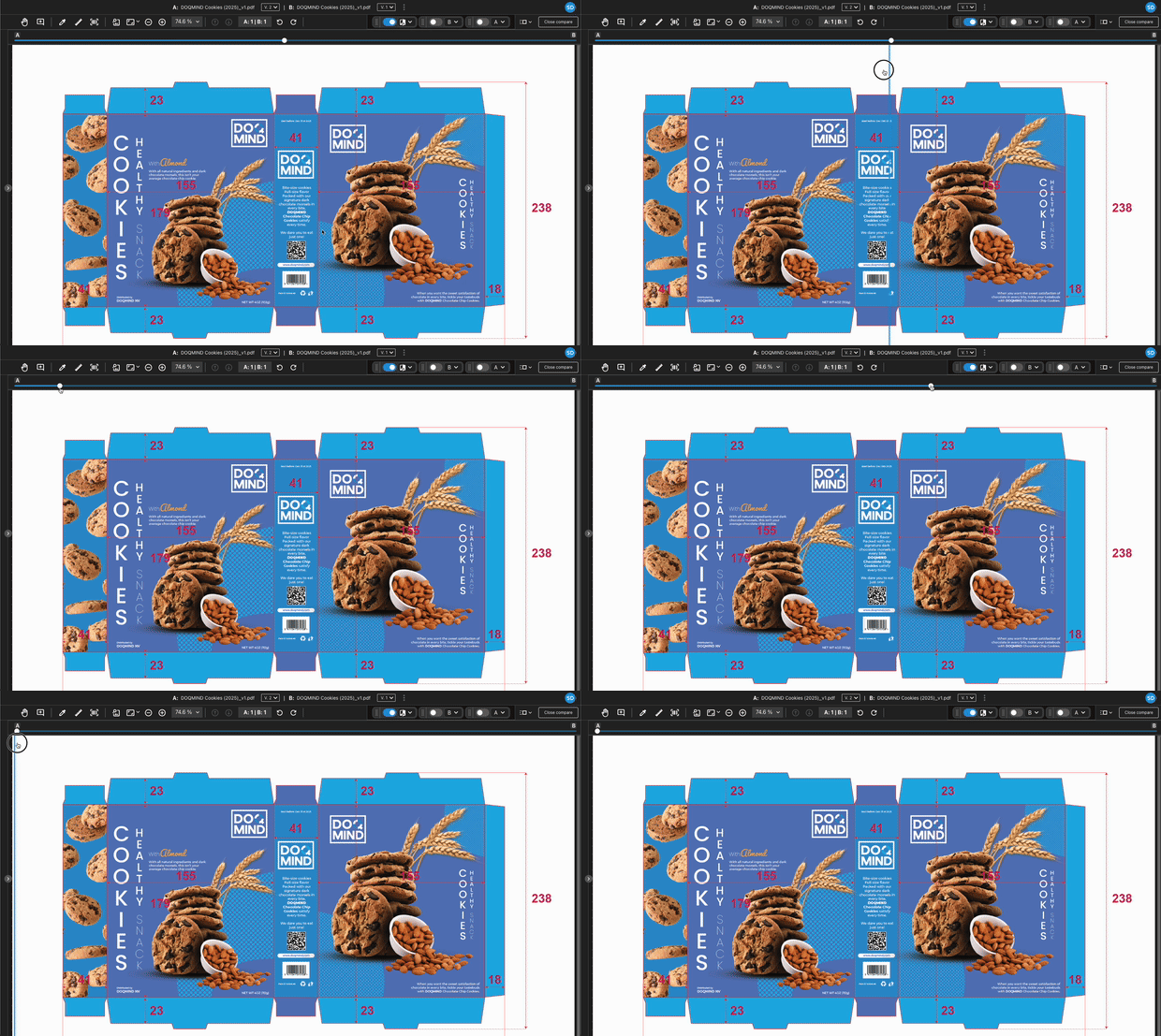
The slider view displays A and B layered. Drag the slider atop the canvas to reveal A or B.
Blink
Blinking mode alternates between showing A and B. Adjust the speed by sliding between the tortoise and the hare.
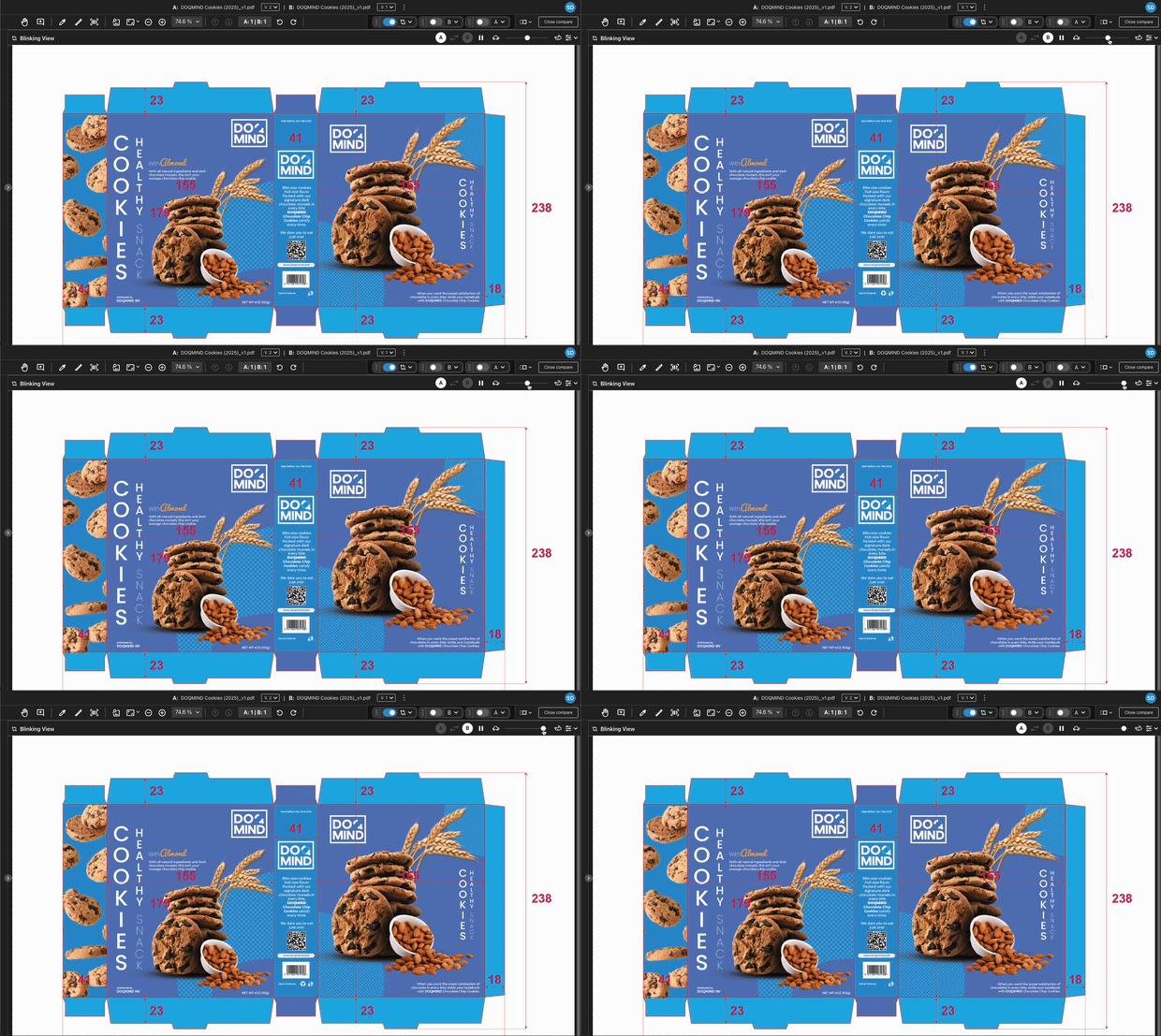
Click the play/pause button or press the "P" key to toggle blinking.
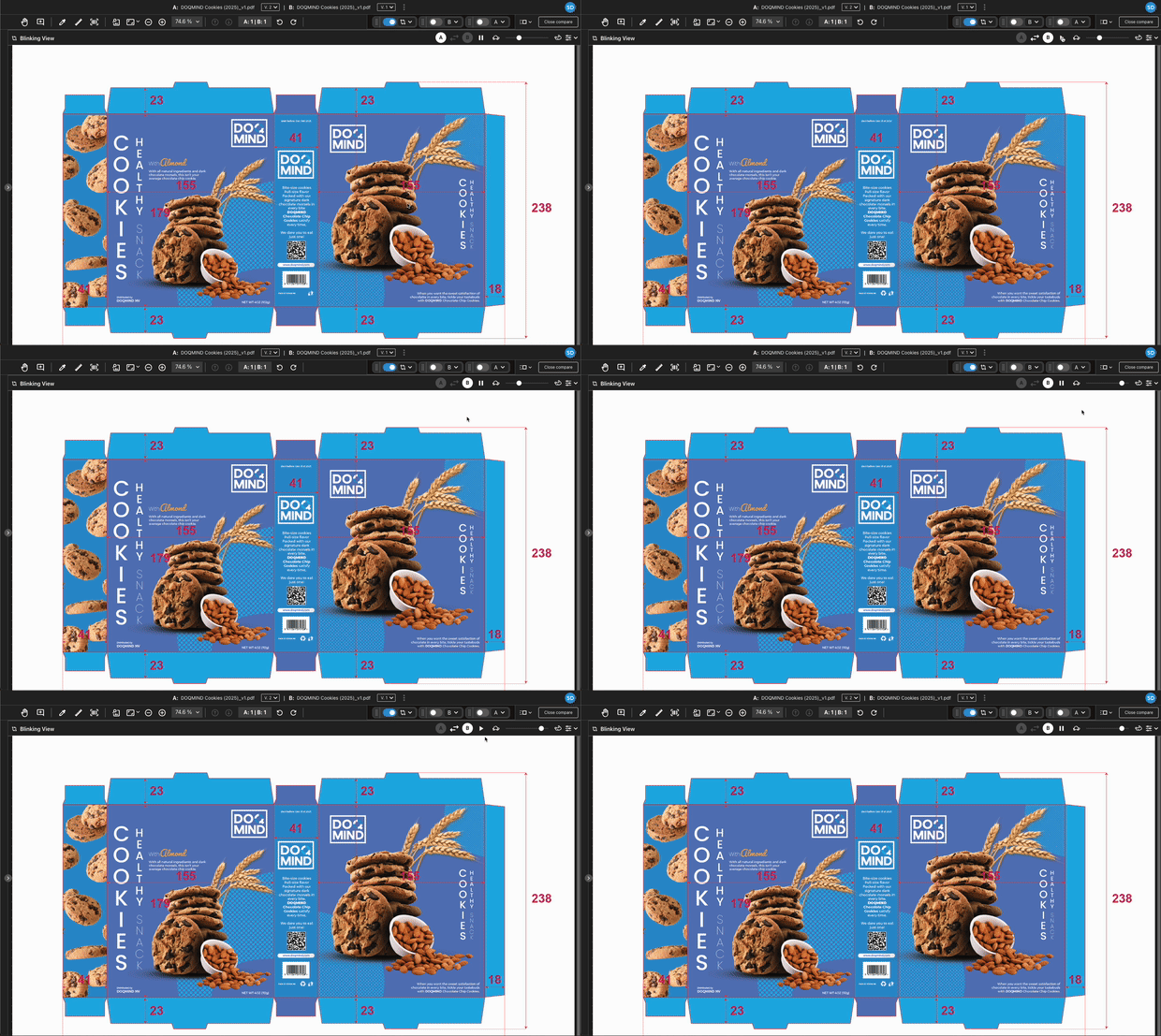
The display indicates whether A or B is shown. When paused, you can toggle between A and B by clicking A, B, or the arrows between them. Alternatively, press the keyboard shortcut “T” to toggle.