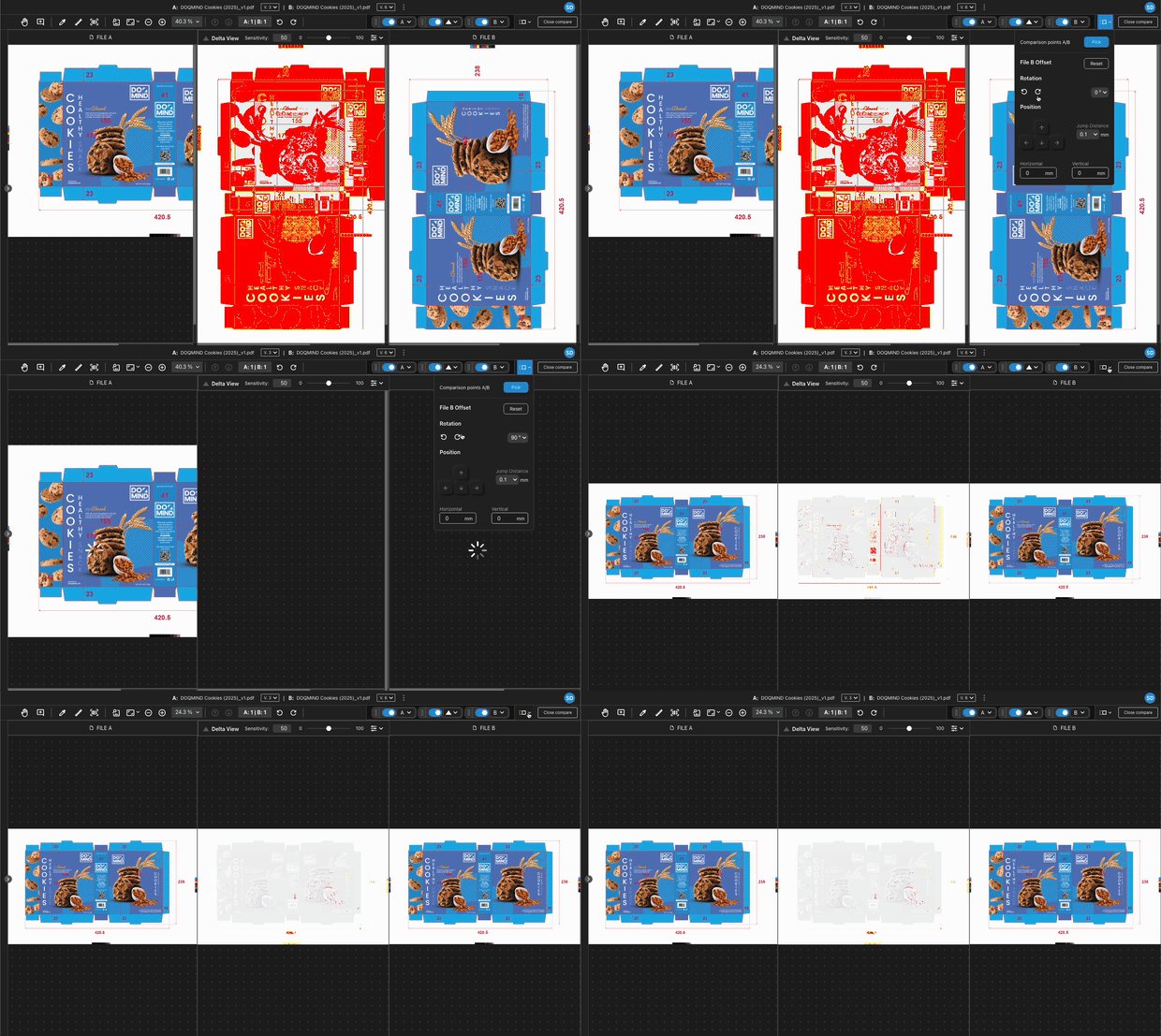
In case two assets or version have different dimensions or orientations, we can line up so they can still be compared. We can both shift and rotate to create an aligned view, allowing us to further compare the contents of the artwork.
Shift
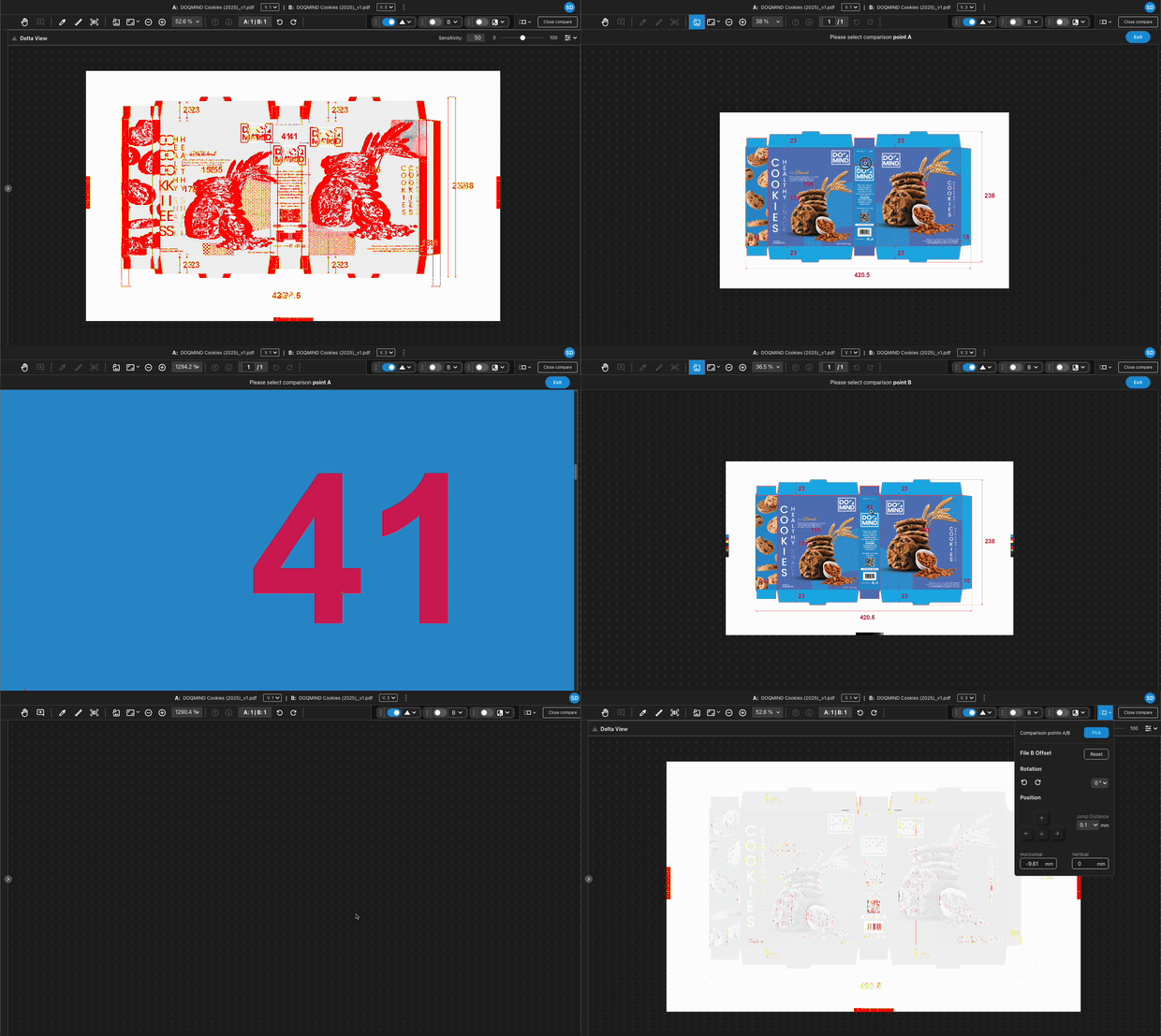
The pick option allows you to visually identify two common on which A and B can be aligned. Clicking pick starts a wizard that guides you through the process. You are presented with A first of all, in which you can select a point. You can zoom in and pan at this point, to provide more accuracy when selecting a point. Once the pick is selected and confirmed, the same is asked for B. After this, 2 offset values are calculated and applied.
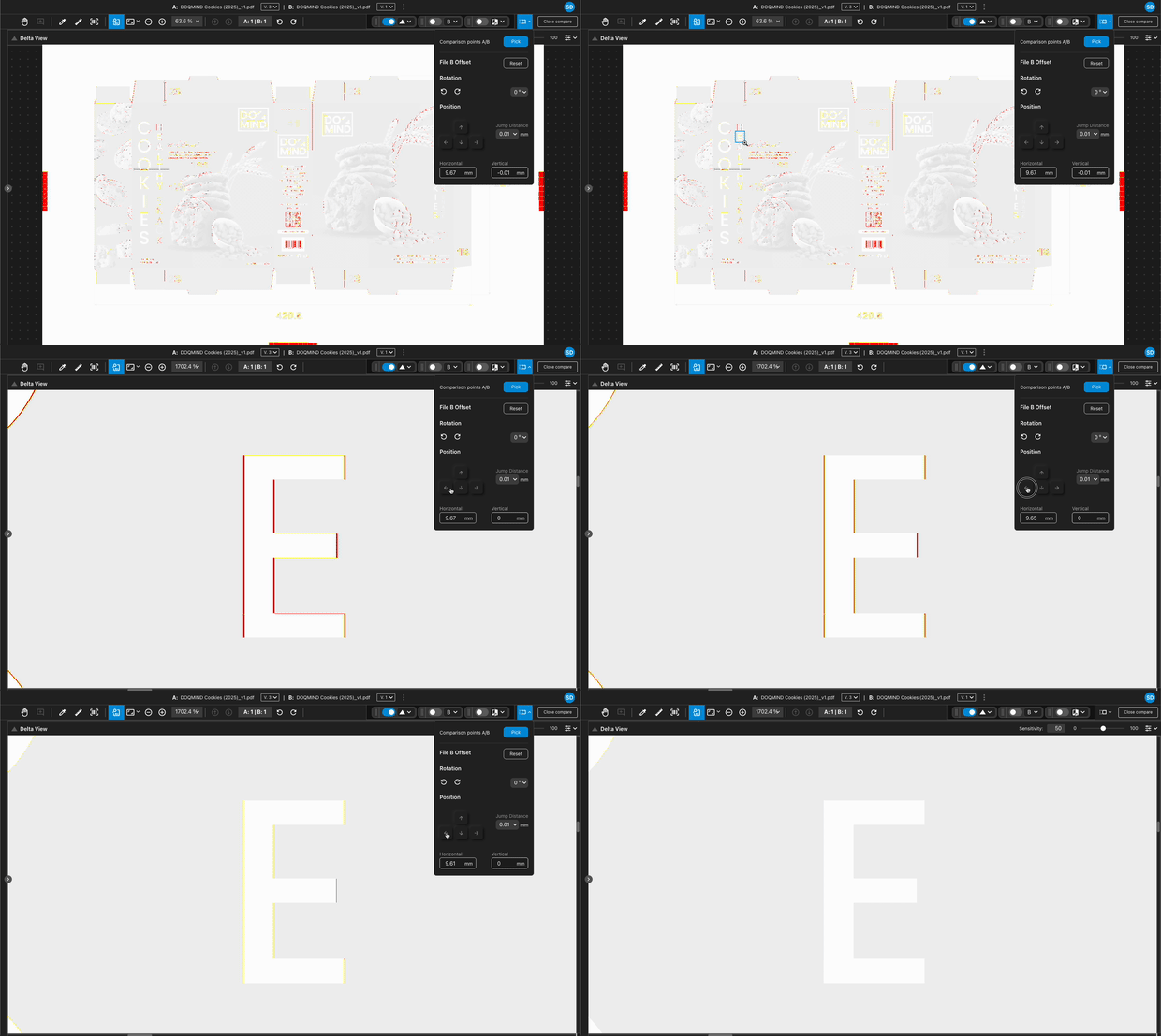
If this method wasn't accurate enough, it is still possible to manually finetune the offset. Either by typing in the values for the offset explicitly, or by moving B around until there is a perfect fit. Good practice for this is to use delta view to evaluate the offsets in realtime.
Rotate
In case there is a difference in orientation between A and B, we can also rotate B so they are aligned.