
When you open the barcode tab in the sidebar, the system scans the open page for barcodes. After scanning, the barcodes appear in the sidebar.
Expanding a barcode reveals more information, in this order:
-
The barcode value. Click the ‘copy' icon that appears on hover to copy it to the clipboard.
-
The barcode type
-
Module size in millimetres. The module is the smallest barcode feature. For a 1-D barcode, it is the smallest line. For a 2-D barcode, it is the pixel size.
-
The colorants in the barcode (see here for details)
Hovering over a barcode value in the list will highlight the barcode on the artwork in the canvas.
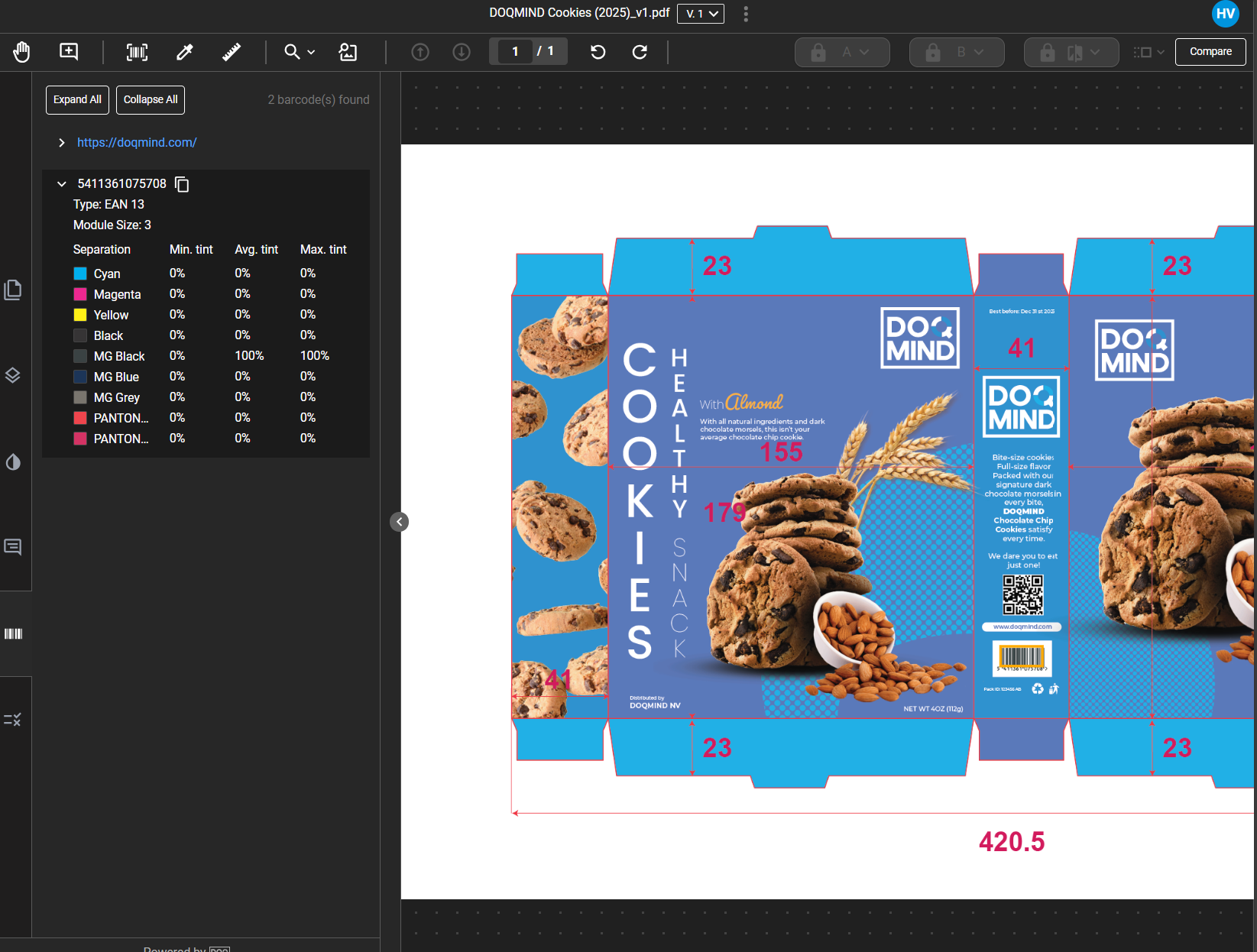
Barcode colorants
The system detects the color composition of the barcode (which separations are present in the barcode). For each separation, 3 values are shown:
-
The min tint: This is the ‘lightest’ tint. It’ll show 0 if the barcode is printed straight on the substrate, or a value if there is a background.
-
The Average tint: This is the average tint of the barcode, excluding the background.
-
The max tint: This is the maximum tint of the barcode.
These three values provide valuable information. For example:
-
If the min tint is not zero, a background exists. Low contrast between the barcode and background can reduce readability.
-
If the average and max tint are equal, the barcode color is uniform. If they differ, a gradient effect may be applied on the barcode, which can reduce readability.
Quiet zones & barcode details
When using the barcode sidebar with the barcode tool, the barcode zone and suggested quiet zone appear. The quiet zone measures four times the module size.
Clicking a barcode with the barcode tool displays its details in a pop-up.
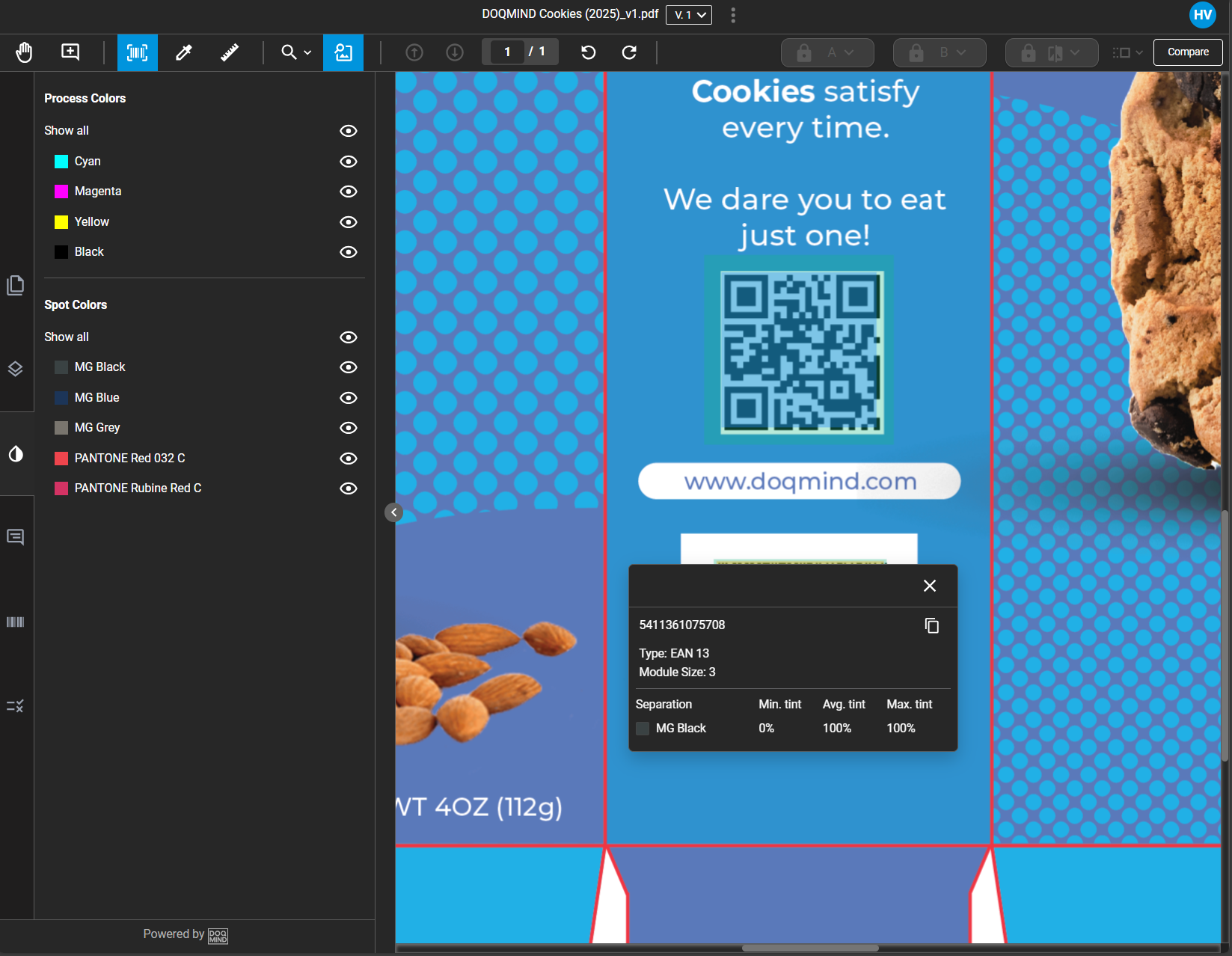
This helps when inspecting barcodes while, for example, the layers or separation sidebar is open.