
If you open a basket, you’ll be presented with the details of said basket. This details page allows you to manipulate the content of a basket, manage the links that were sent, and see the history of what happened with the basket.
Content
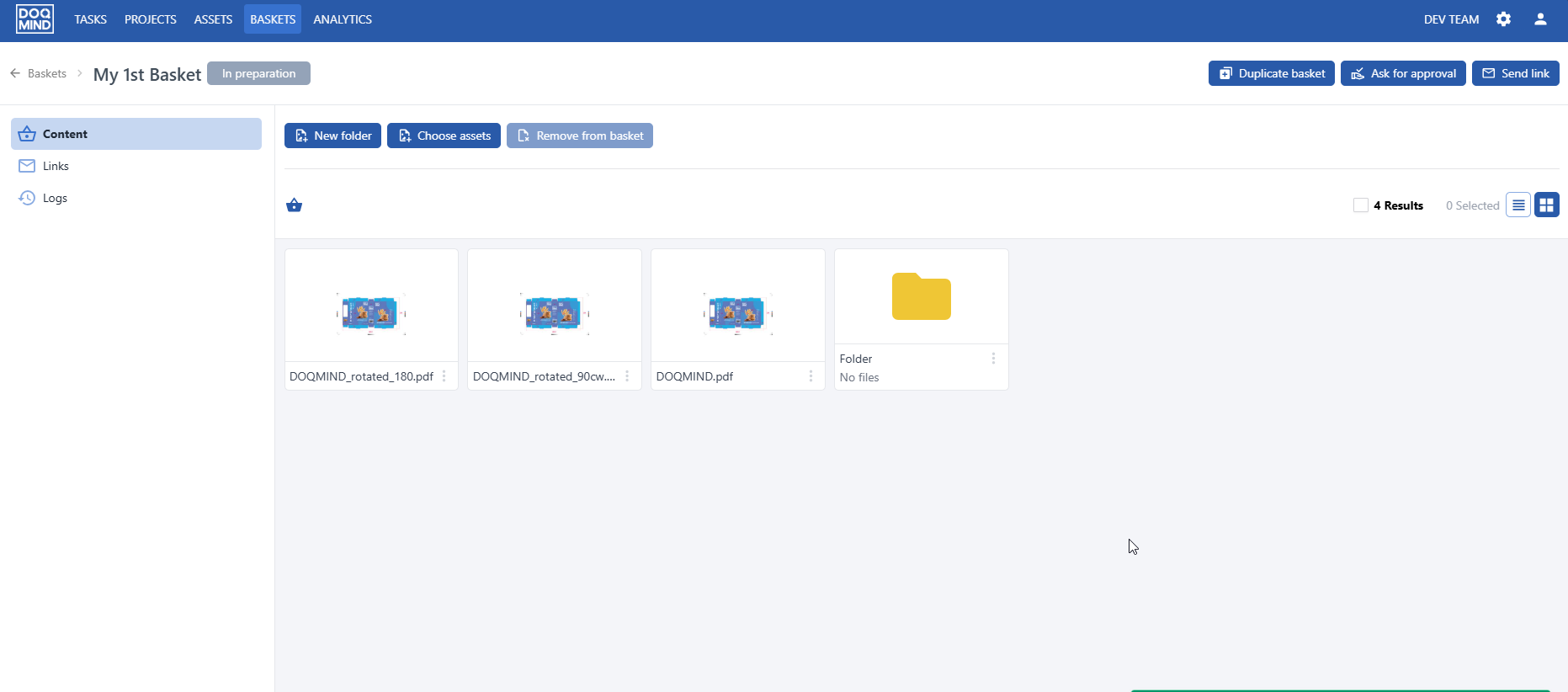
The content tab shows the assets and folders within the current basket. From the content view:
-
You can create a new folder in the basket. The folders in a basket have no relation with the folders on the assets module.
-
You can add assets from the assets module. When clicking the ‘choose assets’ button a drawer will open that allows you to browse, select, and add an asset to the basket.
-
You can remove assets or folders from the content menu.
Content can only be manipulated when the basket is in ‘in preparation’ status.
Links
The links tab shows you the links that were sent for this basket, including their status, and it allows you to manage the outstanding links.
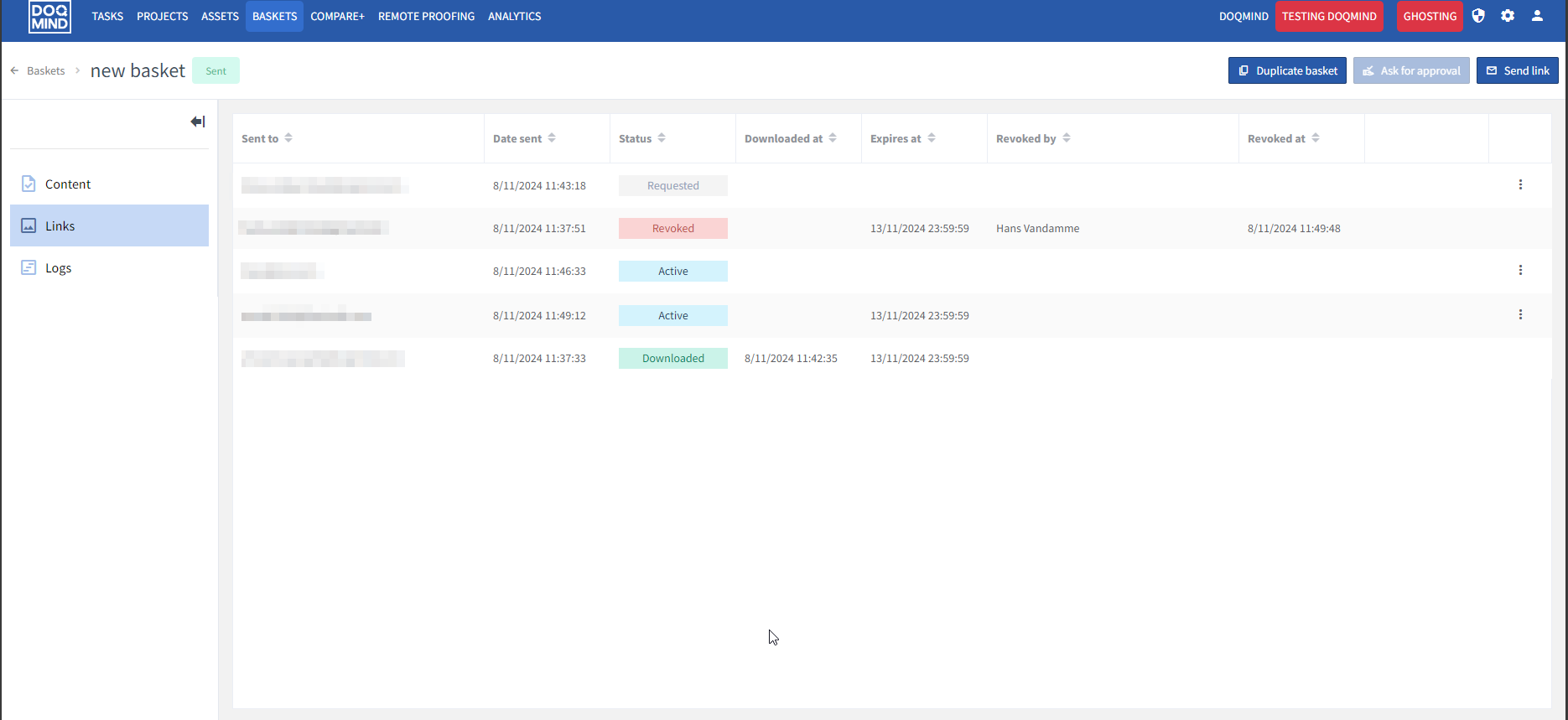
Links can have the following status:
-
Active: the link is sent, but it has not yet been downloaded
-
Downloaded: the link has been downloaded
-
Revoked: a link was sent, but it has been revoked before it was downloaded
-
Expired: a link was sent, but it was not downloaded before the set expiry date
-
Requested: a new download link has been requested
-
Refused: the request for a download link has been refused
-
Failed: an error has occurred during generating or sending the link.
From this screen you can revoke active links and approve or reject new link requests.
For each link it is possible to see the details via the context menu.
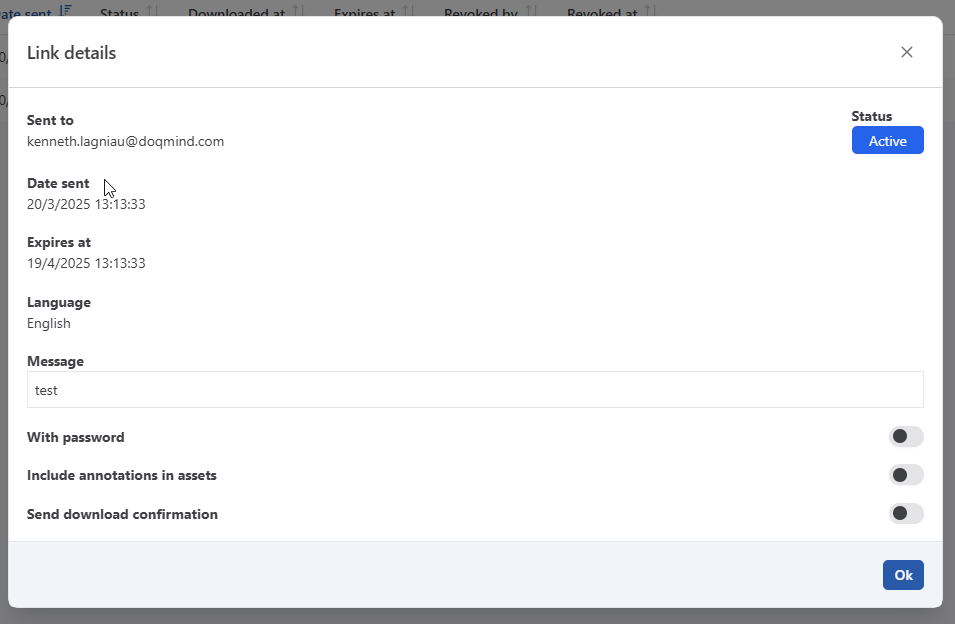
Details include the to address, dates, CC and message, amongst others.
Logs
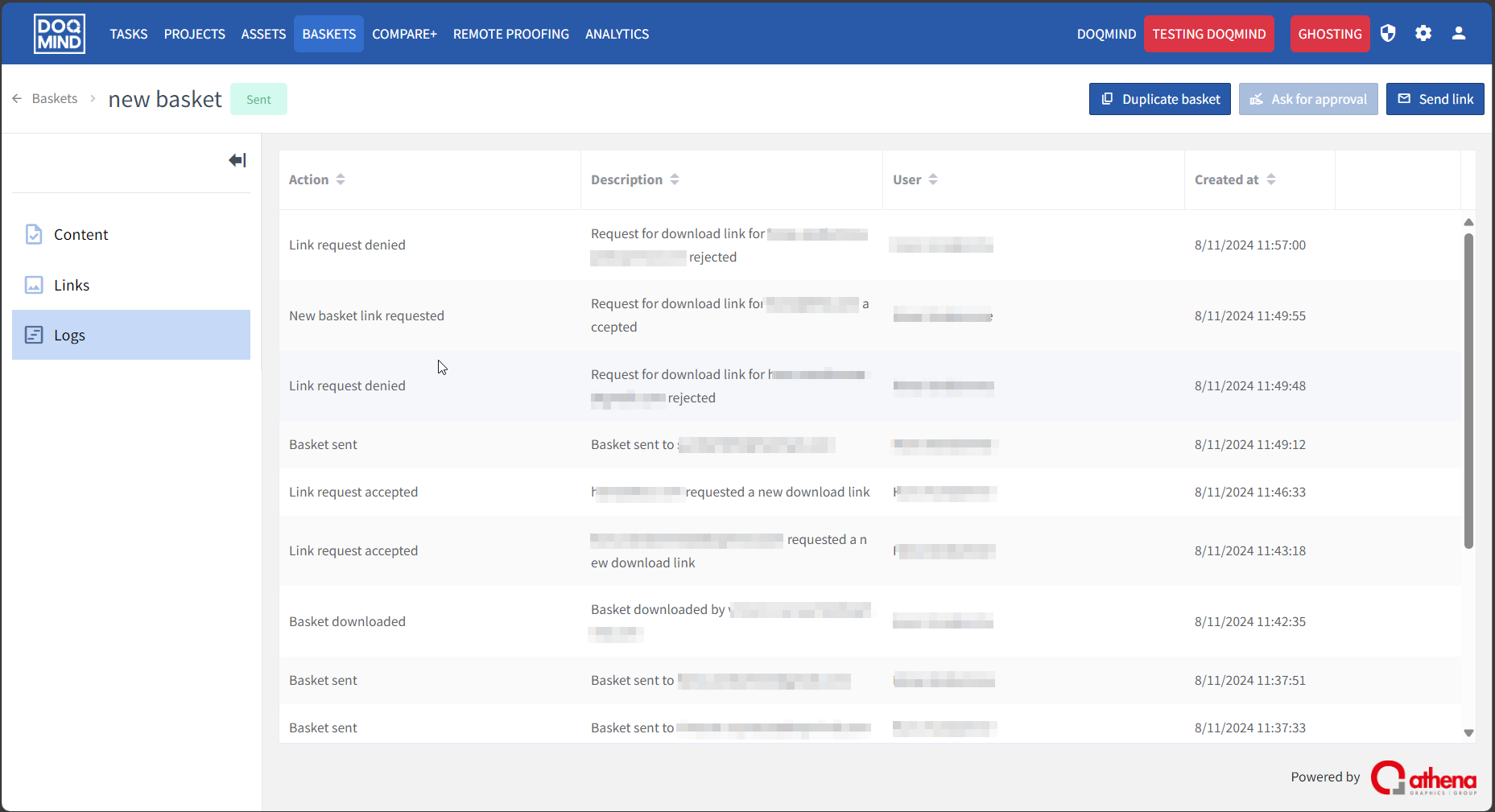
The logs screen has a complete audit trail of the basket.