
Once a basket is created, a number of actions can be taken via the context menu.
Send all files from this basket
Once a basket is complete, it can be sent.
When sending a basket, all users will receive a download link that allows them to download the entire basket as a ZIP file. Each recipient will only be able to download the basket once.
If the lifetime of the baskets is set to delete or archive the basket x days after download, the timer for archiving/deleting will start to run once all recipients downloaded the basket.
If you want to inform persons that the basket has been sent, but they should not be able to download, you can add their email address in the ‘Add CC’ section. These people will receive an email without a download link. The actions of these emails do not interfere with lifetime timers.
If a basket has gone into a failed state, the Send link button can be used to retry sending the basket.
When sending a basket, the asst right “View” on the individual assets is not enforced for the sender. A basket is treated as a complete artifact once built, so it is sent in full even if you no longer have “View” on some of its assets. See How rights are inherited | When rights are bypassed
Send interface parameters
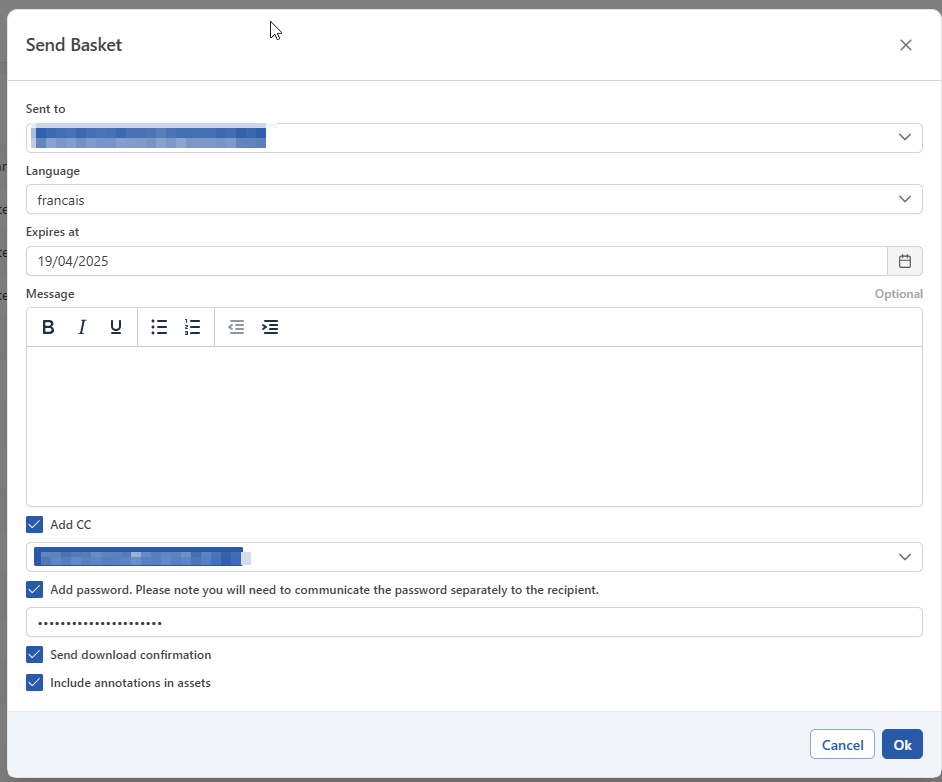
The send basket form asks the following information:
-
Send to: The email addresses of the people that need to download the basket.
-
Language: The language of the email invitation.
-
Expires at: The expiry date of the basket. After this date it will no longer be possible to download the basket or to send new download links. The maximum expiry date is 30 calendar days in the future.
-
Message: A standard mail will be sent to the recipient with the links. If you want to add an additional message to the email, you can use this field.
-
Add CC: The email addresses of the people that need to be informed that the basket is sent.
-
Add password: It is possible to protect the download with a password. The receiver will have to type the password before he can start the download. It’s your responsibility to communicate the password to recipient via a secure channel.
-
Send download confirmation: Select this option if you want to receive a notification when the recipient downloads the basket.
-
Incorporate annotations: Select this option if the basket should contain low-resolution pdf files with annotations. High-resolution PDF files are always included in the baskets that are sent.
Download all files from this basket
Downloads the content of the basket as a ZIP file.
Ask approval
This launches an approval cycle on all elements in the basked, as described on Assets Approvals . One approval cycle will be started per file in the basket.
Create Athena Graphics Order
When creating an order, the basket content gets locked and an order is created based on the content of the basket.
Duplicate basket
It is possible to duplicate a basket regardless of the state it is in. When duplicating a basket, a new basket will be created that is in the ‘in preparation’ state. The basket will contain all assets from the original basket that are still available in the Assets module. Assets that were in the original basket but are no longer available will be omitted.