
How rights are inherited
Every asset has a value for each right, on each tab: Allow, Deny, or Not Set. You don't need to set every right on every folder, because rights left on Not Set are resolved automatically from the parent folder. This page explains how that resolution works, and what happens during uploads, moves, and bulk actions.
Where a right applies
When you set rights on an asset, the Set Rights panel has two tabs:
-
This asset and contents applies the right to the asset itself and to everything inside it.
-
Contents applies the right only to what is inside the asset, not to the asset itself.
The difference matters for actions that affect an asset as a whole. Granting Delete on the Contents tab of a folder lets someone delete the files and subfolders inside it, but not the folder itself. Granting Delete on the This asset and contents tab lets them delete the folder too, which removes everything in it.
Folders are assets, so a subfolder counts as contents of its parent. A right granted on the Contents tab applies to every asset within, at any depth, and to those assets' own contents.
Because both tabs use the same three states, you can also grant a right on an asset while withholding it below: set it to Allow on the This asset and contents tab, and Deny on the Contents tab.
Files have no contents. The Contents tab currently still appears when you open Set Rights on a file, but it has no effect there.
The three states
|
State |
Meaning |
|---|---|
|
Allow |
Explicit. Set directly on this asset. |
|
Deny |
Explicit. Set directly on this asset. |
|
Not Set |
Inherited. No explicit value here, so the effective value comes from the parent folder. |
How inheritance resolves
To resolve a right on an asset, the system considers:
-
the asset's own This asset and contents tab entry,
-
both tabs on every parent folder, up to the root.
An asset's own Contents tab entry is not part of this. It governs what is inside the asset, not the asset itself. That is what makes it possible to let someone delete everything in a folder without letting them delete the folder.
All of those entries are then considered together:
-
If none of them have an explicit Allow or Deny, the result is Deny.
-
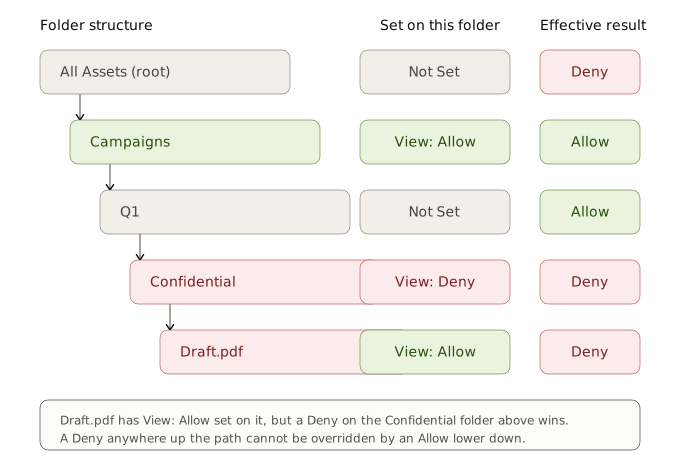
If at least one ancestor has an explicit Deny, the result is Deny, regardless of how many ancestors have Allow.
-
If at least one ancestor has an explicit Allow and none has Deny, the result is Allow.
In short: Deny over Allow over Not Set. A single Deny anywhere above a folder overrides every Allow, including an explicit Allow set directly on a child. You cannot override an ancestor's Deny by setting Allow lower in the tree.
This applies the same way whether the conflicting rights come from different group memberships, different asset role assignments, or a mix of both. Whatever combination contributes a Deny, that Deny wins.
You can see how this resolves for a specific user or group, on a specific folder or asset, in Calculate effective rights: clicking the info icon on a right shows the explicit rights accumulated from the item up to the root, and which one determines the result.
New uploads and folders
A newly uploaded file or newly created folder has no explicit rights of its own. It inherits everything from its parent at the moment it's created. Rights set on the parent's Contents tab apply to it immediately, including rights that let it be deleted, renamed or moved.
Traverse
Traverse is a right you never set directly, the system manages it. It exists to solve a specific problem: if a user has View access to a deep folder but Not Set (or Deny) on the folders above it, they need some way to navigate down to it.
-
Traverse is set automatically on a folder when a descendant folder has View set to Allow.
-
Traverse only lets a user see and open a folder. Once opened, only children where the user also has View (or Traverse, for further descendants) are shown.
-
Traverse applies to folders only, never to files.
-
Traverse is read-only and informational. It appears in Calculate Rights results, with the source it originates from, but you can't toggle it in Set Rights.
If View and Traverse both apply to the same folder for the same user, View takes priority and the folder behaves as a normal viewable folder, not just a pass-through.
Traverse only bridges a gap caused by Not Set, not a deliberate Deny. If a Deny on View is explicitly set anywhere along the path between root and the target folder, Traverse is not set on the blocked folder, and the user cannot navigate through it, even with View Allow further down. If the intermediate folders are simply Not Set, with no explicit Allow or Deny from any ancestor, Traverse is set on them and the user can navigate through.
When a user can see a folder via Traverse, the full breadcrumb to that folder is shown, including intermediate folders the user may not have View on themselves.
Rights on moved assets and folders
Moving a folder or asset preserves whatever was explicitly set on it. Nothing is lost in a move.
-
Explicit rights on the moved item, and on any children in its subtree, are preserved unchanged.
-
Rights that were Not Set stay Not Set, so the item now inherits from its new parent instead of its old one.
-
Traverse is recalculated automatically across the affected part of the tree to reflect the new structure.
If a child somewhere in the subtree being moved has Move set to Deny for you, the entire move is blocked. A warning lists which child or children are preventing it. Nothing moves until the conflict is resolved.
Cascading actions and Deny
What happens when an action you trigger touches an item you don't have rights for depends on whether the action is structural or non-structural.
Structural actions (Delete, Move)
If any item affected by the action, whether a single parent folder with a conflict in its subtree, or multiple items selected for a bulk action, has the action set to Deny for you, the entire action is blocked. A warning popup is shown and nothing executes until you resolve the conflict.
The popup respects your View rights on the conflicting items:
-
If you can view them, they're listed by name: "This action is blocked because you do not have the right for: [asset list]."
-
If you can't view one or more of them, their existence isn't revealed: "This action is blocked because you don't have sufficient rights for all items in this folder."
Non-structural actions (Download, Add to basket, Send, Edit Asset Properties)
The action runs on whatever you do have Allow for, and skips the rest. A warning tells you the action was partially executed.
As with structural actions, the popup only names items you can see:
-
If you can view the excluded items: "This action will be partially executed. The following items will be excluded because you do not have the right for them: [asset list]."
-
If you can't view one or more of them: "This action will be partially executed. Some items will be excluded because you do not have access to them."
The reason for the difference: structural actions change the tree itself, so partial deletion or partial moves would leave things in an inconsistent state, while non-structural actions are naturally divisible, downloading nine of ten allowed files is still a coherent outcome.
Super users
A super user bypasses all of this. Every folder- and asset-level right resolves to Allow for them, regardless of what's configured in Set Rights. See Super users
When rights are bypassed
Two areas intentionally don't enforce View the way the rest of the Assets module does:
-
Sending a basket. If a basket contains an asset you've since lost View access to, sending it is not blocked. A basket is treated as a complete artifact once built.
-
Tasks in projects. Opening a task currently bypasses asset rights for choosing assets, uploading, downloading, and editing file properties.