
Set Rights on folders and assets
Set Rights controls who can see and act on a folder or asset. You can set each right individually, for every user and group, on any folder or asset, which gives you fine-grained control over exactly what each person can do.
Opening Set Rights
Open the context menu on any folder or asset and choose Set Rights. The option only appears if you hold the Set asset rights right on that item.
You can also open Set Rights from the breadcrumb. Hover over a folder in the breadcrumb to show its quick-action icon. On the root ("All Assets") this reveals two actions, Watch folder and Set Rights. Other folders in the breadcrumb work the same way, except they show the full list of quick actions rather than just those two.
The user and group list
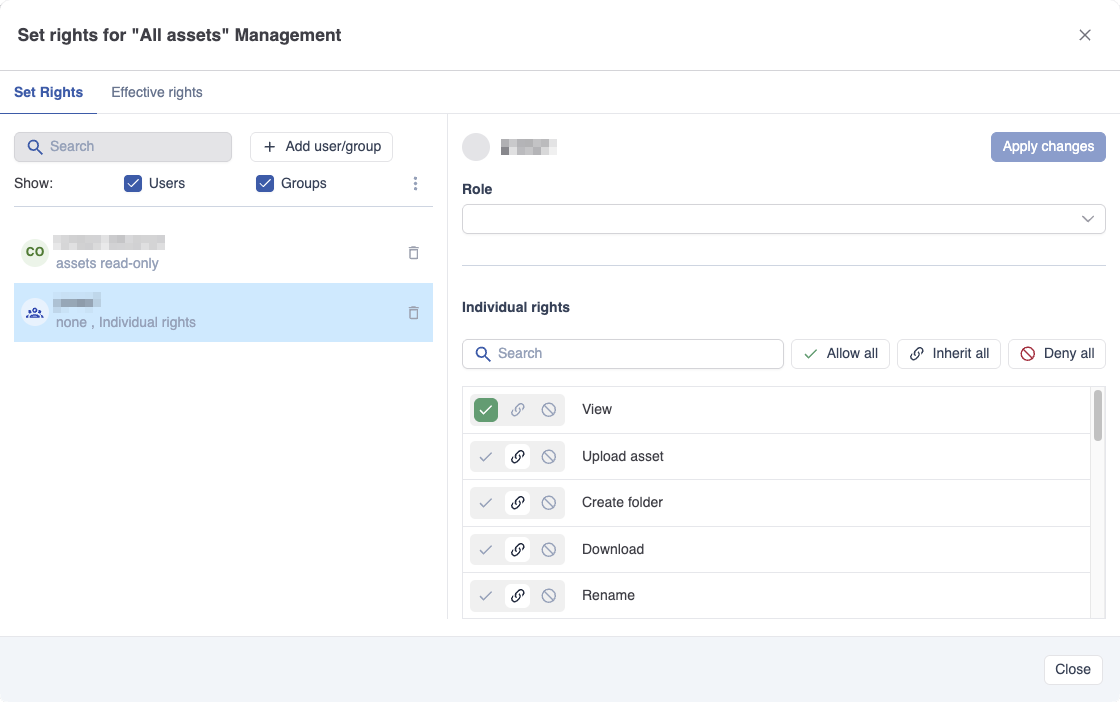
When the panel opens, the left side shows everyone who currently has explicit rights configured on this folder or asset. Users and groups with no explicit rights are not listed until you add them.
-
Use the Users only / Groups only filter to narrow the list.
-
Use the search field to filter by name. If nothing matches, an empty state is shown.
Adding a user or group
Click Add user/group to open a dropdown of everyone who has access to the Assets module and isn't already in the list. You can add one user or group at a time. When added, all of their rights start in the Inherit state, nothing is explicitly set yet.
Configuring rights for an entry
Selecting a user or group opens their rights panel. The panel has two tabs: the This asset and contents tab and the Contents tab. The first tab controls what the selected user or group can do to this asset and everything inside it. The second tab controls what they can do to what is inside the asset only, without affecting the asset itself. See How rights are inherited for the full explanation of how these tabs interact.
On each tab, you only see the rights you yourself hold in that same scope. If your own effective state for a right is Allow (explicit or inherited) on the tab you are looking at, the right is shown; if not, it is hidden. What you can grant to others is always bounded by what you have, per tab.
Watch (folder) and Export metadata are never shown here. These are global user-level rights managed in User Management, not per-folder settings.
Each right has three states: Allow, Deny, or Inherit (Not Set). A right left on Inherit takes its effective value from the parent folder. See How rights are inherited for the resolution rules.
Assigning an asset role
Instead of setting rights one by one, you can assign an asset role, a named preset of rights, from the role selector. You can only assign a role that contains rights you hold yourself on this folder or asset. Assigning a role is reflected in the role selector but does not change the individual right toggles below it. See Asset Roles for how roles are created and managed.
Bulk actions
Use Set all to Allow / Inherit / Deny to stage every right on the currently active tab for the selected user or group in one action. It does not affect the other tab.
Removing everyone
The quick-action dropdown includes Remove all users/groups, which clears all explicit rights for everyone on this asset, on both tabs. You are asked to confirm; if you don't confirm, nothing changes.
Saving
Changes are staged as you make them and are not persisted until you save. While a save is in progress, the interface is non-interactive.
If you have unsaved changes and try to switch to another user or group, open the Calculate Rights tab, or close the modal, you are warned so you can save or discard before continuing.
Super users
A super user holds every right on every folder and asset, so in Set Rights a super user can grant any right anywhere. See Super users