
Calculate effective rights
Effective rights show what a user or group can actually do on a folder or asset, once explicit rights, inheritance, group membership, and asset roles have all been taken into account.
Viewing effective rights
From the Set Rights panel on a folder or asset, open the Calculate Rights tab and select a user or group. As in Set Rights, users and groups that already have explicit rights on this item appear at the top of the list. The effective rights appear as soon as you make a selection, there is nothing to run or trigger yourself.
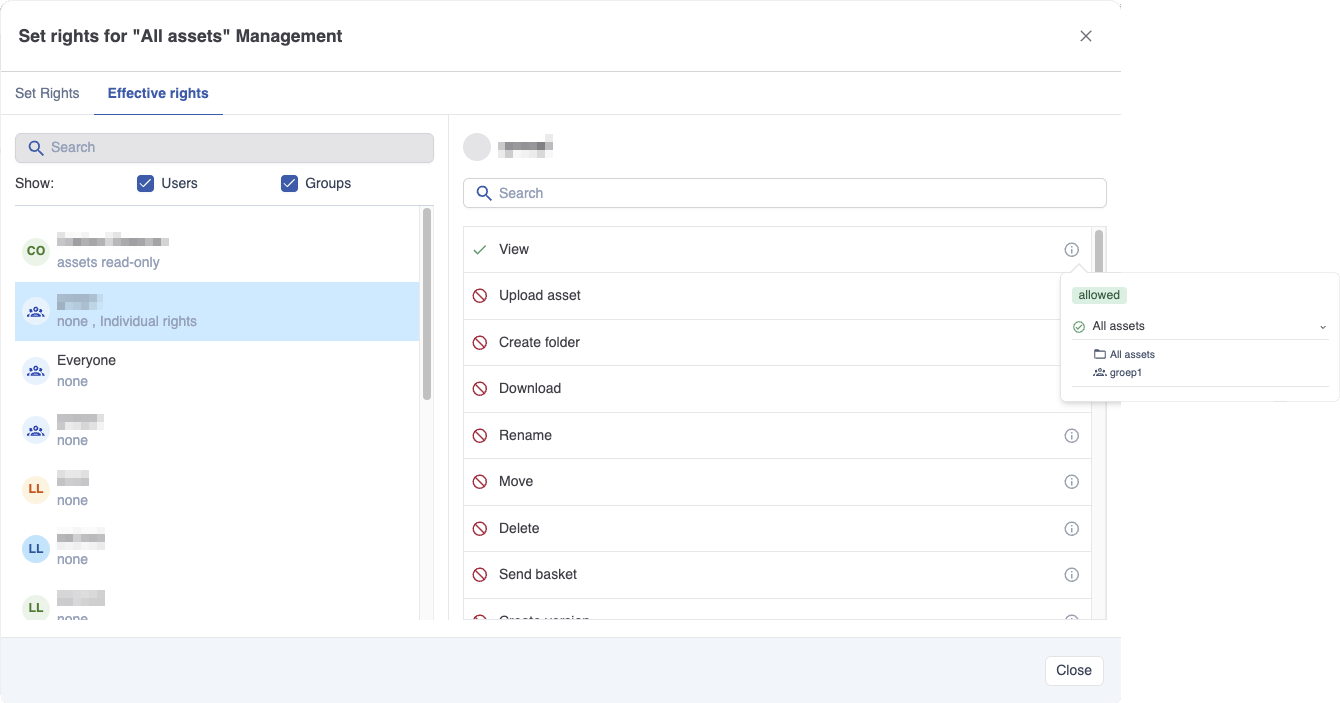
Each right shows its resolved effective state, Allow or Deny.
Seeing where a right comes from
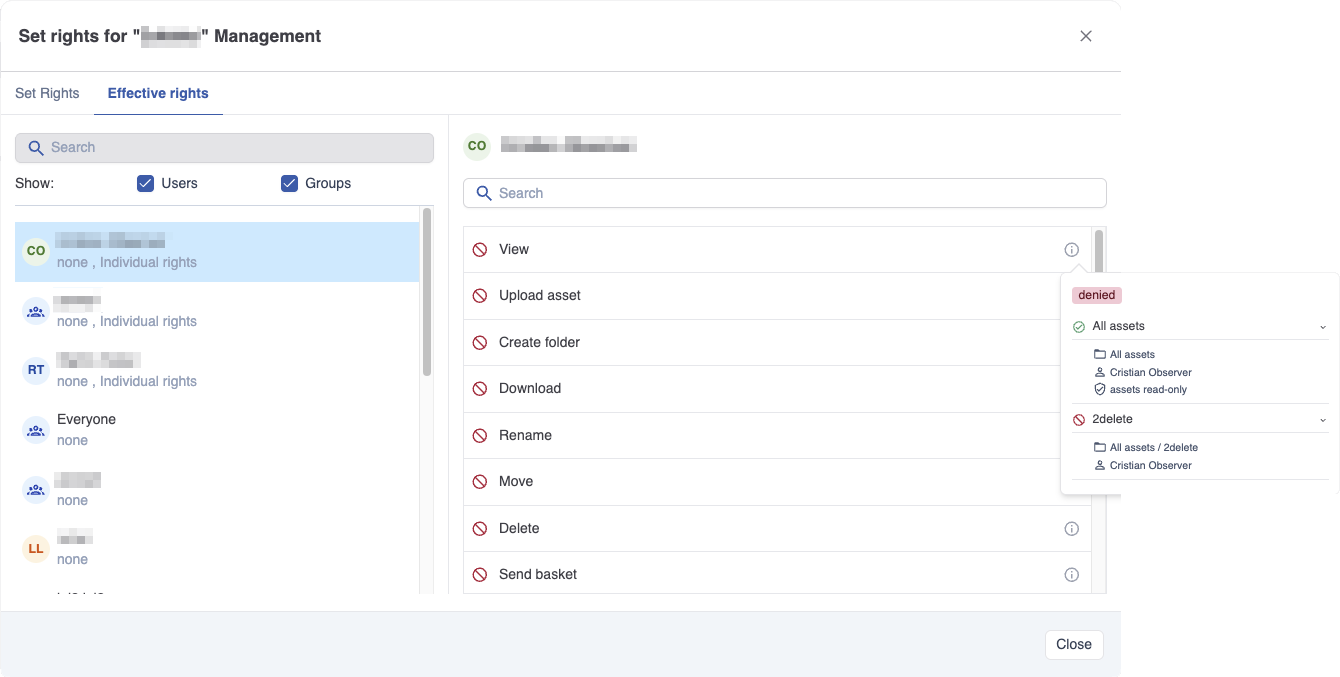
To see how a right was resolved, click the info icon on that right's row. A popup shows the explicit rights that contribute to it, accumulated from this folder or asset up through every parent folder to the root.
Each entry in the popup can be expanded to show:
-
whether the right comes from the user directly or from a group they belong to,
-
the full path of the parent folder it originates from,
-
whether it comes from an asset role or from an individually granted right.
Super users
If the selected user is a super user, every right shows as Allow. The info popup explains this is because the user is a super user and bypasses rights checks entirely. See Super users