
The first step to using templates for project creation is to create a form that facilitates this choice.
Go to the forms editor, by clicking the cog icon and choosing “Forms“. This opens up the form menu, showing you any already created forms present in your environment.
Next up, we will create our own form, by clicking “Create new form“. This opens up a modal requiring some information from us. The main piece information is the title. Pick an appropriate one that identifies the form. You can choose to incorporate localisation or the use of macros here as well, but we will be skipping that for this tutorial.
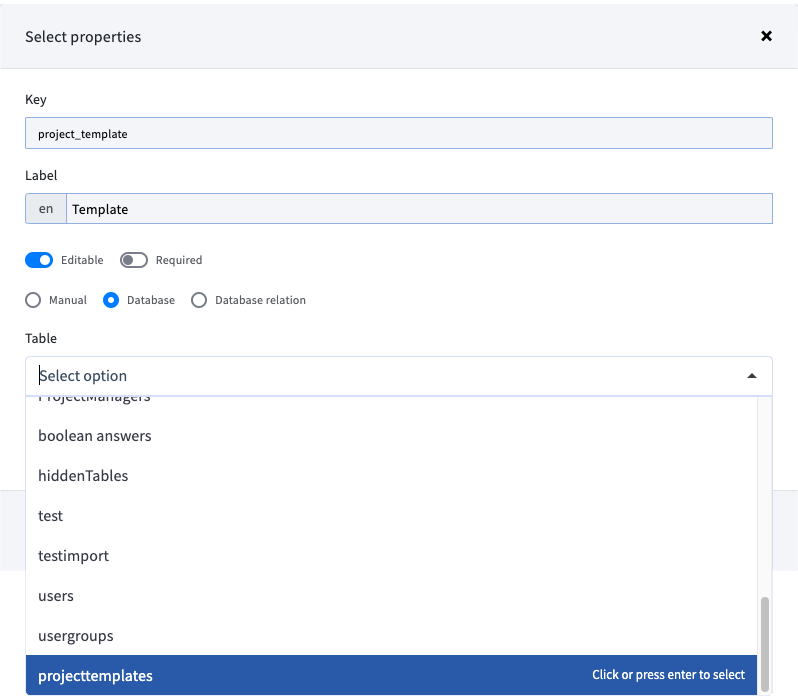
Once the modal has been filled out and completed, we are presented with the form editor. Here we can build up the form with the various elements that we need. The one that we are looking for here is a “Select“ element. Drag it over from the righthand side and drop it in the form canvas in the center of the window. This produces a modal that allows for configuring the newly added element. Fill in a unique key, provide a descriptive name and select “Database“ as entry method. Once database is selected, the modal produces a drop-down list with all of the databases available in the current environment. Browse through the list to find the database “projecttemplates“. This is one of the system databases present in DOQMIND and cannot by manually altered. This automatically contains any template created and stored on the current environment. Toggling “Editable“ and/or “Required“ can be done at your own discretion. Click “Add“ to confirm the configuration of the element and add it to the form.
Finally, we need to make this form a eligible for usage as metadata form. Click the 3 dots on the top right corner, revealing some more configurations. Click the checkbox for “metadata form“
Once this has been completed, the form we just created will be present in the add project modal upon creating a project.
Using the method described above can also be adapted to add this element to an existing form. This way we can combine the action of filling in a project brief and template in one metadata form upon project creation.