Context
Task notifications allow you to send email notifications at key stages of a task (start, finished, overdue). These notifications can be sent to the actor, the project manager or a fixed address, but also dynamically based on project metadata entered via forms.
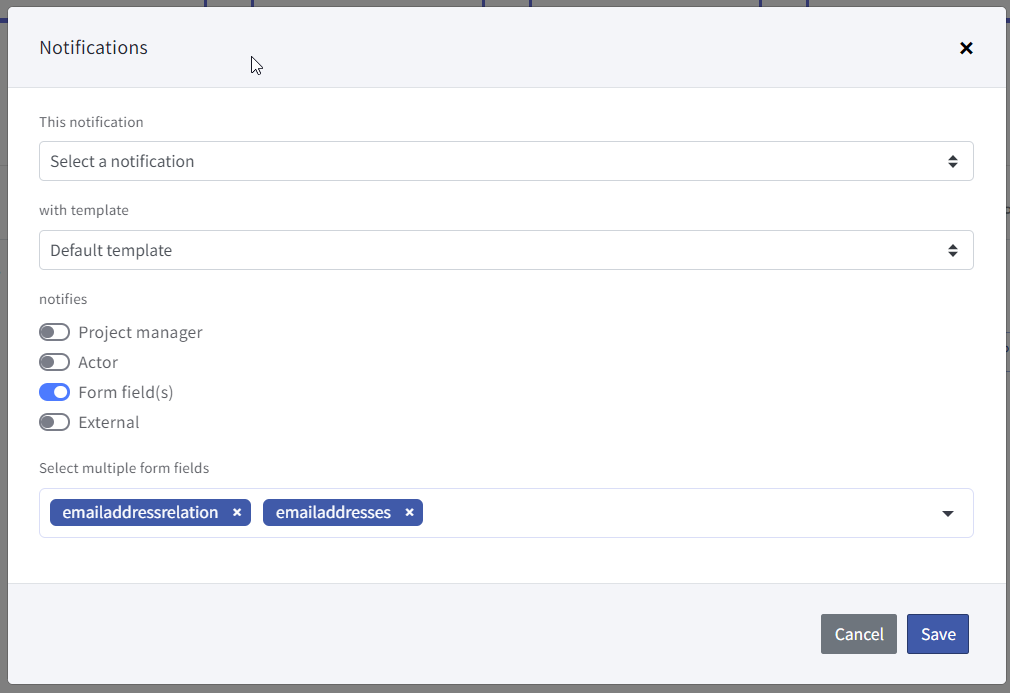
This how-to explains how to configure sending notifications based on form fields. There are 2 steps. First we will configure the forms, and once that is done, we’ll configure the task notification.
Configure the form
All form fields saved in the project metadata can be used to send notifications.
The fields can either contain:
-
An email address or a list of email addresses
-
A user or a list of users
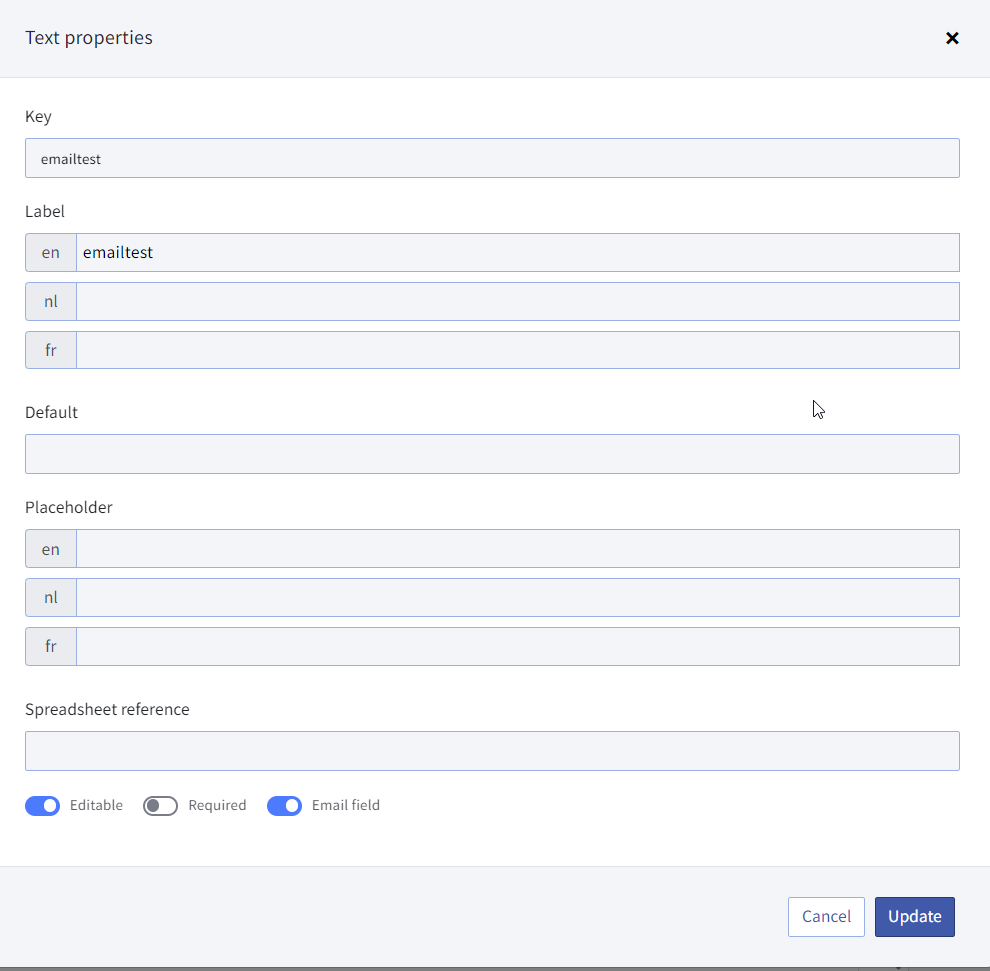
In order for fields to be used as email fields, the ‘Email field' toggle needs to be activated:
Entering an email address directly
4 different type of form fields can be used:
-
The text field
-
The Checkbox filed
-
The Select field
-
The Radio button field
Email address via text field
If you want a user to enter an email address directly it is sufficient to add a text field and flag it as email field. If that is done, the actor will be able to fill in an email address and the system will validate that the email addresses entered is valid. The actor will only be able to finish the form if a valid mail address is entered:

Email address via checkbox, select or radio button
The checkbox, select or radio button behave very similar. Again, it’s necessary to flag the field as email field before it can be used in the task notification.
For the 3 form fields above, we can enter the data either manually, via a database or via a database relation.
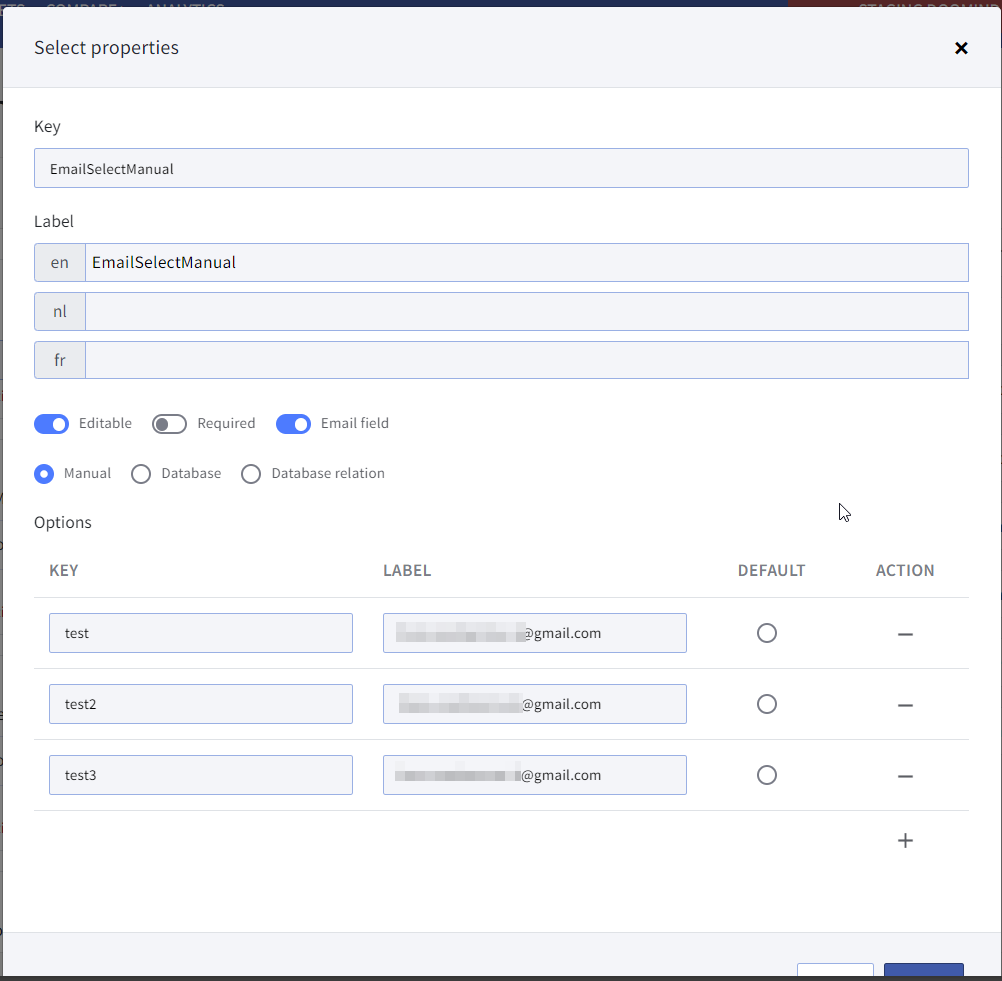
Manual entry
In this case you add the list that the actor can choose from directly in the form builder. The email addresses should be entered in the ‘label’ field. The key should be a unique key. The system will not do any validation if the values are email addresses. You’ll need to validate yourself when filling in the form.
Database and database relation
When using a database or database relation, you’ll need to make sure that the database contains valid email addresses.
Sending to known users
3 different type of form fields can be used:
-
The Checkbox filed
-
The Select field
-
The Radio button field
It is not possible to enter the name of a user directly.
User via checkbox, select or radio button
The checkbox, select or radio button behave very similar. Again, it’s necessary to flag the field as email field before it can be used in the task notification.
For the 3 form fields above, we can enter the data via a database or via a database relation. The user name will be shown in the field, the email address linked to that user will be used for sending the email. Both internal and external users can be selected.
You can use database relations to limit the users that are shown in a specific context.
Configure the task
The task notification an be configured as described in the Task chapter. You can select the form fields configured in the forms as described above.