
Tasks that are assigned to you are shown in the tasks module under “My Tasks”. Clicking the title of these tasks produces the task execution modal in which the task can be performed. The action required depends on the type of task.
Structure
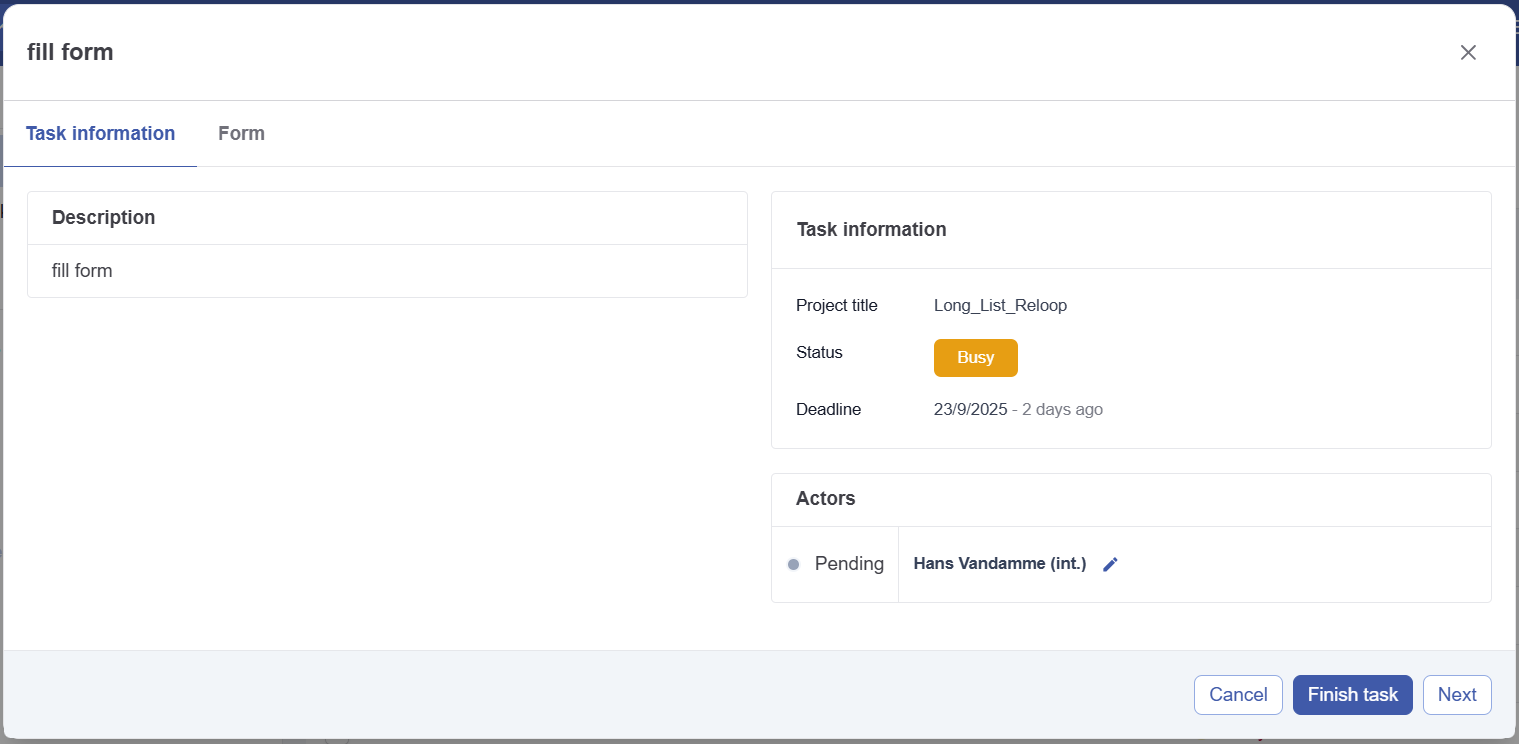
In every task execution, there can be 3 tabs: Task Information, Feedback and the actual task execution tab.
Task Information
The task tab contains the basic information about each task. This information includes:
-
The project title: The name of the project
-
Status: The status of the task
-
Deadline: The deadline of the task
-
Task recycle (if applicable): The nr of times a task has been repeated tue to a reloop. 0 is not displayed.
-
Description: The description that provides the user instructions on how to execute the task. The content is configured in the task administration and can contain variable elements based on smart names.
-
Actors: The actors that are assigned to the task. This can be multiple actors. When a user has the right (PM > Change actor), they can also change the actor from this view.
The task
The name and content of this tab is specific to the task type. See the subpages of Task Types for a comprehensive look at all of the different task types.
Feedback
The feedback tab is displayed if the preceding task was an approval task. It show the actor of the task any feedback (either via approval or rejection) that was previously provided.
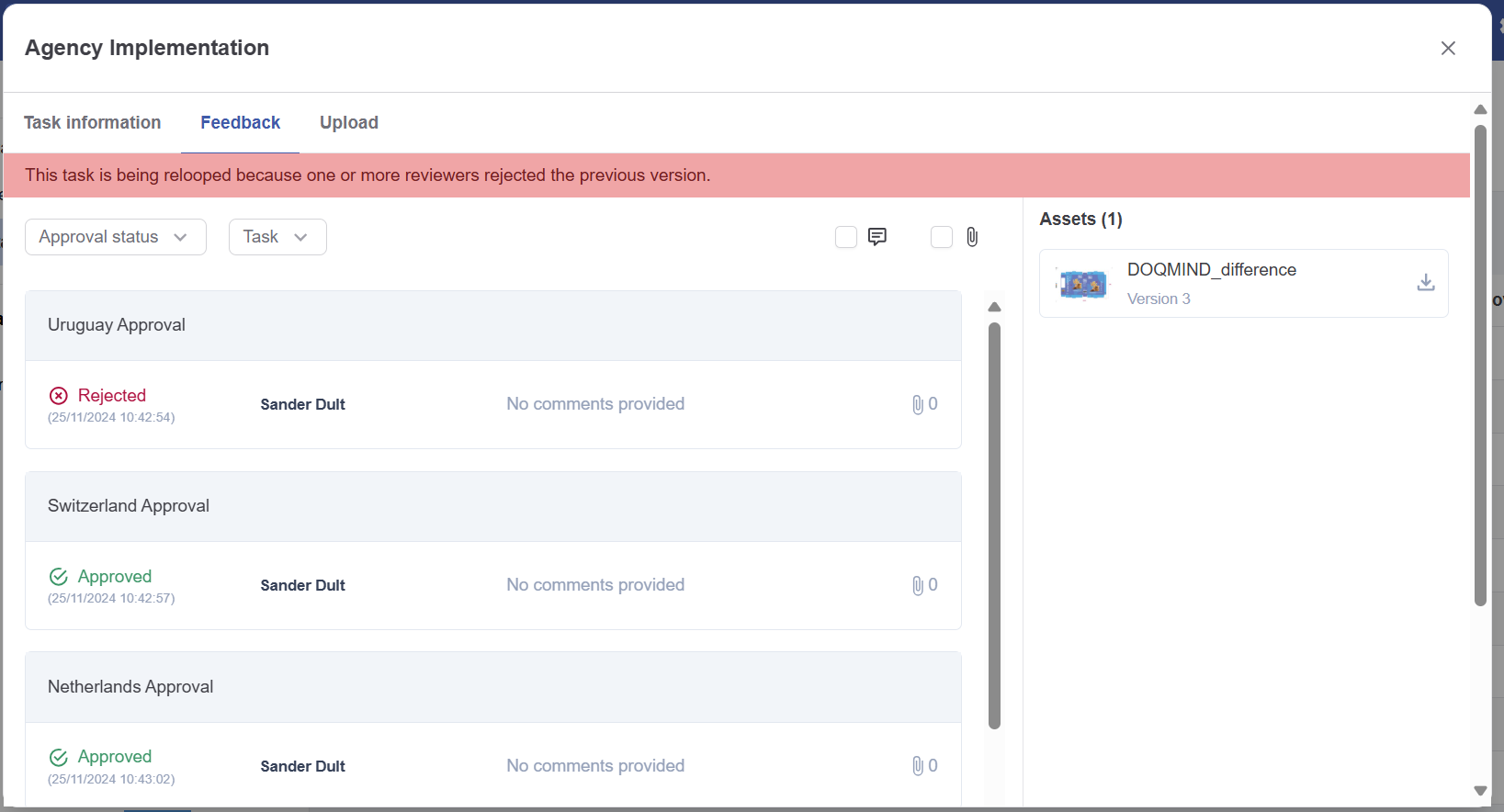
The feedback tab allows a user to see the status, comments and attachments that were provided on the previous loop. Filters allow easy navigation.
The Assets section displays the asset version to which remarks apply. You can view or download these assets.
Completing tasks
In the task execution modal, there are 3 buttons that allow you to proceed past this modal.
Cancel
Cancelling a task execution will close the modal without finish the task. The task will remain in “My Tasks” in the Tasks module. Progress made will be saved. Opening the task execution again shows previous progress.
After clicking Cancel, the task status will be set to ‘in progress’.
Finish task
Finishing a task concludes the task and sets its status to done. If the project contains downstream tasks that are connected, finishing the current task will trigger the start of these following tasks.
Some task types require an additional save.
Next
Next allows you to execute the next task in sequence without having to leave the task execution modal. These consecutive tasks are defined as following:
-
is within the same project
-
has the same actor, is also assigned to you
-
in the gantt chart, it is the first task that is connected downstream of the current task
-
has status active
-
is not a “moving of files” task
When presented with multiple next tasks in parallel, the task in the highest row of the gantt chart is presented first. after this, we proceed with this sequence until it is finished before continuing with the next parallel task.
This is explained in the example below:
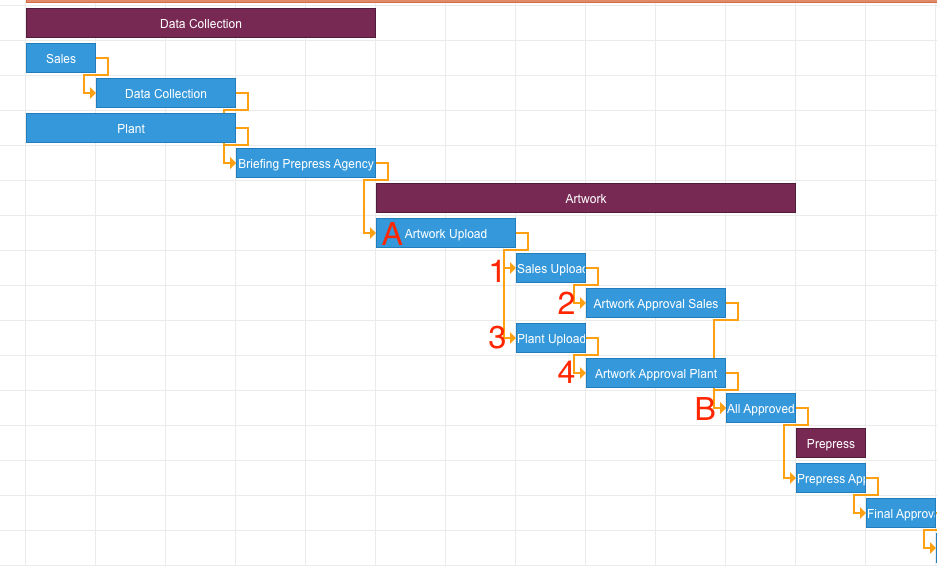
In the example above, we are currently at task A. Here we click next. The order of tasks to be performed will be 1, 2, 3, 4. Task B is a parallel approval task, so it only activates when task 2 and 4 are done.
When no more consecutive tasks are available, the task execution modal closes and the actor returns to the list in the tasks module. A toast pop-up notifies them that there were no more next tasks available.