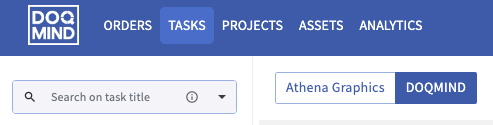
The tasks that are to be executed are visible in a list in the tasks module. All tasks that have status Active and Busy are visible here. Tasks that are inactive or completed can be checked in the Projects module.
When opening active or busy tasks that are not assigned to you, the task execution is opened in read-only mode. This means that the content of a task can be viewed, but not changed. The task can also not be finished. These actions are still only available for the actors assigned to the task. The exception to this is the “change actor” action. This is available in the task execution for everyone that has the change actor right.
Quick filters
Search
Searching the tasks module will match with task title, task group and project title.
For further information about quick searching, see the quick search section of
Filter
You can search any task or project related metadata filed using the filters. See for more information.
Tasks
My tasks
Shows all of the tasks for which I am assigned as actor.
My project tasks
Shows all of the tasks in all of the projects for which I am project manager.
All tasks
Shows all of the tasks in the system.
Task Timing
Overdue
Shows all tasks that are running late. This equates to the task timing parameter for the task being bigger than 0.
Due today
Shows all tasks that we need to perform today. This equates to the task timing parameter for the task being equal to 0.
Projects
Allows you to filter the tasks per project. Selecting multiple projects will shows the tasks that are present in these projects.
List
Selectable columns
The visible columns can be configured. When clicking the “Column Preferences“ button, a dropdown list containing all of the available data. By clicking the toggle to the right of a data parameter, the corresponding column in the list will be shown or hidden.
The following columns are available:
-
task title
The name of the task. Clicking the task title opens the task execution modal. -
project title
The name of the project in which the task is present. Clicking redirects you said project’s tasks view. -
project manager
Name of the project manager of the project in which the task is present. Clicking starts composing a new email with the email address of the project manager already filled in. -
task status
-
task group
-
task type
-
startdate
-
duedate
-
actor
-
timing
Shows the amount of days until the duedate. A negative and green number indicates that the task is not yet overdue and there is still time to complete it. A positive and red number indicates that the task is already overdue. -
collection
Shows the origin of the tasks. Either the task comes from a project, otherwise the task comes from an assets approval cycle. -
recycle
Indicates which iteration this task is. -
Task group
The name of the group that the task is in. If the task group column is empty, the task is not part of any task group.
Additionally, all related project metadata fields can be added to the list.
Change order of columns
Alongside toggling visibility of parameters, the order in which these are shown in columns can also be changed. Simply click the 6 dots to the left of the parameter and drag them to another vertical position in the dropdown list. The order of columns will change accordingly.
Sorting columns
The rows can also be sorted based on these parameters. Simply click one of the two arrows next to the column title to sort ascending or descending. The sorting currently active is indicated by a highlight in blue. To remove the sorting, click the blue arrow, or simply click another arrow to overwrite the current sorting with another.
Change actor
Upon clicking the 3 dots for a task, a menu with quick actions is shown. From here, it is possible to change the actor of the task selected. This presents a modal in which the current actor for the task can be replaced with a new one.
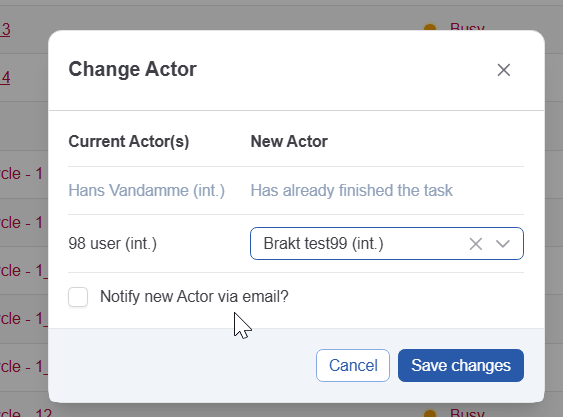
For each actor who still needs to finish the task, select a replacement actor.
The actor change will be remembered in case this task gets repeated in a reloop.
Bulk actions
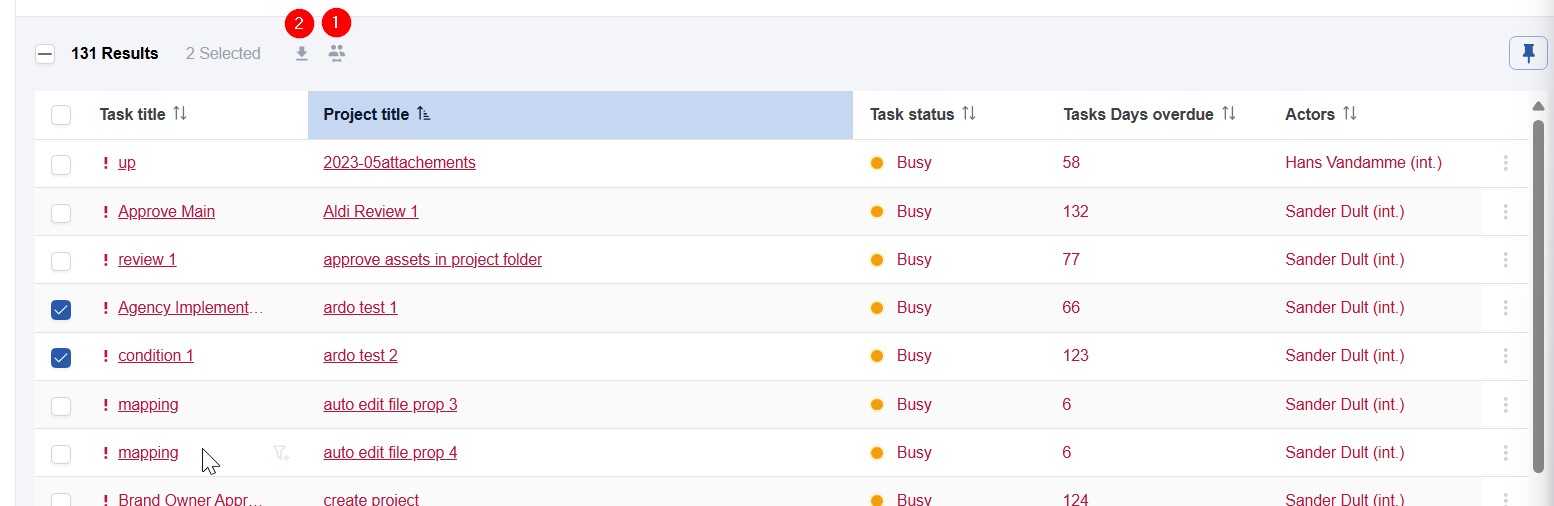
The task modal offers two bulk actions.
-
The export button (1) exports all tasks in the current view. It exports all active columns and applies active filters.
-
The bulk change actor button (2) changes the actor of selected tasks in one action.
Total amount
To the top right, next to the column preferences button, the total amount of projects is shown. This number is influenced by the filters currently active. This can be either a quick filter, or an advanced search filter. The number shown does not correspond with the amount of projects that are loaded and within view, rather it filters all of the projects, to ensure correct representation.
Orders Toggle
In case you have access to both DOQMIND and Athena Graphics Orders, a toggle will be present at the top of the tasks-view. Toggling to Athena Graphics will present a task view with its own functionality and will contain all of the tasks related to the orders module. This will not show DOQMIND tasks.
The default view when opening the tasks module is the last selected toggle.