
When you open an asset from an approval task that has reference files configured, you can consult them from the References panel in the viewer.
Opening the References panel
The viewer toolbar shows a References icon. Click it to open the References panel. The panel opens downward from the toolbar.
Opening the References panel closes any other dropdown or panel that was already open. This matches the behavior of the lineup panel.
The panel has a header labeled "References" and two tabs: Files and Links.
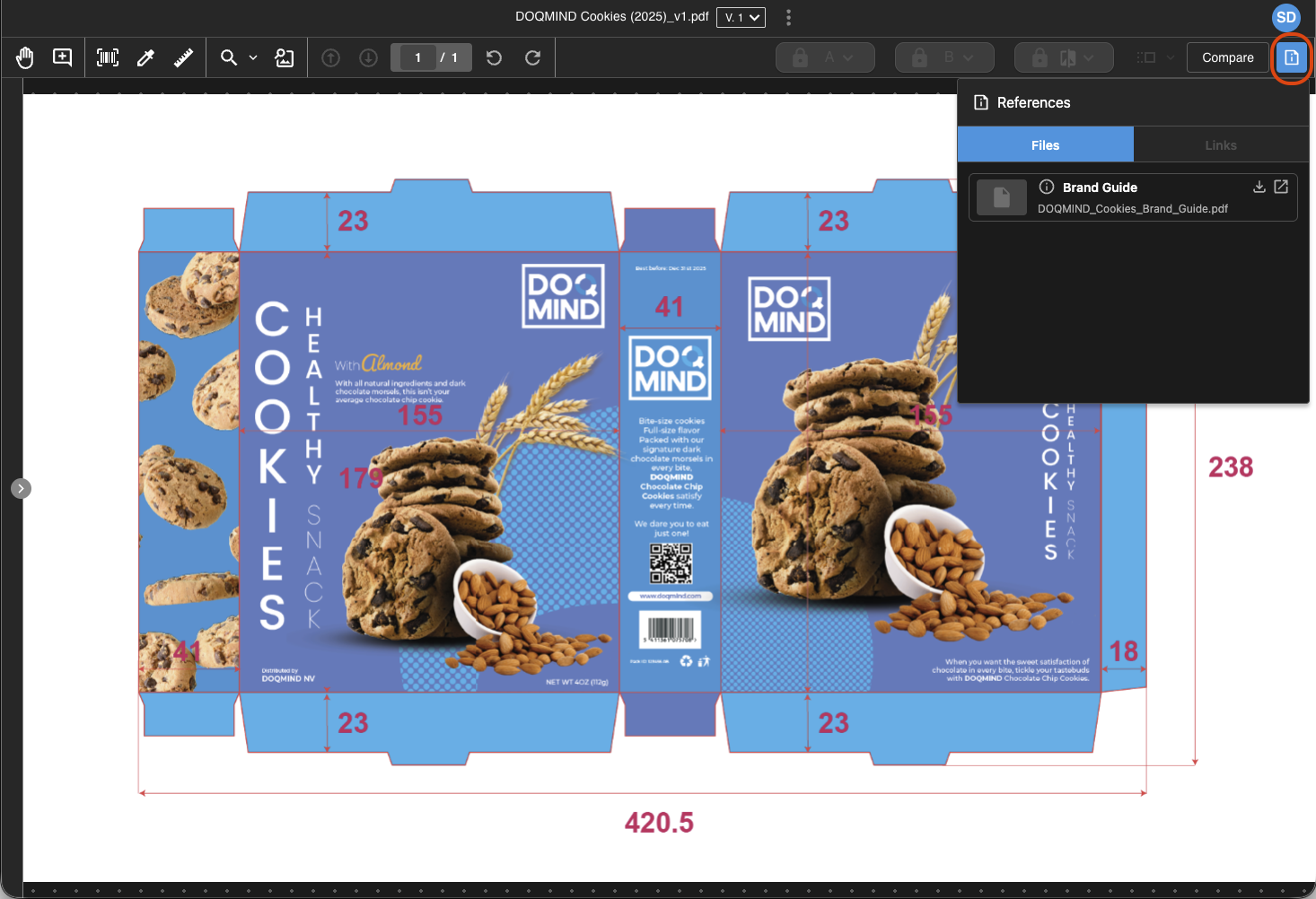
Files tab
The Files tab lists every file that has been configured as a reference for this task. The list scrolls if there are more files than fit on screen.
Each file shows:
-
A thumbnail — a preview of the file. If the file type does not support a thumbnail, a placeholder is shown instead.
-
An info icon — hover to see the description, if one was provided.
-
The title of the file. Long titles are truncated with ellipses, with a tooltip showing the full name on hover.
-
The name of the file.
-
A download icon — downloads the file to your computer.
-
An open in new window icon — opens the file in a new browser window, for supported file types (JSON, XML, HTML, text, image, video).
If the task has no reference files configured, the Files tab shows "No files available".
Links tab
The Links tab lists every reference link configured for this task. The list scrolls if there are more links than fit on screen.
Each link shows:
-
The name of the link.
-
The URL — click to open it in a new browser tab.
-
An info icon — hover to see the description, if one was provided.
If the task has no reference links configured, the Links tab shows "No links available".
When a reference is no longer available
If the asset or asset version behind a reference file has been removed or purged, clicking the file shows a message indicating that it is no longer available. All other references in the panel continue to work normally.
Where references are not shown
The References panel is only available when the asset was opened from an approval task. If you open the same asset directly from the asset library, the References icon does not appear in the toolbar.