
The bulk metadata editor lets you review and edit the custom metadata of several assets in one place. You can tag every selected asset at once, or step through them one by one, without leaving the editor.
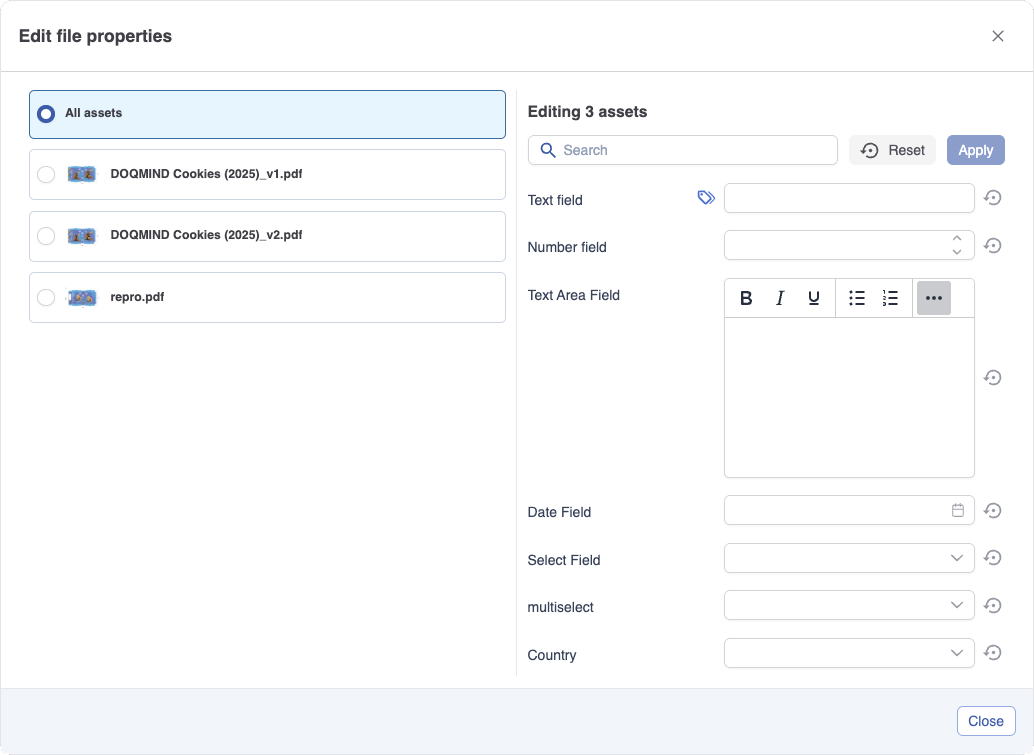
Opening the editor
The editor can be found in the following contexts:
-
Select one or more files in the Assets module and click Edit metadata in the selection toolbar.
-
From a metadata task in a project, where the same editor is used.
The asset list
On the left you see the assets you are editing. The list always starts with All assets, followed by each individual asset with its thumbnail and filename. Click an entry to switch what you are editing.
Editing all assets at once
With All assets selected, any value you enter is written to every asset in the set when you save. This is the fastest way to apply the same value, for example a campaign name or a status, across a whole upload.
When the selected assets already hold different values for a field, that field shows a mixed value indicator instead of a single value. In the screenshot above, “Text field” is an example of this. Leaving the field untouched keeps each asset's own value. Typing a value into a mixed field and saving overwrites that field on every asset in the set.
Editing a single asset
Click an individual asset to edit only that asset's metadata. Its current values are shown, and saving applies only to that asset.
Saving
Saving is always scoped to what you are currently viewing. Saving in All assets writes to the whole set; saving on a single asset writes to that asset only. There is no single global save button, so check that you are in the right view before you save. After each save the values are reloaded, so you always see what is actually stored.
Undoing changes before saving
Each field has a reset action that returns that field to its last saved value, including restoring a mixed value indicator where that was the original state. A reset all fields action returns every field in the current view to its loaded state. Resetting in one view does not affect unsaved changes in another.
If you move to another asset while you still have unsaved changes, you are asked to confirm before those changes are discarded.
Fields
Custom fields appear in the order set by your administrator and use the same field types as the file details view (text, number, rich text, date, select, multiselect). System fields such as filename and size are read only and cannot be changed here. All custom fields are optional.