
Searching, filtering and sorting
In Assets, the following criteria can be used in list view or advanced search
System Properties
-
Name: The name of the asset (without extension)
-
Name with extension: The name of the asset (with extension)
-
Extension: The extension or file type of the asset
-
Asset type: Search for files or folders only
-
Approval Status: The approval status of the asset
-
Version: The version of the asset
-
Filesize: The filesize of the asset
-
Created at: The date when the asset was created
-
Updated at: The date when the asset was last updated
-
Path: The location of the Asset or folder in the folder structure.
Path
The path filter allows a user to filter folders and assets based where they are located in the folder structure in Assets. If the visible column “Path” is enabled, you can see exactly what you’re filtering on. The path in DOQMIND is shown with back slashes, but when filtering, forward slashes can also be used. Important to note is that every Path starts with back slash. This indicates the root level of the Assets module. Also, the use of wildcards * and ? is supported. This allows you make a filter variable.
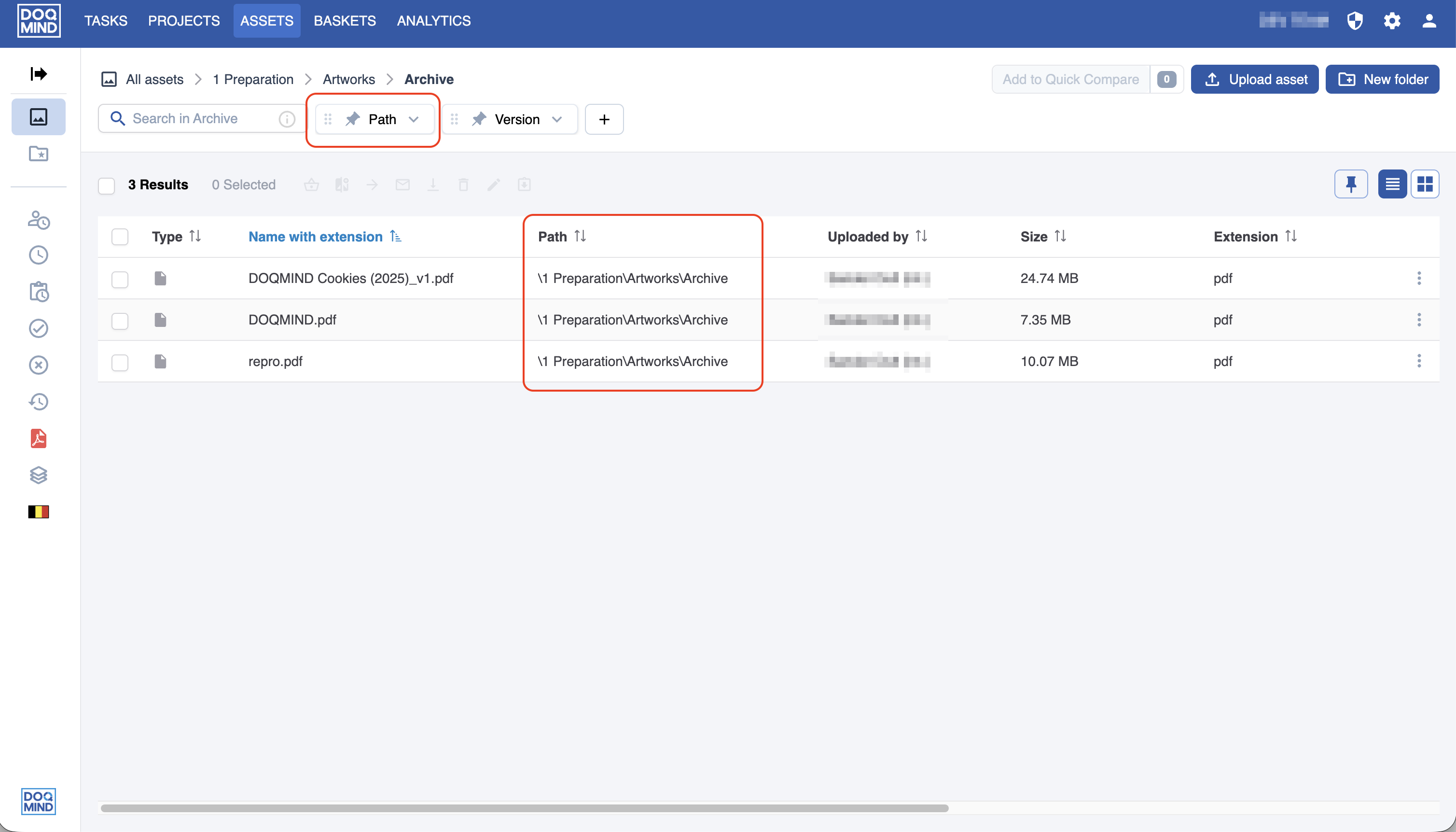
Example
I’m looking for an Asset that is situated in a projectfolder “Artworks”. However, I don’t know exactly what project it is in. I can start off by filtering all Assets that have “Artworks” as a direct parent folder with the following configuration of the path quick filter:
|
Property |
Operator |
Value |
|---|---|---|
|
Path |
Equals |
\Projects\*\Artworks |
You could achieve a similar result with the following configuration:
|
Property |
Operator |
Value |
|---|---|---|
|
Path |
Contains |
Artworks |
This is less strict though, because it could also catch assets in a folder “Artworks” that is not in the project folder. It also disregards the aspect that a folder called “Artworks” is the first parent, rather it will find assets where “Artworks” is any level of parent.
Custom Properties
Additionally, any custom Assets properties you have defined can be used both in list view and advanced search. More information can be found in Working with list view.
System defined saved searches
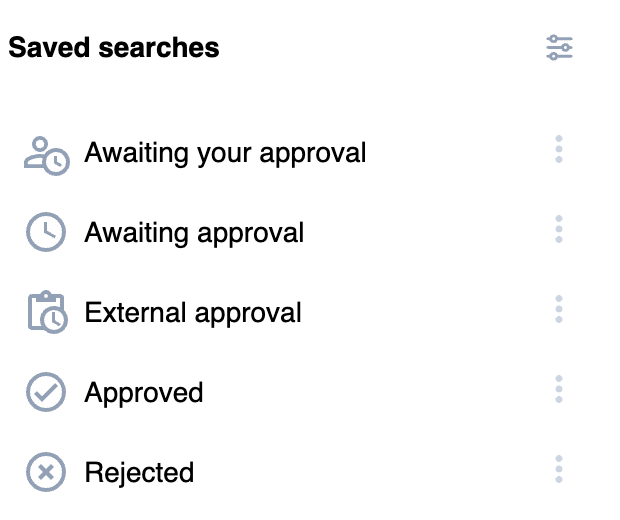
The saved searches on asset approval allows you to filter on asset approval status. It shows the assets with a specific approval status and searches recursively in the active folder.
These system defined saved searches cannot be edited or removed.