
File details can be opened via the context menu in the file browser.
The File Details modal opens for any user with View on the asset. Its further contents are gated by the corresponding rights on that asset: editing metadata from Info requires Modify asset property, the Versions tab requires View version, the Approvals tab requires View approvals, and the Logs tab requires See logs. See Asset rights reference.
Info
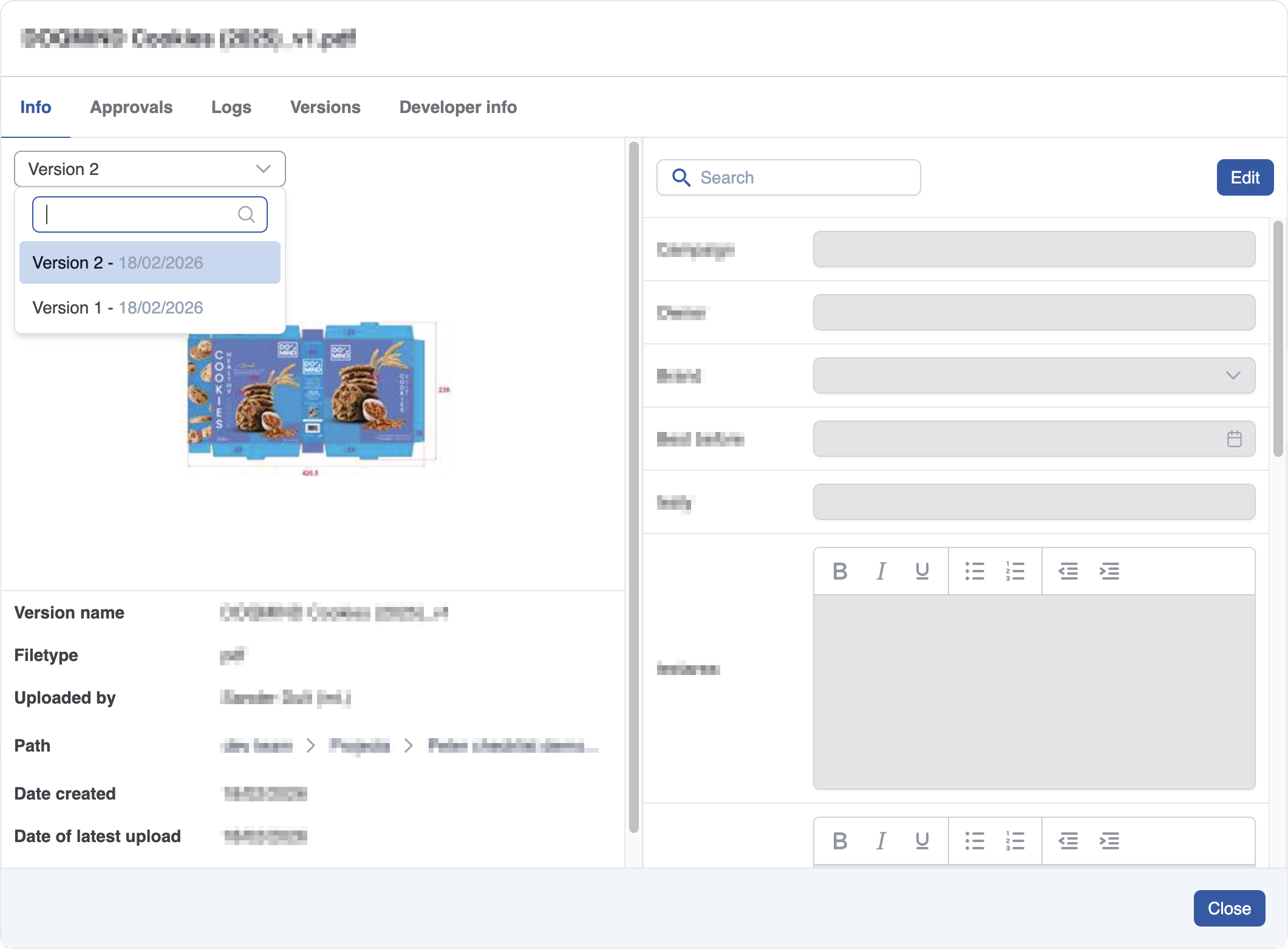
In the Info tab, a miniature of the asset is displayed along its associated metadata. System metadata appears below the thumbnail, while custom metadata are located on the right. The pencil icon next to the asset name can be used to rename it. The Search button above the custom metadata enables quick filtering by metadata name. Users with the appropriate permissions can click the 'Edit' button to modify the asset's custom metadata. To apply the changes, click 'Save'.
At the top of the Info tab, a version dropdown allows you to switch between all versions of the asset. When you change the selected version, the metadata shown — both system and custom — updates to reflect the state of that version at the time it was last modified. Purged versions can be selected in the dropdown, but their miniature will appear grayed out to indicate the file is no longer available.
Approvals
The approvals tab gives you details about previous and ongoing approval cycles. You can see who approved, who rejected and you can see comments.
Logs
The logs section provides the history of the asset. It shows all actions that were taken on an asset and its metadata throughout its history.
Versions
The Versions tab displays the history of all versions of the asset, complete with the uploader's name, upload time, and a thumbnail. From here, you can select two versions to compare.
To interact with a specific version, open its context menu. The following actions are available depending on your rights:
-
Compare: select this version as one side of a comparison.
-
Purge version: permanently removes the file content of this version from storage. This option is available on all versions except the latest, and only appears if you have the Purge versions right. A confirmation is required. See Purging asset versions for more information.
Purged versions remain listed in the tab but are shown with a grayed thumbnail (cloud) or a no-entry icon (on-premise). Hovering over a purged version shows a tooltip with additional information.