
Purging a version permanently removes the file content of that version from storage. The version record itself is kept — it remains visible in the Versions tab with a visual indicator — but the file can no longer be opened, downloaded, or viewed.
Purging is useful for managing storage by removing old, superseded versions that no longer need to be accessible. The latest version of an asset can never be purged.
There are two ways versions can be purged: manually by a user with the appropriate right, or automatically based on a schedule configured in Administration.
Manual purging
To manually purge a version, open the file details of an asset and go to the Versions tab. Right-click or open the context menu on any version except the latest, and select Purge version.
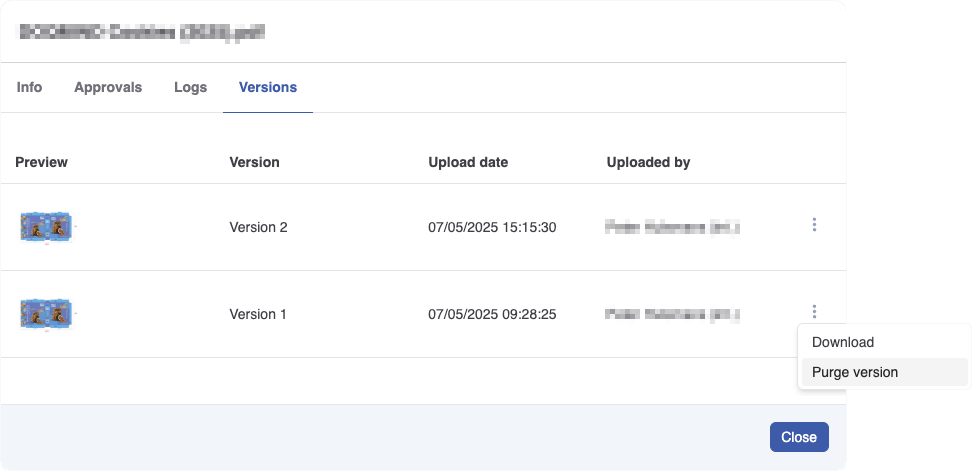
A confirmation dialog will appear before the action is executed. Confirm to proceed with the purge.
Note: The purge version option only appears for users who have the Purge versions asset right. See Assets Rights for more information.
How purged versions appear
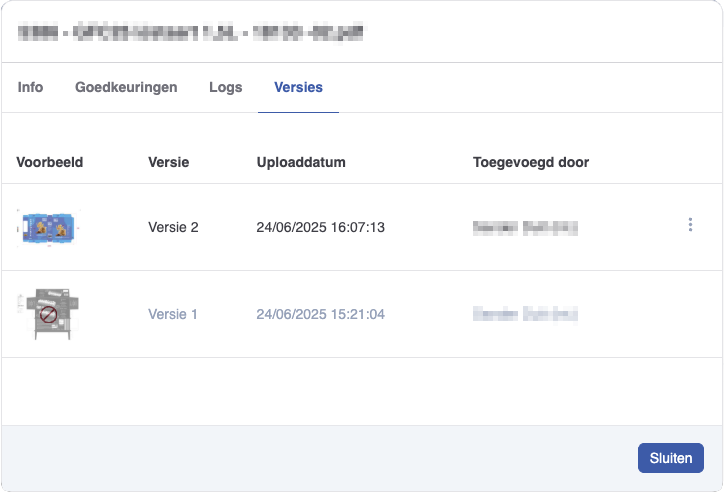
Once a version is purged, it remains listed in the Versions tab but is displayed differently depending on the deployment type:
-
Cloud: The version thumbnail is shown grayed out, with a no-entry icon overlaid.
-
On-premise: Only the red no-entry icon is shown — no thumbnail.
Hovering over a purged version shows a tooltip indicating that the version has been purged.
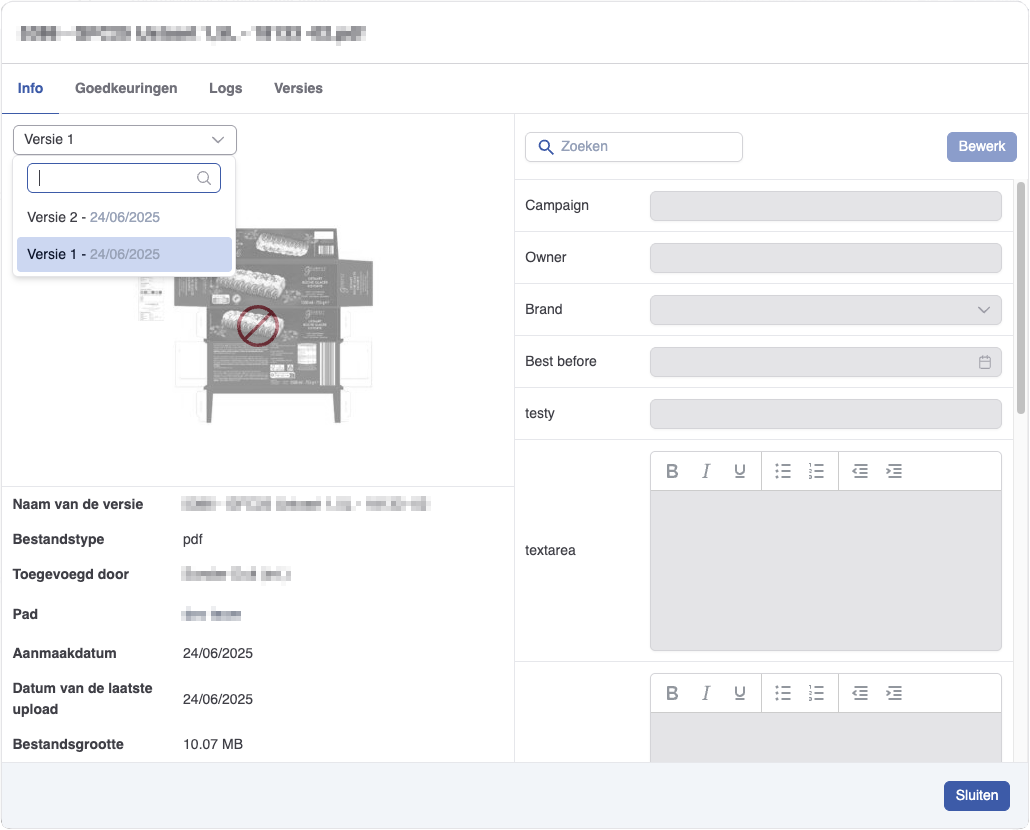
In the Info tab, purged versions are also reflected when switching between versions using the version dropdown. The miniature of the asset will appear grayed out for purged versions.
Viewing purged versions in the viewer
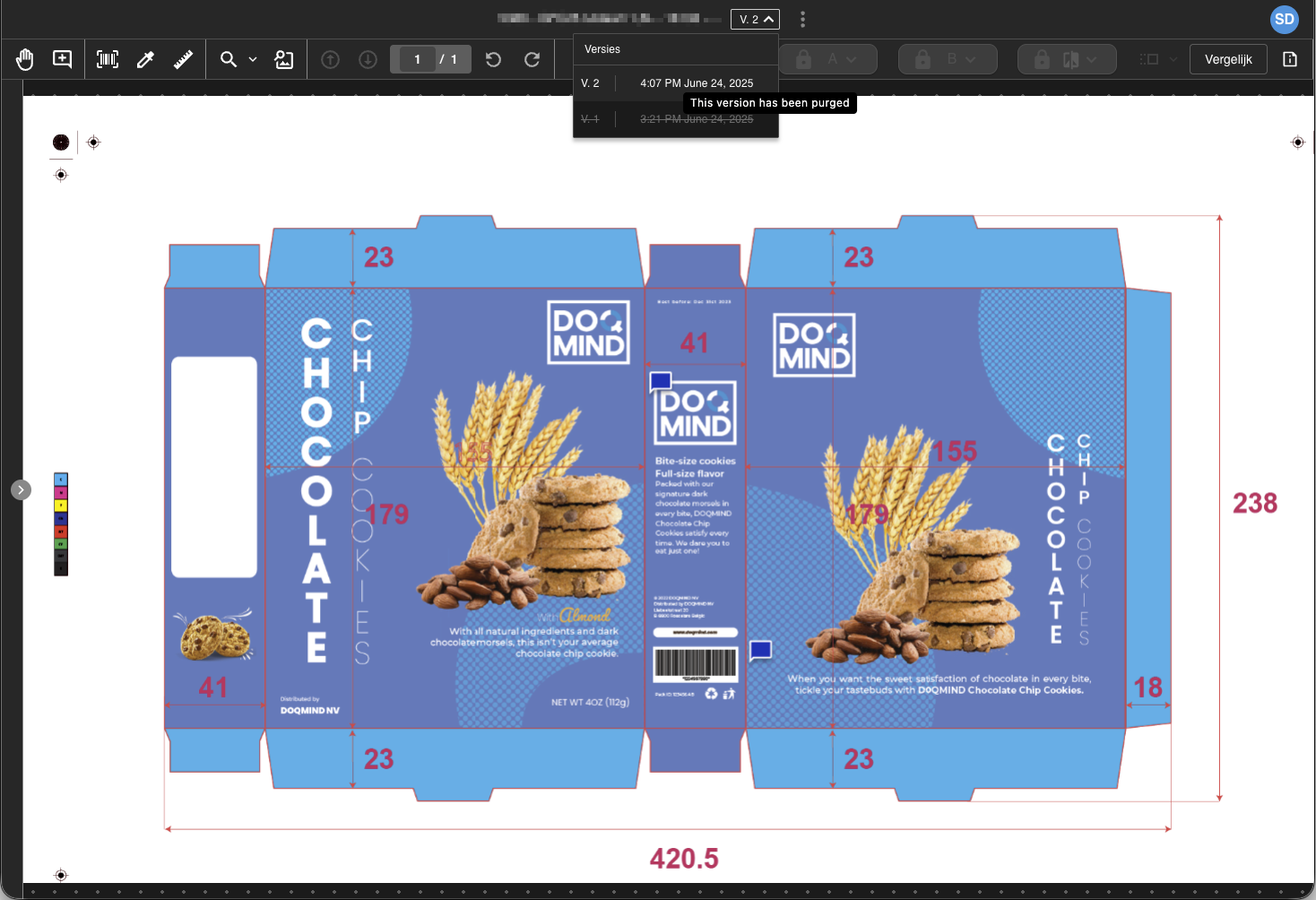
When a version is purged, it remains listed in the viewer's version dropdown but is shown with strikethrough text to indicate it is no longer available. Purged versions cannot be selected from the dropdown, clicking them has no effect.
Purged versions are also excluded from the Compare function in the viewer. They cannot be selected as either side of a comparison.
Automatic purging
Versions can also be purged automatically based on a nightly schedule. This is configured by an administrator in Administration → Assets → Purge versions. See Configuring automatic version purging for details.