
With the Watched Folder functionality, users can monitor specific folders for various changes within that folder. This allows you to stay up-to-date on changes in specific areas within the Assets module.
Action
The watch folder option can be found in the context menu of a folder in the assets module. This is both available in grid and list -view.
Watching a folder requires the user-level Watch right. You also need View on the folder; folders you cannot view cannot be watched.
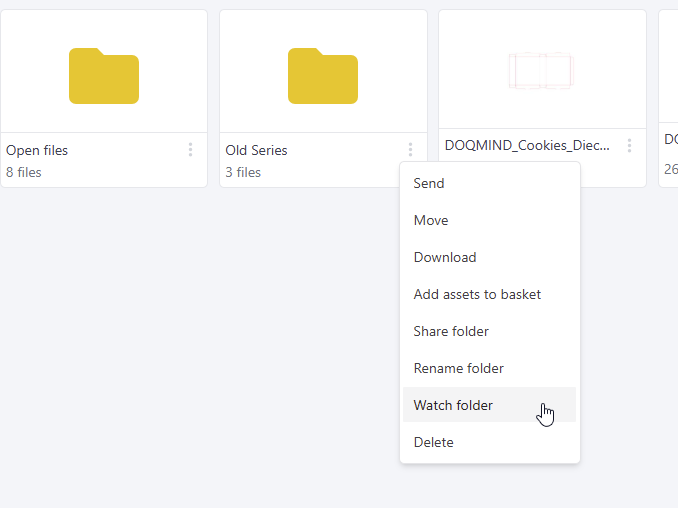
Watching a folder will do the following things:
-
Show as option in the sidebar quickfilter “Watched folder(s)”
-
Visually mark the folder as watched
-
Make a folder by the advanced search parameter “Watched”
-
Automatically send notification emails when there are changes.
When a folder is watched, it can be “unwatched” in the same way, via the context menu.
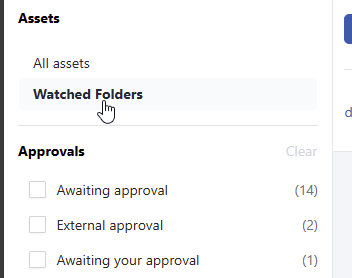
Watched folders can be found back under the watched folders section in Assets.
Notification
It will report the following actions that occur in the watched folder and its subfolders:
-
Adding assets
-
Adding a new version
-
Renaming assets
-
Moving files
-
Removing files
-
Adding new folder
-
Renaming folders
-
Moving folders
-
Removing folders
All changes are grouped in 1 notification email, which are sent out every hour.