As an internal or external user
When you are invited to participate in an approval, the following will happen:
-
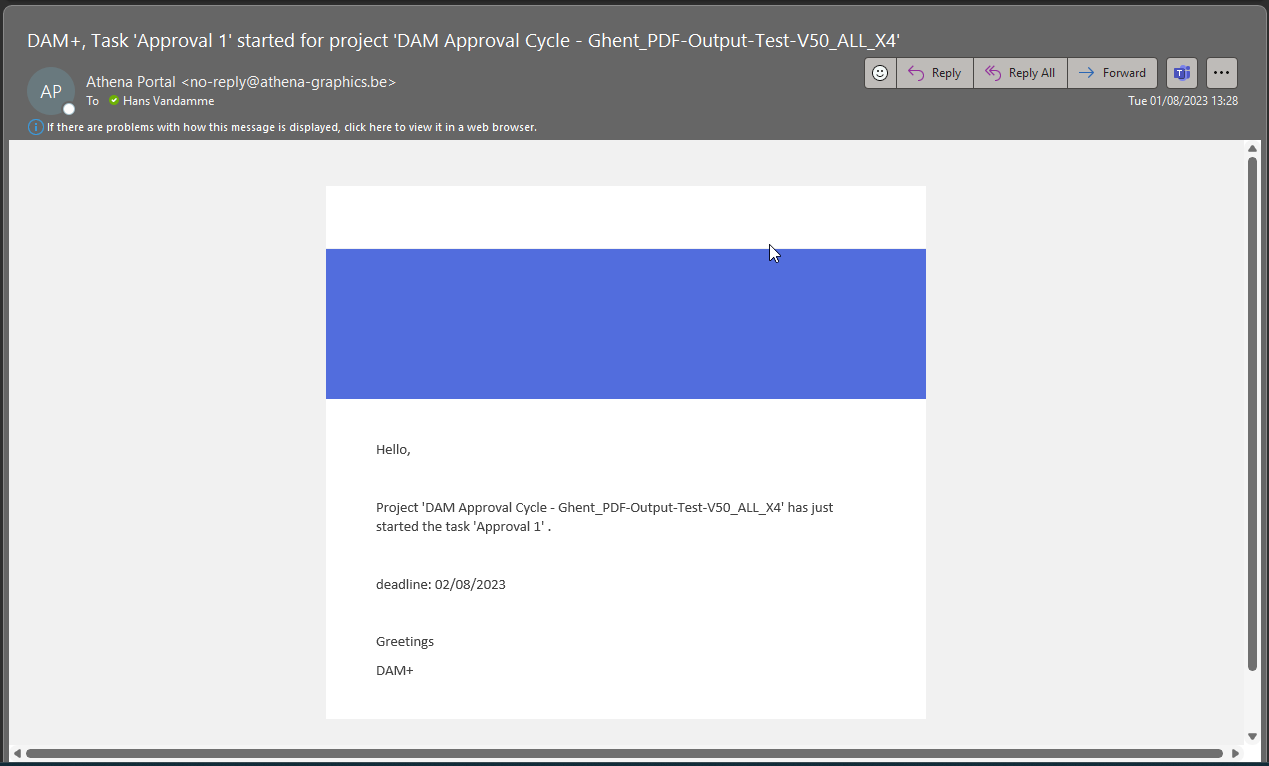
You will receive a notification email that you have been invited approve an asset. See an example bellow of an non-customized invitation email.
-
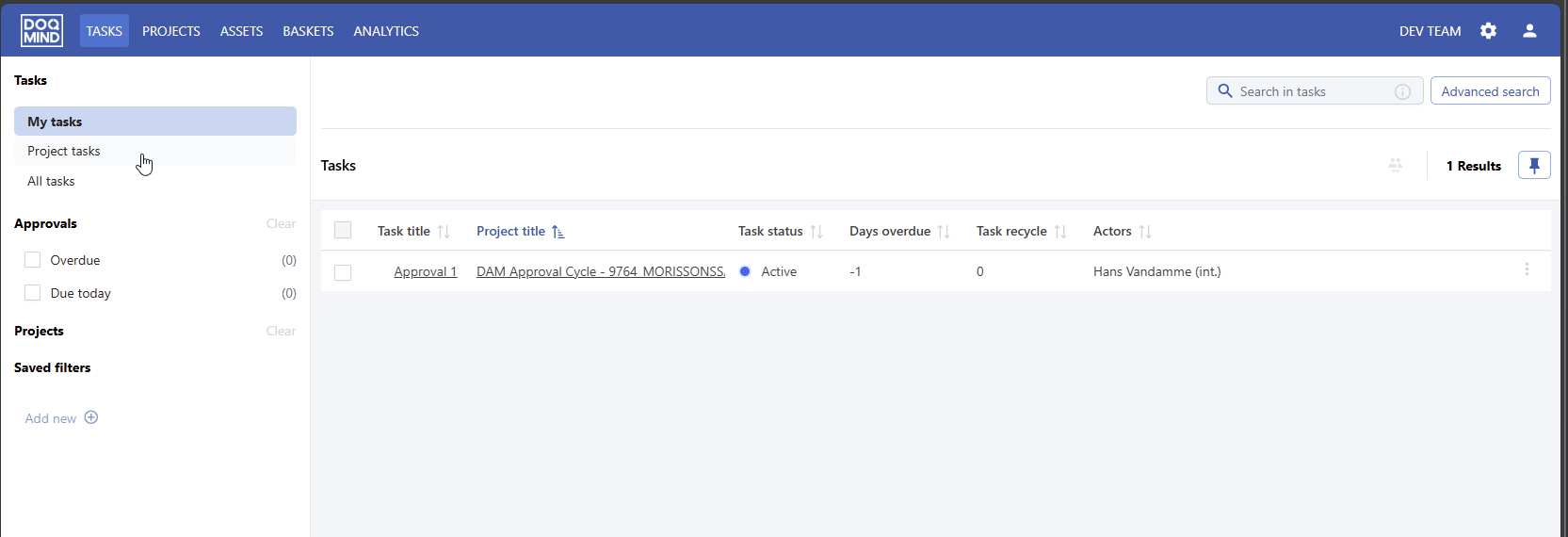
The approval task will show up in the tasks view in DOQMIND
The user can click on the approval task and he’ll see the following screen
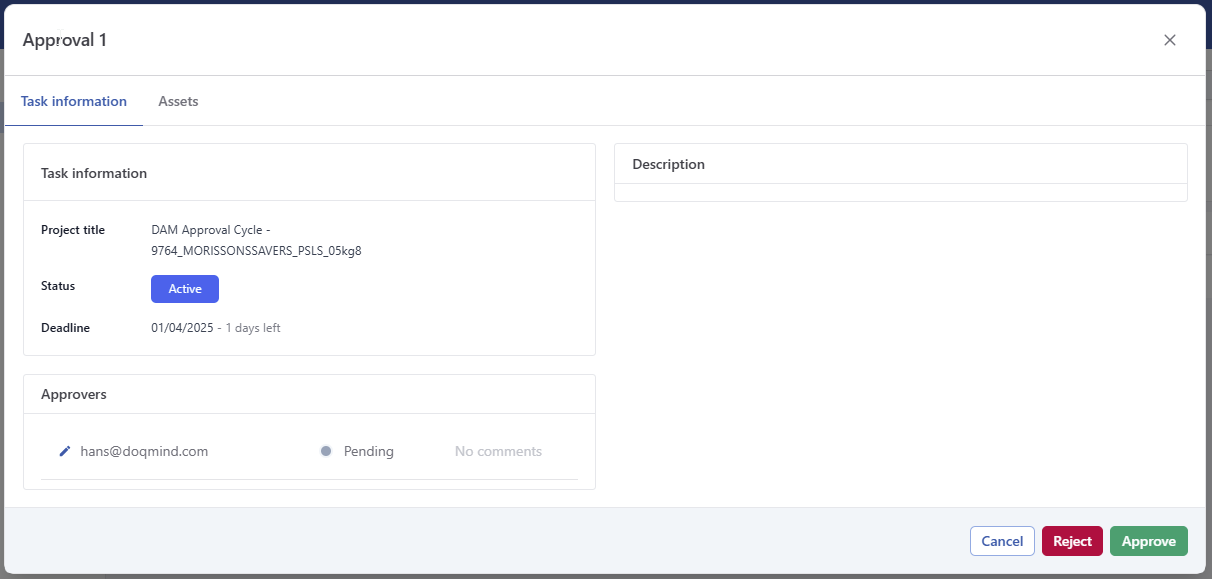
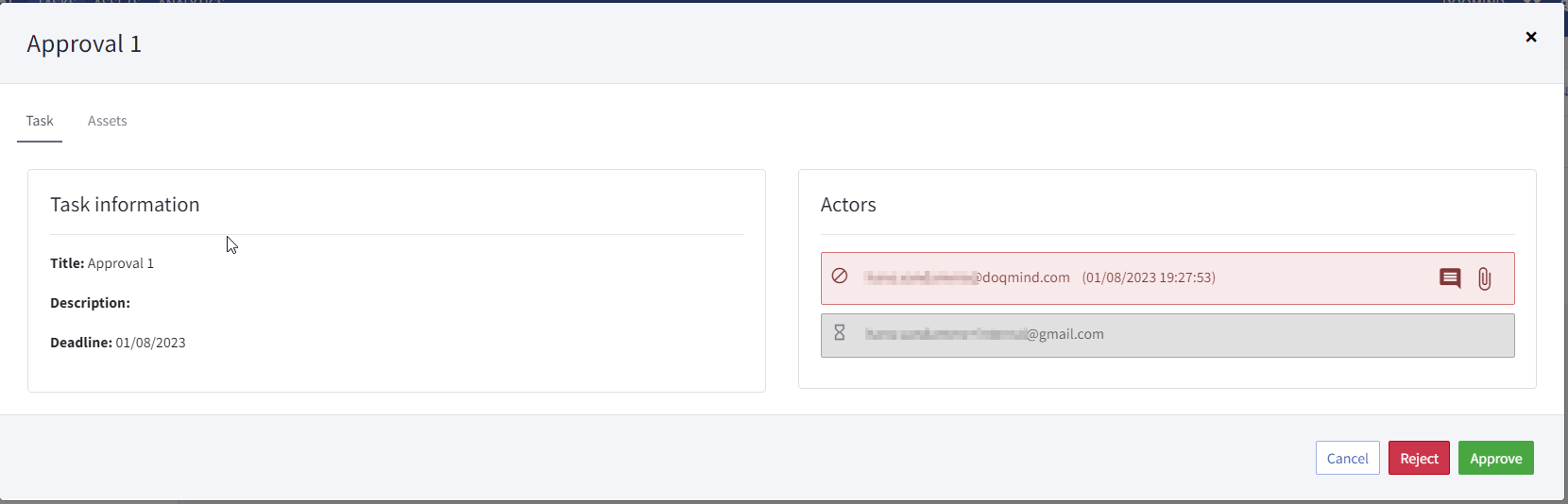
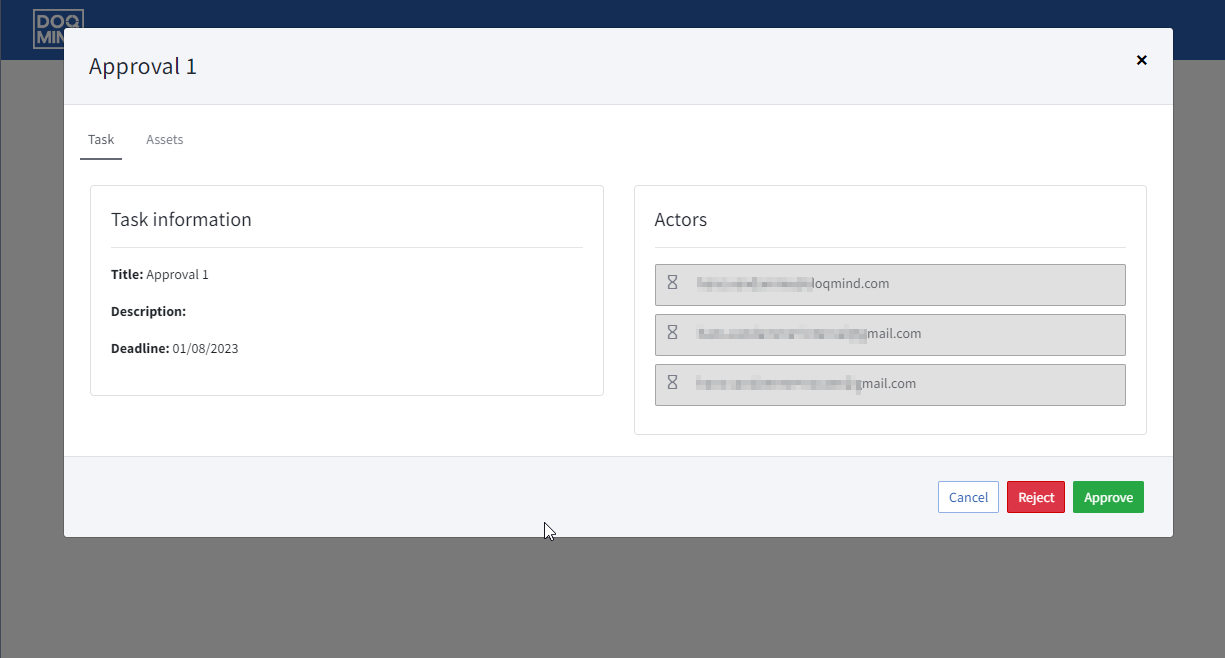
In the Actors section he can see who is invited in the current group, and what the status is. Pending approvals will show grey, actors who approved will show up as green and actors who rejected will show as red.
An actor with the dam_edit_own_approval_loop right can assign a different actor to his own task. Actors with the ‘dam_edit_approval_loop’ will be able to re-assign the actor of any pending approval. This is done by clicking on the pen icon next to the actor’s name.
The actor can go to the assets tab to open the viewer and view the asset. See the Viewer section for more information.
Using the Approve and Reject buttons, a user can approve or reject the asset after viewing it.
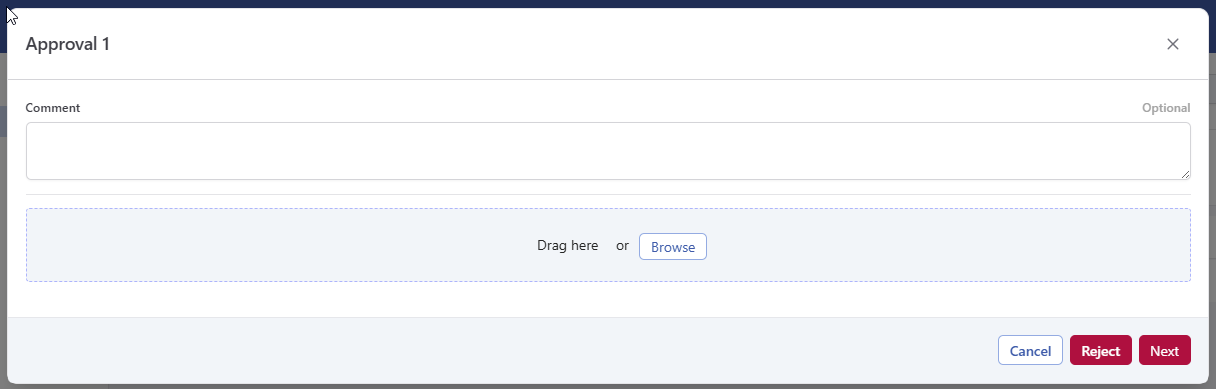
Once approving or rejecting, it’s possible to add comments and attachments to clarify the reason for rejection of approval. These comments and attachments will be shown to other actors in the same group, or to the person reviewing the approval in the assets module.
As a guest user
Ad-hoc users are users who were never defined a a user, but were added by their email address to an approval. They will receive an email with a link that invites them to approve the asset.
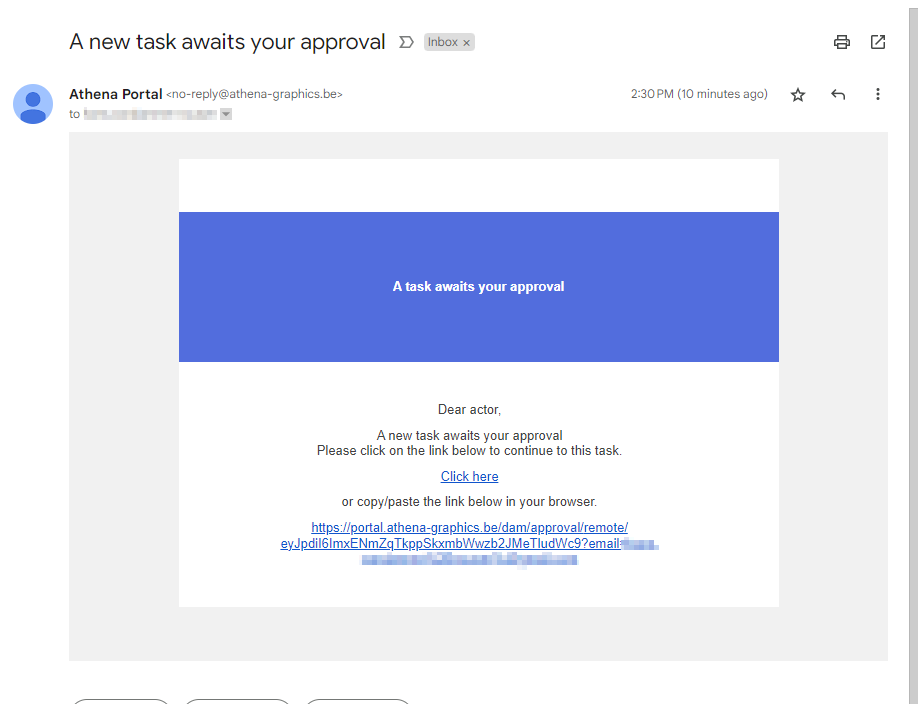
When the user clicks on the link, the DOQMIND interface will open and he will immediately see the user approval screen for the asset.