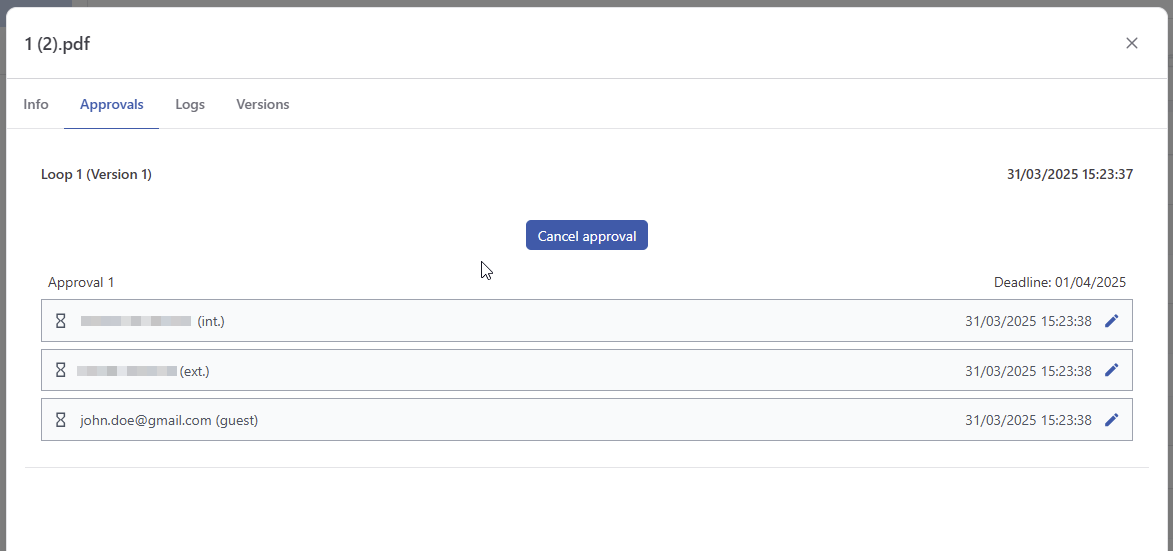
Users with the correct rights can initiate an approval request on an asset.
Approval can be requested from the context menu of an asset, using the ‘request approval’ menu.
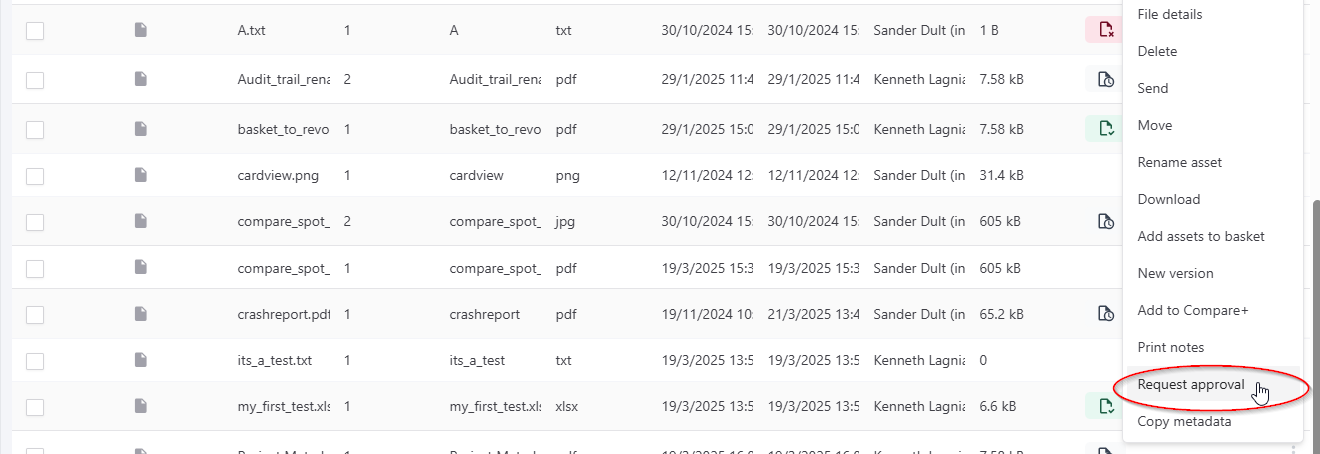
The ‘request approval’ modal will show. This modal allows you to configure up to 4 approval cycles.
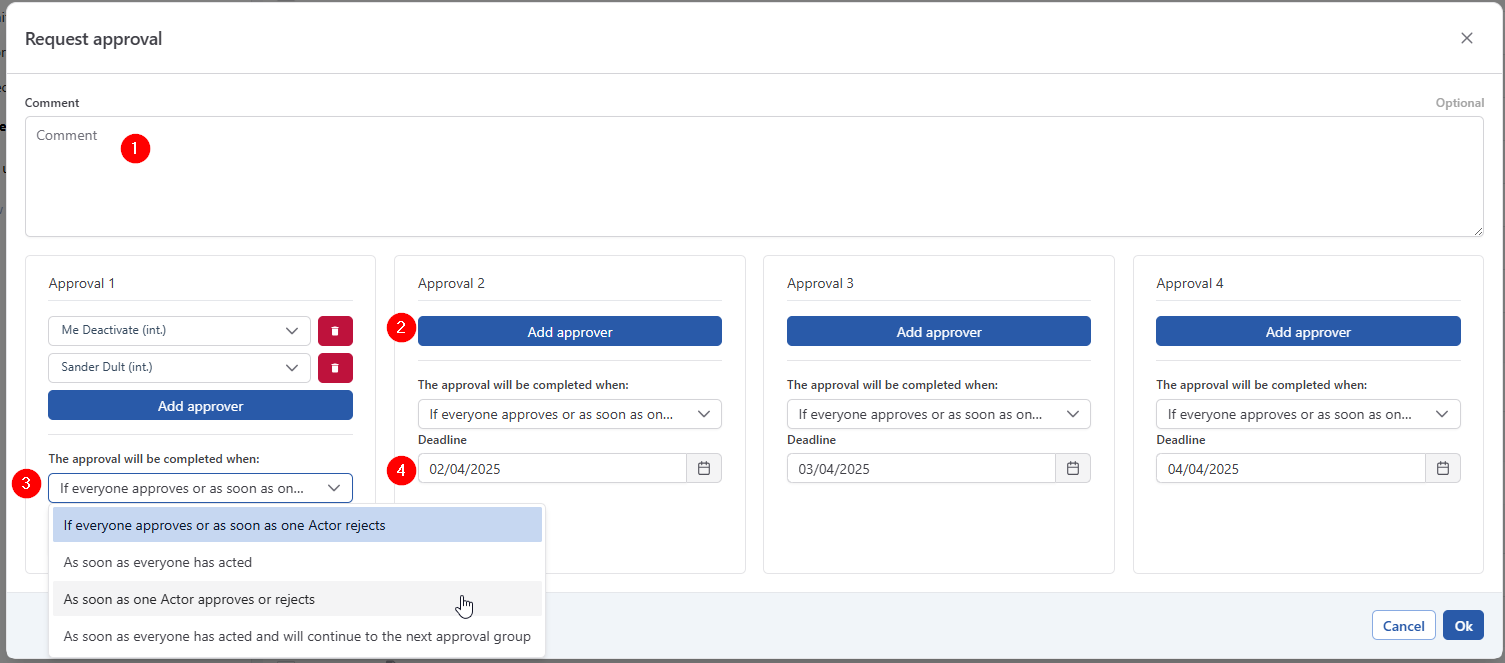
When requesting an approval you can:
-
Enter a comment in zone 1. This comment will be used in the email notification to all approvers
-
Select one or more approvers per approval cycle. You can either select from the list of internal users, or type any valid email address of ‘ad-hoc’ approvers you want to invite. Ad-hoc approvers do not need a login or password and can only access the approvals through the links in the emails.
-
Add participants by clicking on the ‘add participants’ button. (Button 2)
-
Select how the system should react when multiple approvers participate in a single cycle (Button 3):
-
If everyone approves or if the first Actor rejects
This approval method strives for unanimous approval. We wait until everyone has given approval, but the moment one person rejects, the approval cycle is stopped and all outstanding approval tasks are deleted. The next approval group is not started on rejection.
In this instance, the approval task finishes in 2 scenarios:
- If all of the actors that need to give approval have approved
- If one of the actors rejects -
As soon as everyone has acted
This approval method is looking for approval from all of the actors, no matter their answer.
No matter what an individual answers, the task remains active until all of the actors have given an answer. In case of rejection, the next approval loop will not be started. -
As soon as one Actor approves or rejects
Approval from only one actor is needed.
Whether or not the answer is approve or reject, is irrelevant for the continuation of this task. In case of rejection, the next approval loop will not be started. -
As soon as everyone has acted and will continue to the next approval group
Works identical as ‘As soon as everyone has acted’, but the next approval group will also be started on rejection.
-
-
Set a deadline for each approval cycle (Zone 4)
-
Request the actual approval (zone 5)
User types
Three types of users can partake in an assets approval:
-
Internal users
-
External users
-
Guest users
See https://help.doqmind.com/dm/user-types for more information.
Guest users are not defined in DOQMIND. They will simply receive an email with a link to a task execution. The only thing that user can do is complete this approval task execution.
The user type is indicated next to the the name of the user: