Ongoing approvals
In the asset module, you can see if approvals are ongoing in the list or grid view. The assets with ongoing approvals have an icon indicating the approval state.
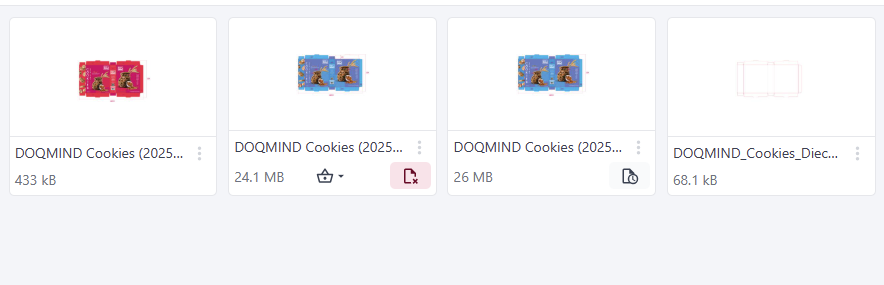
When you hover over the approve icon you can see the number of approvers per status (pending, approved or rejected). You can open the approval details by clicking on the approval icon.
The approval details
When opening the context menu and clicking on ‘file info’, the info modal contains an approval tab that show the complete approval history of a file.
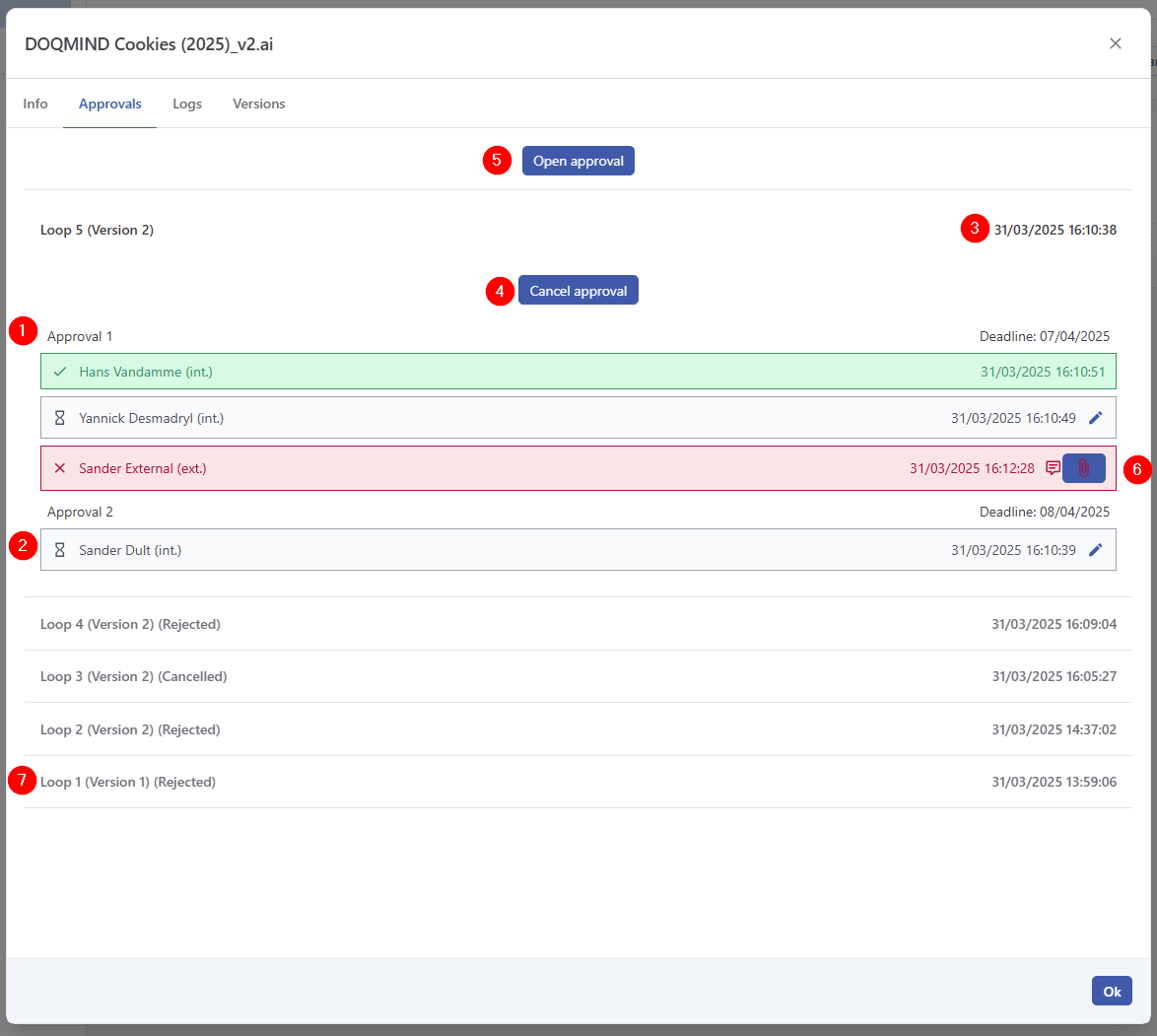
The approval tab shows the following:
-
The approval request in the current loop, current group. In this case 1 approval is pending, 1 rejected and 1 approved.
-
The approvers in the consecutive groups. They will be invited once the current group finishes and all conditions are met.
-
The deadline for the current group
-
Cancel approval cancels the entire approval loop. The cancelled loop will be shown in the list of the previously completed approvals.
-
An ‘open approval’ button. This only shows if your current user has a pending approval tasks for the current asset. The approval screen will open if clicked.
-
A link to any comments that were made, or to attachments that were added during the approval.
-
An overview of any previously completed approval cycle on the asset.
Stakeholders are also informed on key events that happen during the approval cycle.
Change Actor
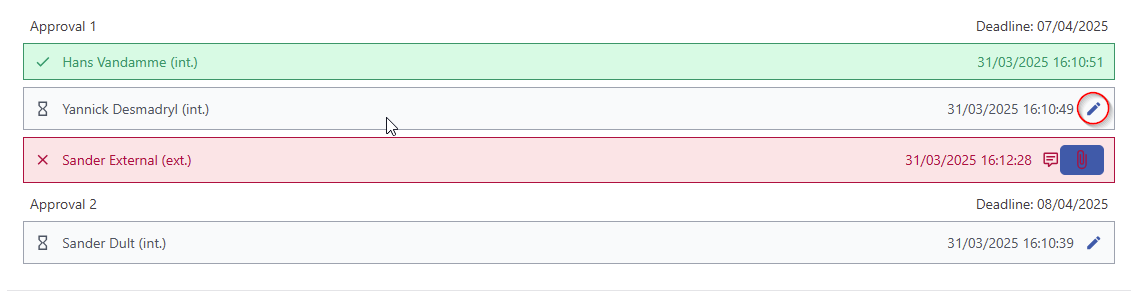
The actor assigned to the approval can be changed by clicking the edit button.