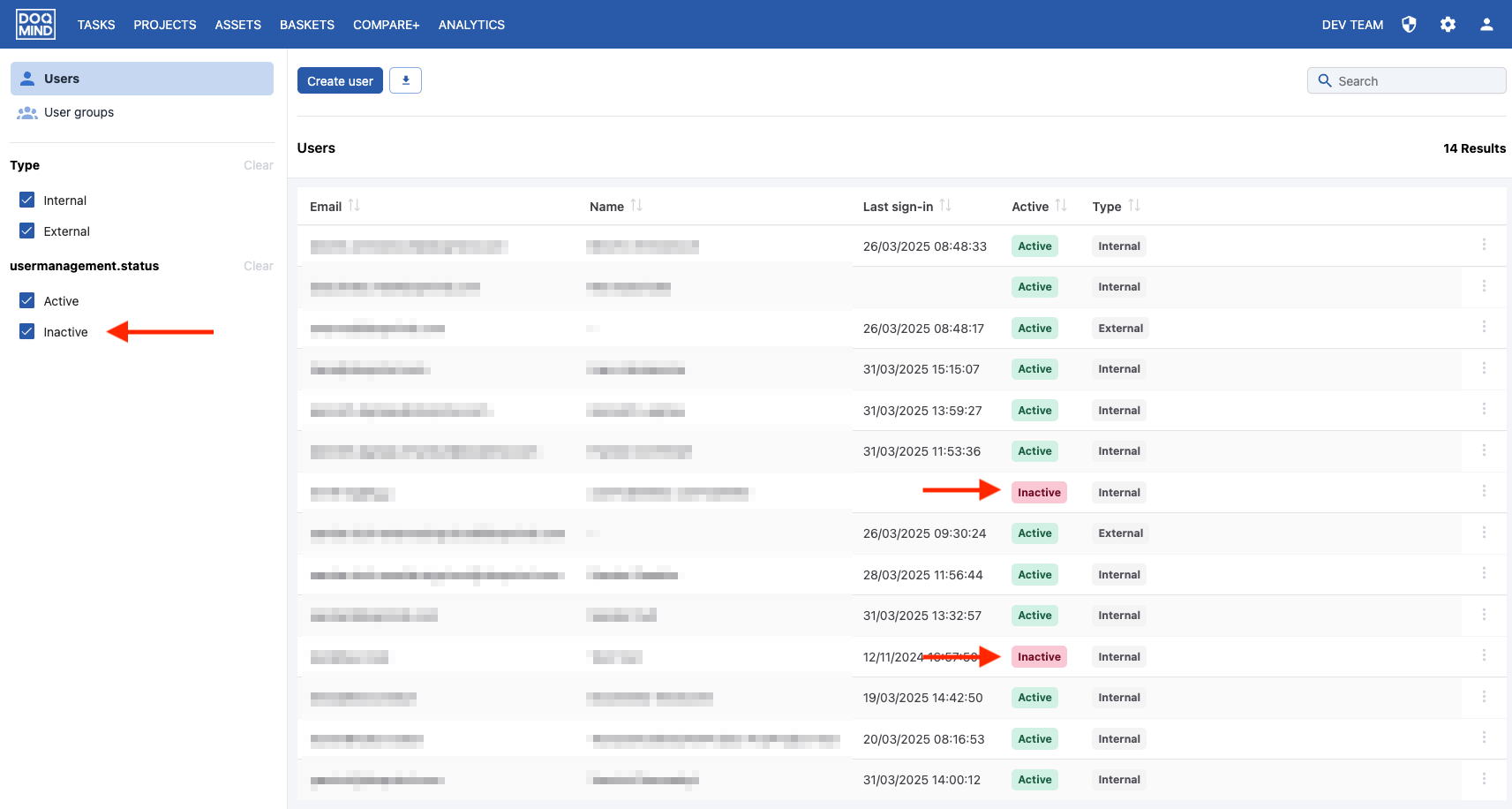
Why deactivate?
In DOQMIND, users can be deactivated if they are not longer needed to actively participate in DOQMIND. This will remove them as option from various areas of DOQMIND where a user can be selected. The user will still remain visible in completed elements, such as tasks that are “Done”. This for completeness of the audit.
That leaves the already existing configurations throughout DOQMIND. There we need to make changes before deactivating a user. For example: if a task configuration still refers to a user when they are deactivated, the resulting task will not be able to start, since we cannot assign tasks to deactivated users.
How to deactivate
The deactivate functionality can be found in the quick-actions dropdown for every user
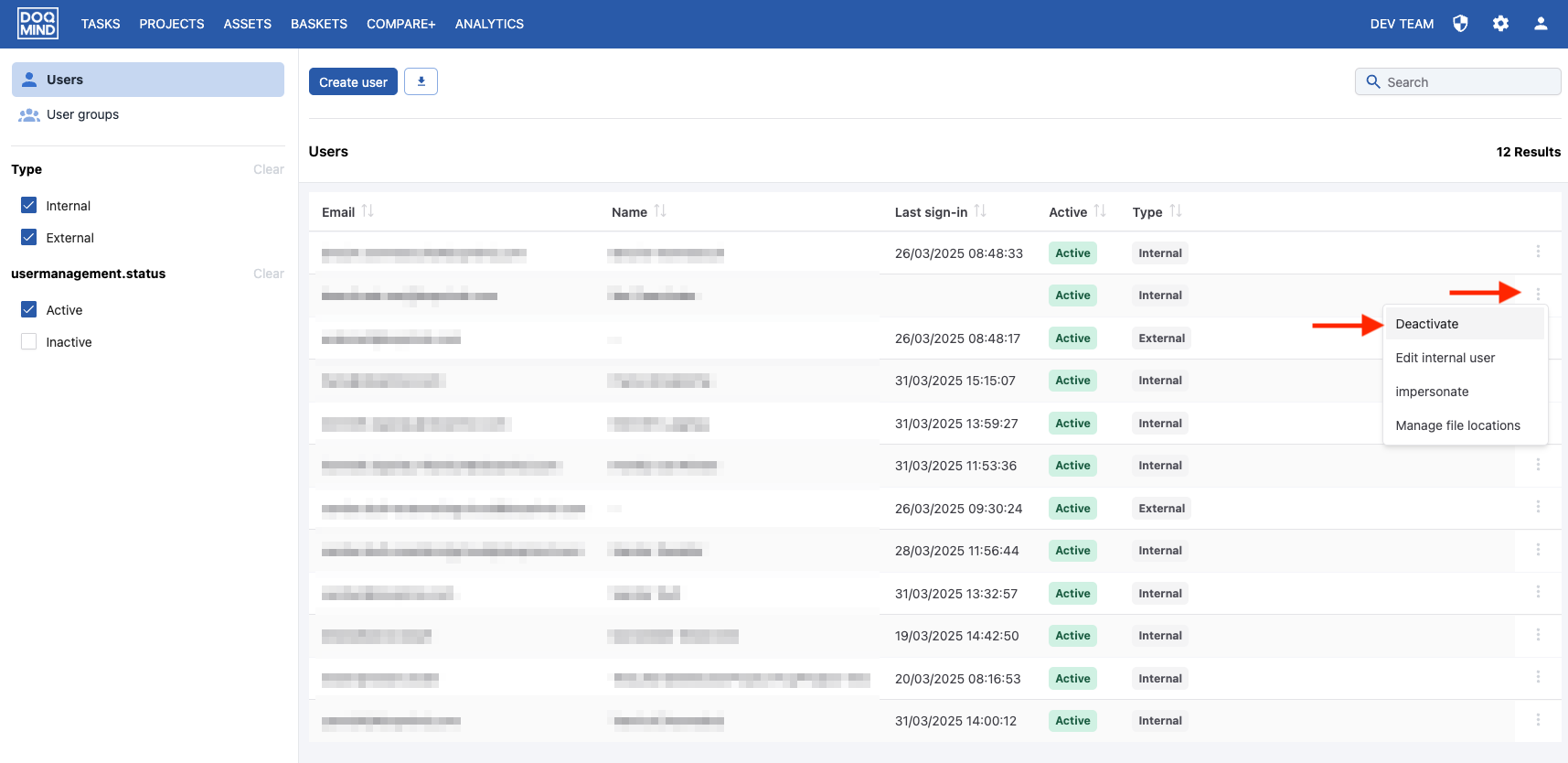
When deactivating a user, a modal appears that shows you the areas of configuration in DOQMIND in which this user is still active. The modal with these different areas looks like this:
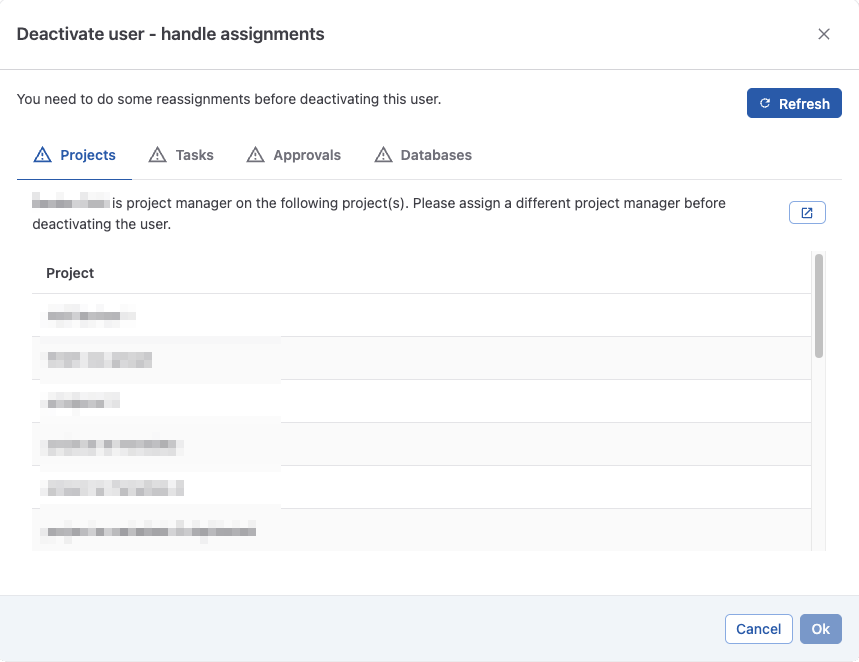
Every section will show the elements in which the user is still active. When changes have been made, the view of this modal can be refreshed. Every section also has a button to redirect to the specific area of DOQMIND.
The areas are the following:
-
Projects
-
If the user is project manager of a project, the project will be shown in the list. To resolve this, we can change project manager in bulk.
-
-
Tasks
-
If the user is an actor of a task, the task will be shown in the list. To resolve this, we can change actor in bulk. This list shows tasks from projects and templates. If a task is from a template, it is indicated next to the project name. These might require a different approach:
-
Tasks from templates need to be immediately re-assigned, as usage of this template will keep producing new project tasks with this user.
-
Tasks in projects can also be immediately re-assigned, but can also be left to finish. Once all of these tasks are finished, reopening or refreshing this modal will no longer show them.
-
-
-
Approvals
-
If the user is asked to approve an asset, the asset will be shown in the list. To resolve this, we can find the asset, open the running approval and change the actor.
-
-
Backup person
-
If the user is configured as backup-person for projects, the user that made that configuration is shown. We can either ask this user to change this to someone else, or impersonate them and make the change ourselves.
-
-
Database relations
-
If the user is selected in database relation, the relation will be shown here. The database relation can be edited so this user is no longer selected.
-
-
Orders
-
This check is only for customers that have an active integration with Athena Graphics. An automated check is not performed here. After you’ve manually checked and resolved this user’s assignments in the Orders module, you can click “Confirm” to manually remove this check and confirm it has been performed.
-
If all of the areas are checked, the user can be deactivated.
After deactivation, the user will no longer be shown in the initial view. The “inactive” quickfilter in the sidebar shows these users.