
Objective
"Choose asset(s)" is a feature that allows users to select their desired assets. This feature enables users to pick assets from the Assets module. It provides a user-friendly interface where actors can easily navigate and search for specific assets they want to use. An actor can select multiple assets at once.
This task produces asset(s) that can be used as parameters for downstream tasks.
Task Execution
-
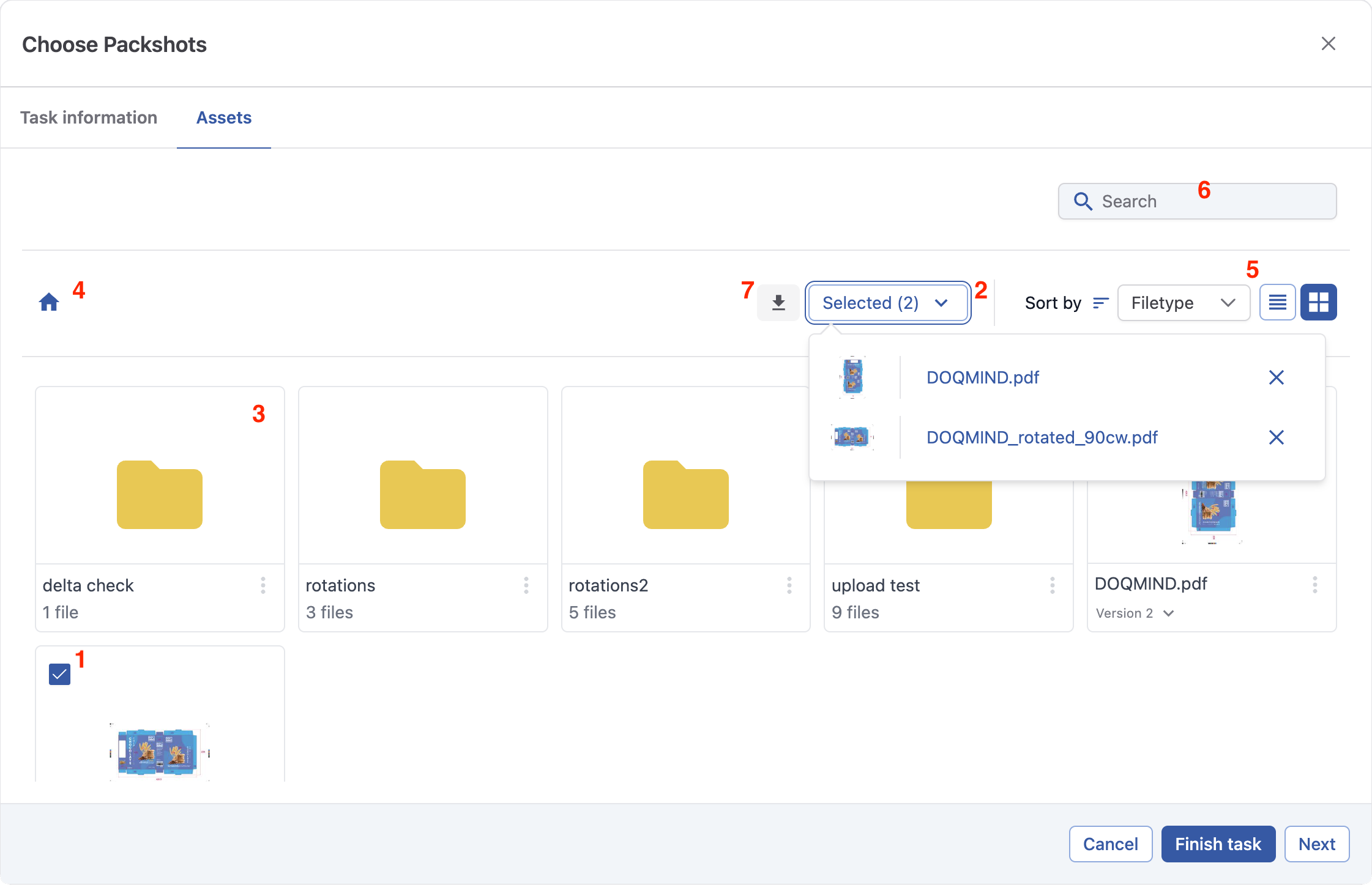
Assets can be selected by checking the checkbox in top left of an asset’s card. In list view, an asset can be selected by checking the checkbox in the beginning of the row.
-
By opening the “Selected” dropdown, you can see the assets already selected. By clicking an asset in this dropdown, you are redirected to the location of this asset. The counter in this button keeps track of the amount of assets selected.
-
Folders are shown and can be clicked to navigate through the folder structure, but cannot be selected.
-
The breadcrumb keeps track of your current location in the folder structure. Parts of the breadcrumb can be clicked to easily navigate back.
-
Navigation can be done in list or grid -view. Sorting can be applied
-
Assets can be searched. This works similar to the quick search found in the assets module. This matches the asset name.
-
Selected assets can be downloaded.
Parameters
Source
-
Task
Every task that is connected and upstream to the current task is eligible.
If the chosen upstream task produces assets, it will be presented to the actor as a pool of assets to choose from. -
Folder name
Select a folder, from the Assets module. The contents of said folder will be presented to the actor. This includes folders along with the containing assets. All child folders and their containing assets will be presented to the actor in the task execution in the same folder structure found in Assets. -
Project folder
Variable indicating the project folder with its pre-made folder structure. Upon starting the task, this variable will be filled in by the respective folder of the project it is active in.