
Objective
The "Edit File Properties" task allows actors to modify information associated with an asset in the Assets module. When an actor makes use of this feature, they can easily update the file detail parameter configured in Assets. This to ensure that the file's properties accurately reflect its current state and purpose. This feature streamlines communication within the team and helps everyone to stay organised and on the same page. By keeping all files up-to-date and well-organised, project managers can avoid confusion, prevent mistakes, and ensure that all members of the team have timely and accurate access to the information they need to complete their tasks.
This article is specifically about the projects task that enables this features. For further information about file properties on assets and how to configure them, please refer to The File Details
Task
The task execution presents the same interface as found in the assets bulk action. It also operates in the same way. See Bulk editing metadata for more details.
Parameters
Source
Options:
-
Task
Every task that is connected and upstream to the current task is eligible.
If the chosen upstream task produces one or more assets, it will be presented to the actor to write asset properties to. -
File
Select file, single or multiple, from the assets module to present to the actor of the task to write asset properties to. -
Folder name
Select a folder, from the assets module. The assets in folder will be presented to the actor to write asset properties to. -
Project folder
Variable indicating the project folder with its pre-made folder structure.
Automatic metadata mapping
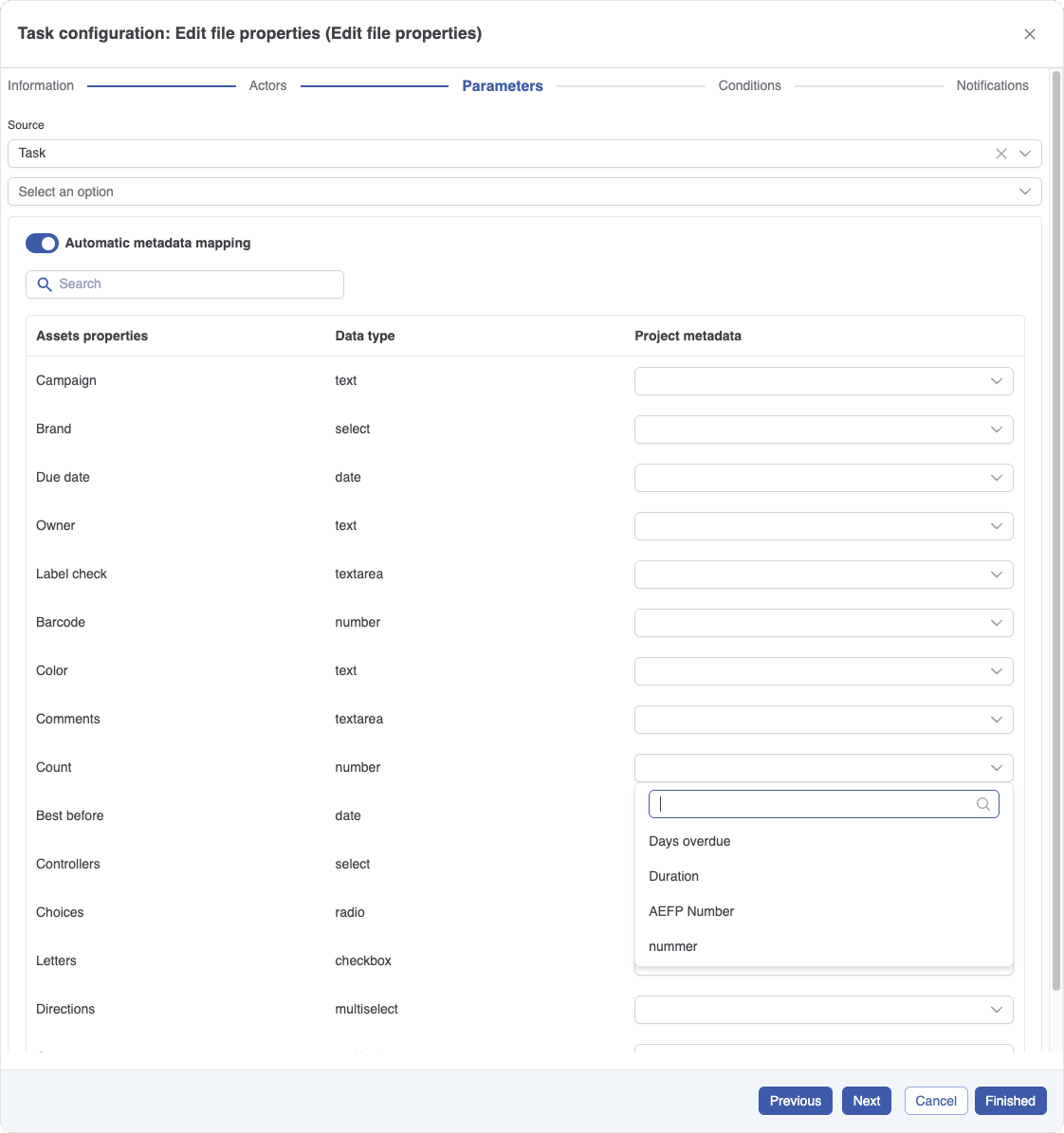
This toggle completes this task automatically. You can predefine a mapping between asset properties and project metadata. All fields of the same type can be linked to each other: in the dropdown in the right column, all project system and metadata fields of the same type will be made available as an option.
For select, radio, multiselect and checkbox fields, the match between the values needs to be exact. If they chosen value is not exact, the mapping will fail. In case of failure, the actor of the task will receive an email indicating which fields could not be mapped, in this case, a manual task is generated, to allow for the actor to manually intervene and correct the error.